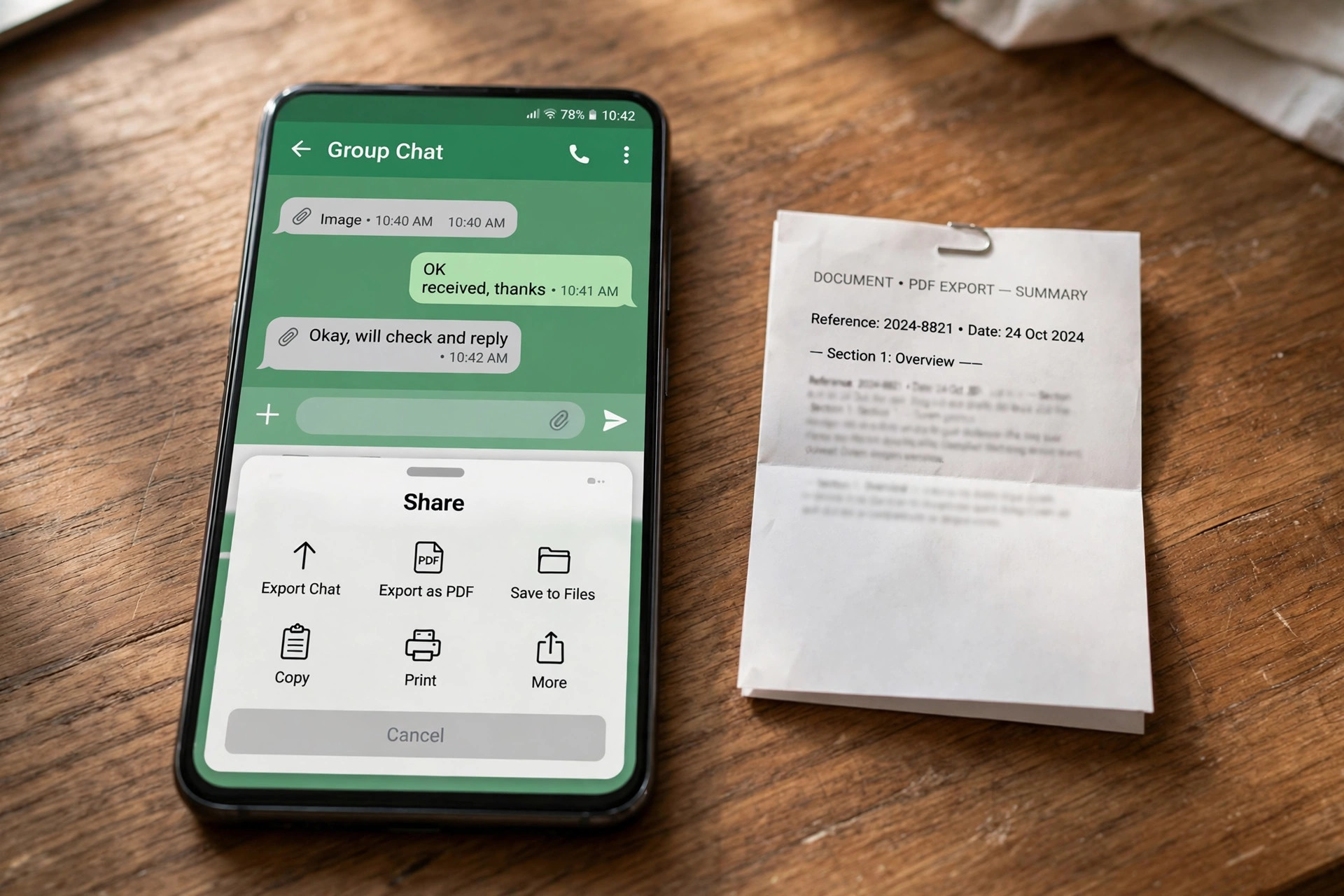
WhatsApp has a built-in Export chat feature that saves any chat as a text file. You can turn that file into a WhatsApp chat to PDF in a minute. The method is free on Android, iPhone or a computer. This guide shows five easy methods for every phone. It also covers privacy rules for exporting someone else’s messages.
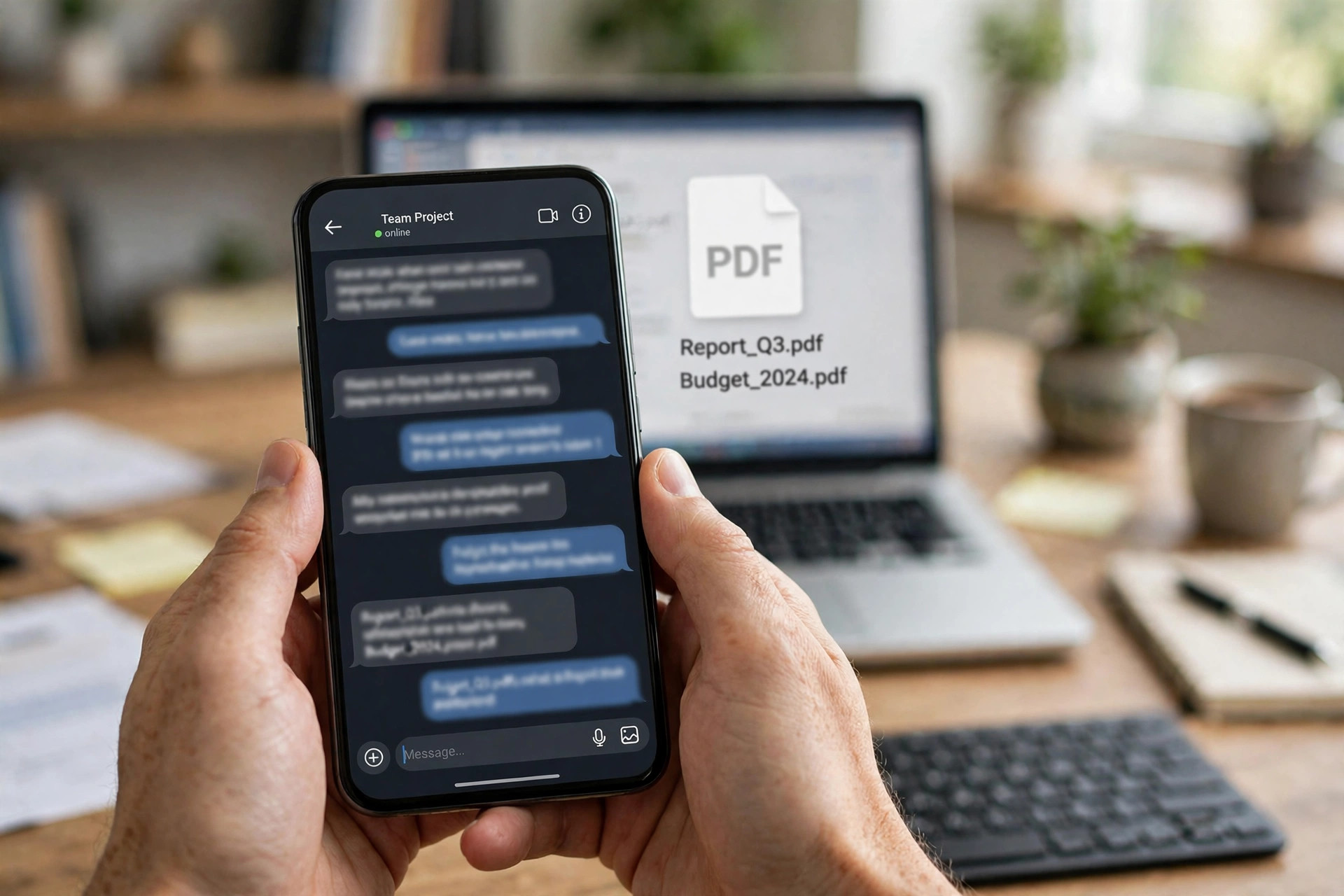
Why Export a WhatsApp Chat to PDF
A WhatsApp chat to PDF file works as a clean record outside the app. It suits receipts, agreements, booking details and family memories. The PDF opens on any phone or computer without WhatsApp installed. It also prints neatly when you need a paper copy.
An export is not a backup, and WhatsApp says so clearly. The text file cannot be re-imported into WhatsApp later. Use the phone backup in Settings when you move to a new phone. Use export only when you need a readable copy to keep. Our WhatsApp image guide covers photos you share on WhatsApp too.
Method 1: Export the Chat on Android
Android keeps Export chat inside the chat menu on every phone. The steps match on Samsung, Pixel, OnePlus and Xiaomi devices. You choose whether to include media before the share sheet opens.
Step 1: Open the chat, tap the three dots, then tap More. Choose Export chat from the menu that appears next. The app then asks about media for the export.
Step 2: Pick Without media or Include media. Without media exports up to 40,000 messages in one file. Include media caps the export at 10,000 messages with photos.
Step 3: Choose where to send the file from the share sheet. Email it to yourself, save it to Google Drive, or pick Quick Share. The fone.tips guide shows the same Android export steps with screenshots.
Method 2: Export the Chat on iPhone
The iPhone route starts from the contact name at the top. Export chat sits near the bottom of the info page. The iPhone saves the export as a ZIP file by default.
Step 1: Open the chat and tap the contact or group name. Scroll down the info page until you see Export chat. Tap it to open the media choice screen.
Step 2: Choose With all media, With selected media, or Without media. Attach Media includes photos, voice notes and short videos too. Without media keeps the file small and exports more messages.
Step 3: Pick Save to Files, Mail or Notes from the share sheet. Save to Files keeps the ZIP on your phone for later. WhatsApp’s own export help page lists the same steps for iPhone.
Method 3: Export the Chat on WhatsApp Web
WhatsApp Web can export a chat straight from your browser window. It suits long chats you already read on a computer. Note that Web exports include text only, with no media files.
Step 1: Open WhatsApp Web and click the chat you need. Scroll up first so older messages load into view. The export covers only the messages that have loaded.
Step 2: Click the three dots at the top, then choose Export chat. Pick All messages or a custom date range for the file. Then click Export to download the ZIP file.
Step 3: Unzip the file and open the text file inside. The text opens in Notepad or TextEdit on any computer. Method 4 below turns that text into a WhatsApp chat to PDF file.
Method 4: Turn the Exported File into a PDF
The export gives you a plain text file, not a PDF. A print to PDF step turns it into a WhatsApp chat to PDF file. This works on Windows, Mac and most phones alike.
Step 1: Open the text file in Notepad, TextEdit or Word. On iPhone, open it from Files with a text viewer app. On Android, open it from Google Drive or Files.
Step 2: Press Control plus P on Windows or Command plus P on Mac. Choose Microsoft Print to PDF or Save as PDF as the printer. Set the paper size to A4 for a tidy result.
Step 3: Click Print or Save, name the file and pick a folder. The PDF keeps every message line with its date and time. Our scanned documents to PDF guide shows the same print route for papers.
Method 5: Screenshot the Chat and Merge It into a PDF
Screenshots keep the chat look, with bubbles, ticks and photos in place. This suits short chats you want to show exactly as seen. Take the shots, then merge them into one PDF file.
Step 1: Open the chat and take screenshots as you scroll. On Android, use the scrolling screenshot option when it appears. On iPhone, take one shot per screen and move on.
Step 2: Merge the screenshots into one PDF with our free tool. Our merge images into one PDF guide stacks the shots in order. Name the files 01, 02 and 03 first for correct order.
Step 3: Open the PDF and check the order and the image quality. Crop any shot that shows the status bar twice over. Our mobile screenshot to PDF guide covers the phone route in detail.
Privacy Rules Before You Save a Chat
A chat belongs to everyone in it, not just to you. Ask the other person before you export or share their messages. This matters most for private talks, photos and voice notes. A WhatsApp chat to PDF copy is still a copy of private words.
An exported file leaves WhatsApp with no encryption on it at all. Anyone with the file can read every message inside it. Delete the export after use, and never upload chats to random converter sites. A participant can also block exports with Advanced Chat Privacy in newer WhatsApp versions.
If Export chat is missing from the menu, Advanced Chat Privacy may be on. That setting blocks exports for every person in that chat. Respect the block and ask the group before you try another route.
Frequently Asked Questions
Can I export a WhatsApp chat to PDF without any app?
Yes, Export chat is built into WhatsApp on Android and iPhone. The export gives a text file, which you print to PDF. No third-party app is needed for the whole job.
How many messages can I export from WhatsApp at once?
WhatsApp exports up to 40,000 messages without media in one file. With media included, the cap drops to 10,000 recent messages. Older messages stay on the phone but leave the export out.
Does the export include photos and voice notes?
Yes, if you choose Include media or Attach Media in the export. Photos, voice notes and short videos join the ZIP file. The text file still lists each message with its time.
Is it legal to save someone else’s WhatsApp chat as a PDF?
Rules differ by place, so get consent before you export a chat. A private chat shared without consent can break trust and local law. When in doubt, ask first and keep the file private.
Export chat plus print to PDF is the easiest WhatsApp chat to PDF route. Use screenshots when you need the exact chat look instead. Keep the file safe after you save it. Shrink it with our reduce PDF file size guide before you email it anywhere.
Leave a Reply