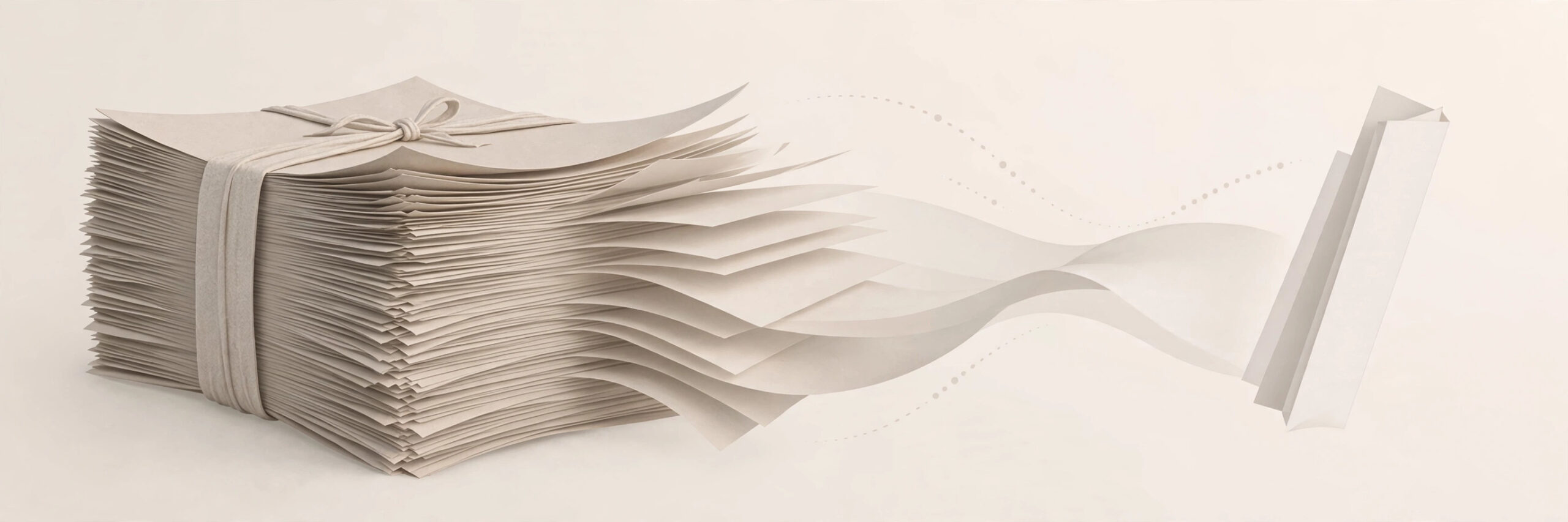
A PDF that is too big gets rejected by email, job portals and online forms. The fix is usually simple — most of the size comes from a few heavy images or extra pages hiding inside the file. Here is how to shrink a PDF without making it unreadable.

Why PDFs become so large
The biggest reason is images. Scanned pages saved at very high resolution, photos pasted at full size, and embedded fonts all add weight. A single scanned page can be several megabytes on its own, so a 20-page scan quickly becomes a file nobody can email.
Step-by-step: make your PDF smaller
- Compress the images inside the PDF. This gives the biggest saving. For documents read on screen, images at around 150 DPI look perfectly fine — you rarely need 600 DPI.
- Remove pages you do not need. Blank pages, duplicates and old drafts often sit inside the file unnoticed.
- Use a free PDF compressor tool. Pick one that lets you choose a quality level, and prefer “balanced” over “maximum compression” so text stays readable.
- Avoid scanning at maximum resolution. When you scan a document, 200 to 300 DPI is plenty for everyday use.
- If you build the PDF from images, compress the images first, then create the PDF. Shrinking images before they go in beats trying to fix a heavy PDF later.
How small can it go?
It depends on the file. A scanned document can often drop from 20 MB to 2 or 3 MB with no visible difference on screen. A text-based PDF is usually small already, so do not expect miracles there — the wins come from image-heavy files.
Mistakes to avoid
Over-compressing until the text turns blurry. Deleting pages you actually need — always check the page count before and after. And paying for expensive software when a free browser tool does the same job for a one-off file.
Final tip
Start with the images, remove the extras, and compress once at balanced quality. And if you work with PDFs often, iboxseo.org has free PDF tools that run right in the browser — merge PDFs or turn PDF pages into images with no login needed.
Leave a Reply