You can unlock a PDF you own in two minutes with tools already on your device. Open the file with its known password first. Then print it to a new PDF, and the fresh copy opens without asking again. This guide shows six free methods for Windows, Mac, Android and iPhone.
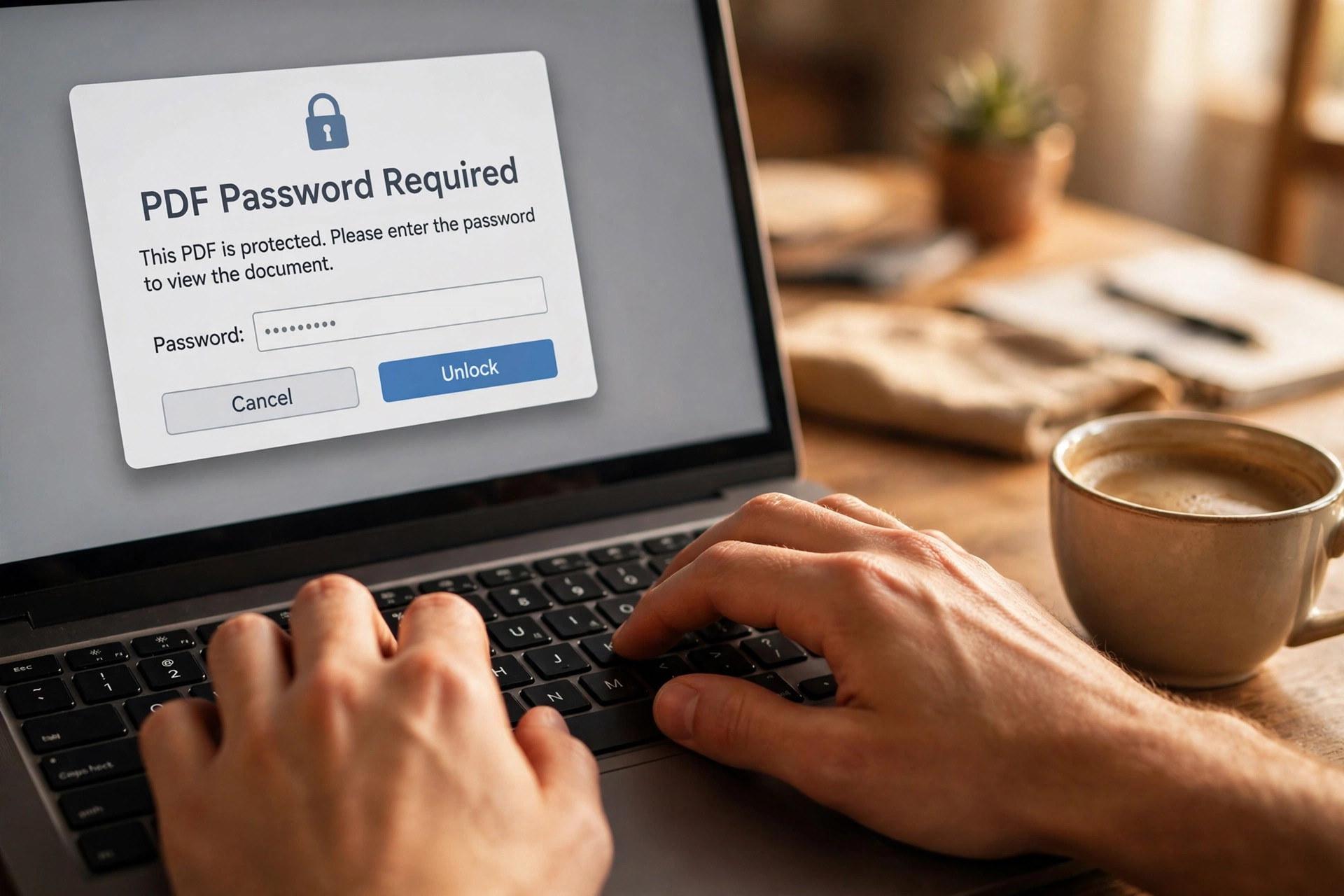
Two Kinds of PDF Locks: Know Which One You Have
A PDF can carry two kinds of locks, and the fix depends on the lock. An open password asks for a code before the file opens at all. A permissions password lets the file open but blocks printing, copying or editing.
Every method below can unlock a PDF only when you know the open password. If you forgot the password, no honest tool can recover a strongly encrypted file. Ask the sender for the password or for a fresh copy without protection.
Only unlock a PDF you own or have clear permission to change. Removing a password from someone else’s file without permission can break the law where you live. Work files from your employer count only when your employer allows it.
A permissions-only lock is easier to remove than an open password. Chrome, Preview and Acrobat can all save a fresh copy once the file opens. The sections below start with the quickest free method for each device.
Method 1: Chrome or Edge Print to PDF
This is the fastest free way to unlock a PDF on Windows or Mac. Chrome and Edge both open protected PDFs and can print them to a fresh file. The new copy keeps the pages but drops the password and any links or form fields.
Step 1: Drag the locked PDF into a Chrome or Edge window.
Step 2: Type the open password when the browser asks for it.
Step 3: Press Ctrl+P on Windows or Cmd+P on Mac.
Step 4: Set the destination to Save as PDF.
Step 5: Click Save and pick a name for the new file.
Open the saved file to check that it opens without a password. If the print option is greyed out, the file blocks printing. Try Acrobat instead, or ask the owner for an unrestricted copy. If the new file grows too large, shrink it with our PDF size guide. PDF Lemon’s guide to removing a PDF password covers the same print method step by step.
Save the new file under a clear name, such as the original name plus unlocked. That way you keep the locked original as a backup.
Method 2: Preview on Mac
Preview can unlock a PDF on a Mac in a few seconds. Open the file, type the password, then export it as a new PDF. The fresh copy carries no password at all.
Step 1: Open the locked PDF in Preview.
Step 2: Type the password when asked.
Step 3: Choose File, then Export as PDF.
Step 4: Pick a name and save the new file.
Check the new file by opening it in Preview again. It should open straight away with no prompt. This method keeps the layout clean and costs nothing.
Method 3: Adobe Acrobat Pro
Acrobat Pro removes the password from the file itself, instead of making a printed copy. Links, bookmarks and form fields stay intact in the saved file. Acrobat Reader cannot do this, so you need the paid Pro version. After unlocking, you can sign the PDF on your phone without retyping the password each time.
Step 1: Open the PDF in Acrobat Pro and type the password.
Step 2: Go to Tools, then Protect, then Encrypt.
Step 3: Choose Remove Security and confirm the change.
Step 4: Save the file with the same name or a new one.
This is the best method when the PDF must stay fully editable. It also works on files that block printing, as long as you know the open password.
Method 4: Android or iPhone
You can unlock a PDF on your phone without a computer. Open the file in Chrome or your PDF app and type the password. Then print it to a new PDF from the share or menu button. The steps match the desktop print method closely. If the PDF is a form, fill it after unlocking with our form guide.
Step 1: Open the PDF in Chrome and type the password.
Step 2: Tap the three-dot menu and choose Share, then Print.
Step 3: Set the printer to Save as PDF and tap Save.
On iPhone, open the PDF in Safari or Files and type the password. Tap Share, then Print, and pinch out on the preview. Tap Share again and save the file to Files.
The new file saves without a password on both systems. Keep the original locked file until you have checked the new copy opens cleanly.
Method 5: Online Tools (and the Privacy Catch)
Sites like iLovePDF and Smallpdf can unlock a PDF in your browser without installing anything. Upload the file, type the password, and download the clean copy. The catch is that your file leaves your device. Avoid this method for bank papers or medical records.
Step 1: Open a trusted unlock tool in your browser.
Step 2: Upload the locked PDF and type the password.
Step 3: Download the unlocked copy and delete the upload if asked.
Use this method only for low-risk files, such as a public form or a brochure. Sensitive files belong offline, in Chrome, Preview or Acrobat Pro. After unlocking, protect the file again with a fresh password using our password guide.
Method 6: qpdf for Many Files at Once
qpdf is a free command-line tool that can unlock a PDF in one line. It suits people who must unlock dozens of files at once. Install it once, then run one command per file with the password included.
qpdf --decrypt --password=YOURPASSWORD locked.pdf unlocked.pdf
This method keeps links and form fields intact, unlike the print trick. It also handles permissions-only locks without needing any password at all. FileShot’s unlock guide lists browser tools that work without any upload. Once unlocked, you can split the PDF into separate pages or merge it with other files.
Frequently Asked Questions
Can I unlock a PDF without knowing the password?
No honest method unlocks a strongly encrypted PDF without its password. Acrobat itself offers no recovery option for a lost open password. Your only real path is to ask the sender for the password or a fresh copy.
Does unlocking a PDF change how it looks?
The print method can flatten form fields and break links, so the copy may differ slightly. Acrobat Pro and qpdf keep the file intact, so use them when layout matters. Our guide to turning PDF pages into images shows each step.
Is it legal to remove a password from a PDF?
Yes, when the file is yours or you have clear permission from the owner. Removing protection from a file you do not own can break the law in many places.
Which free method unlocks a PDF the fastest?
Chrome print to PDF is fastest on Windows, and Preview export is fastest on a Mac. Both take under a minute once you know the password.
Can I unlock a PDF on my phone?
Yes, open it in Chrome or your PDF app and type the password. Then print it to a new PDF from the menu. The fresh copy saves without any password on Android and iPhone.
Keep the locked original until the new copy is checked and working. Then store the password safely, or protect the file again with our password guide. You can unlock a PDF you own in minutes, with no paid software at all.
Leave a Reply