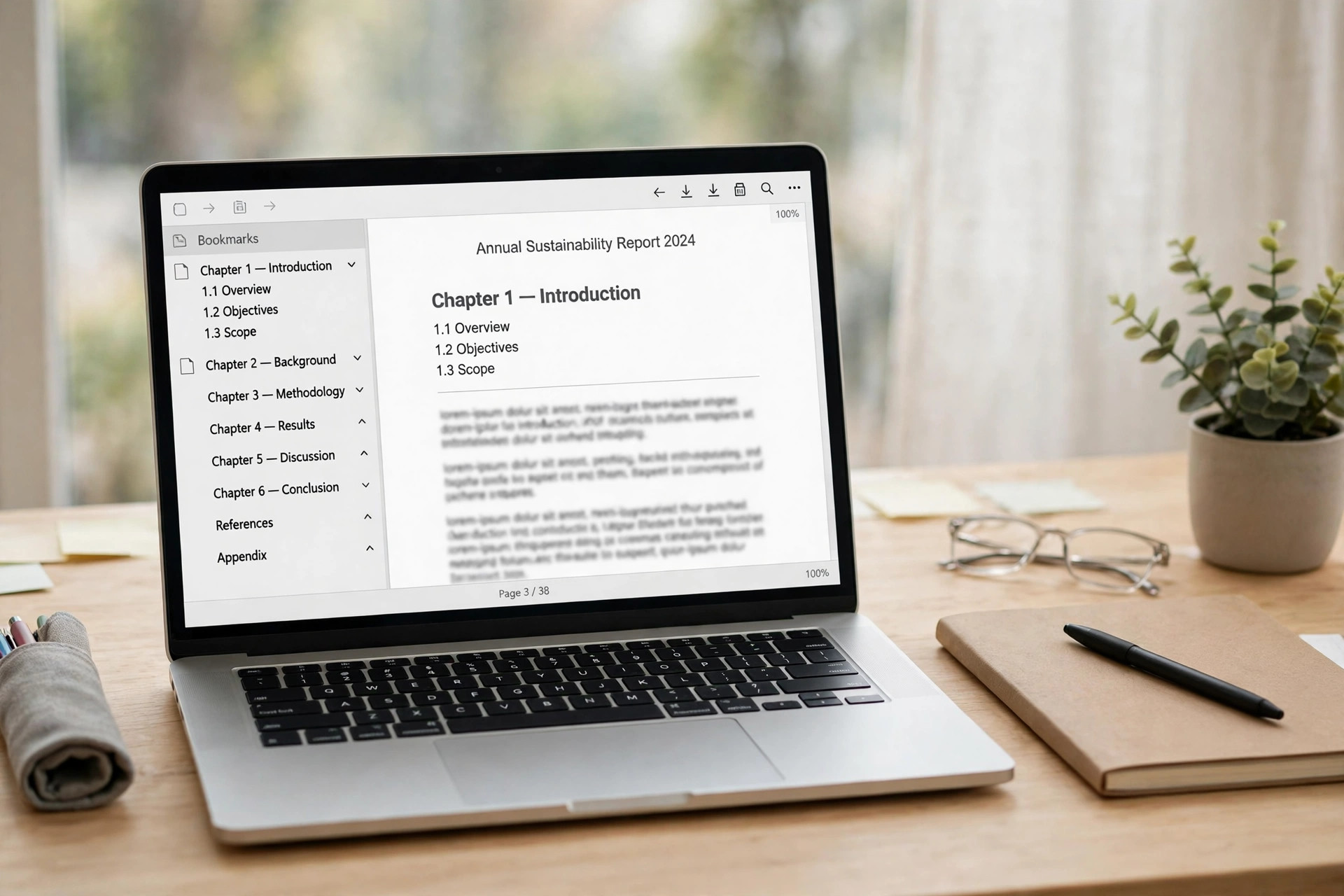
Bookmarks turn a long PDF into a file you can navigate in one click. Each bookmark jumps to a chapter, section or key page. You can add bookmarks to a PDF for free with Word, LibreOffice or an online tool. This guide shows four methods, step by step. It also shows how to build an outline readers will use.
What Are PDF Bookmarks and Why They Help
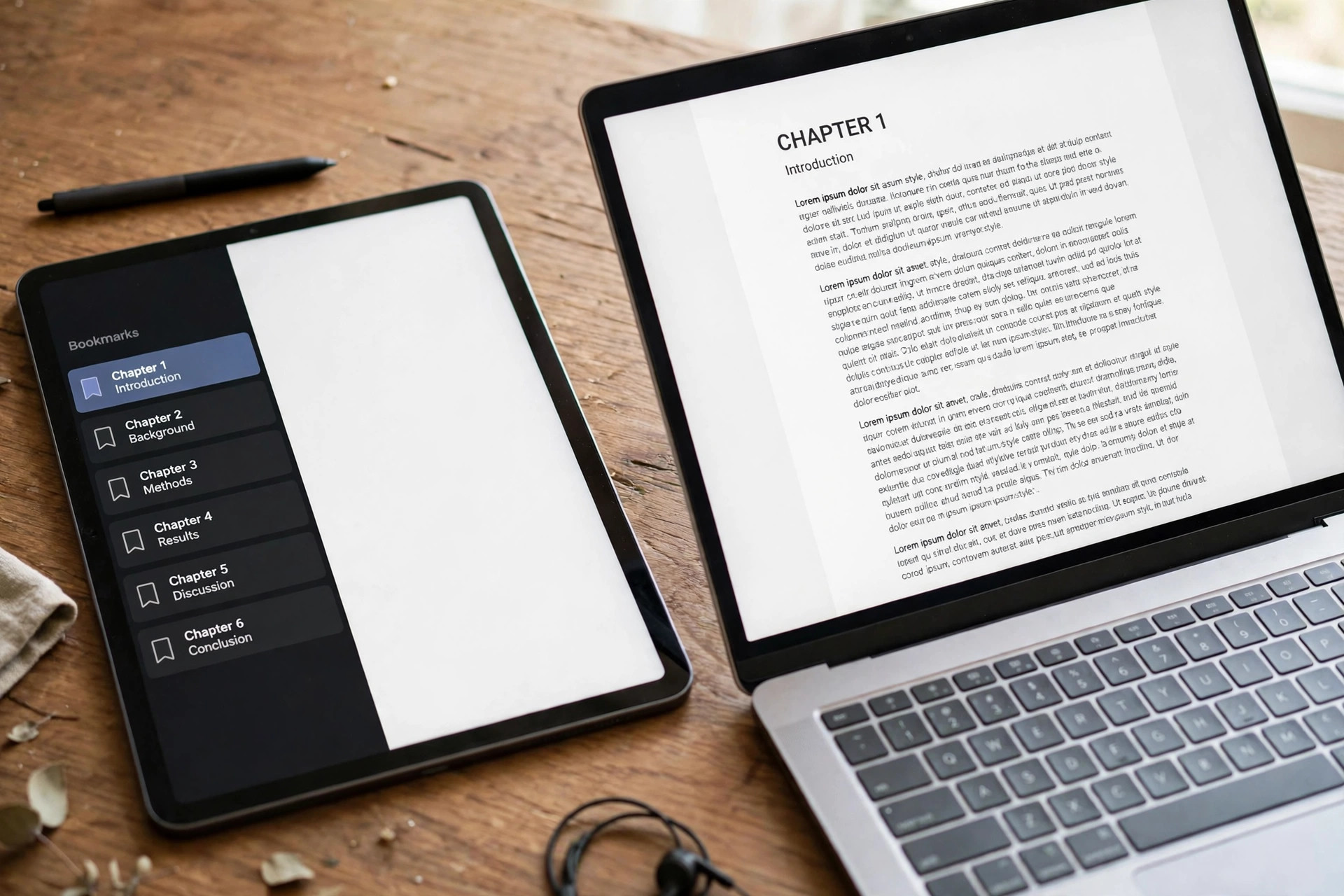
A PDF bookmark is a clickable link in the side panel of a PDF reader. It jumps to a page, a heading or a section with one click. Bookmarks make long reports, ebooks and manuals far easier to use. Readers can find the part they need without scrolling through every page.
Bookmarks are also called an outline, since they show the document structure at a glance. A good outline mirrors the chapter and section headings of the file. Screen readers use the same structure, so bookmarks also help accessibility. That is one more reason to add bookmarks to a PDF before you share it.
Method 1: Create Bookmarks in Microsoft Word Before Export
The easiest way to add bookmarks to a PDF is to create them in Word first. Apply Word heading styles to each chapter and section title in the document. When you export the file, Word turns those headings into PDF bookmarks. This method is free if you already use Word, and it stays accurate.
Step 1: Open the document in Word and select each chapter title in turn.
Step 2: Apply Heading 1 to chapter titles and Heading 2 to section titles.
Step 3: Click File, then Save As, and choose PDF as the file type.
Step 4: Click Options and tick Create bookmarks using Headings in the dialog.
Step 5: Click OK, then Save, and open the PDF to check the bookmarks.
Word can also use its own bookmarks as the source, if you prefer that route. Choose Create bookmarks using Word bookmarks in the same Options dialog. The W3C guide to PDF bookmarks explains the Word export flow in detail. It also covers tagged PDF settings that help screen readers read the file.
Method 2: Add Bookmarks Manually in Adobe Acrobat Pro
Acrobat Pro lets you add bookmarks to a PDF that already exists, with no source file. Open the Bookmarks panel, go to the page you want, and create a new entry. You can nest entries under a parent to build a clean outline. This method suits merged files, scanned reports and older documents best.
Step 1: Open the PDF in Acrobat Pro and click the Bookmarks icon.
Step 2: Go to the page and view you want the bookmark to open.
Step 3: Select text first if you want it to become the bookmark name.
Step 4: Choose New Bookmark from the panel menu and type a clear name.
Step 5: Drag the entry to nest it under a parent or reorder the list.
Acrobat can also build bookmarks from the document structure in one go. Choose New Bookmarks From Structure when the PDF has real tagged headings. The tool creates an entry for each heading and nests them by level. You can rename any entry that came out wrong and delete the extra ones. If you merged files first, read our guide on merging PDFs into one file. Start the outline only after the pages sit in the right order.
Method 3: LibreOffice Writer (Free, Windows and Mac)
LibreOffice Writer is a free way to add bookmarks to a PDF on any computer. Write or open the document, apply heading styles, and export it as PDF. Tick Export outlines on the General tab of the export dialog. Each heading then becomes a bookmark in the saved PDF file.
Step 1: Open the document in LibreOffice Writer and apply heading styles first.
Step 2: Choose File, then Export As, then Export as PDF from the menu.
Step 3: Tick Export outlines on the General tab of the dialog box.
Step 4: Click Export, choose a file name, and save the PDF file.
LibreOffice costs nothing and needs no account, so it suits students and small teams. The export keeps heading levels, so chapters sit above sections in the outline. If a heading lands at the wrong level, fix the style and export again. You can also convert Word to PDF for free and keep the same heading structure.
Method 4: Free Online Bookmark Tools
Online tools let you add bookmarks to a PDF right in your browser window. You upload the file, type each bookmark name and page number, and download the result. There is no software to install, and the tools work on any device. Use them only for files with no sensitive data, since you upload first.
Step 1: Open a free online PDF bookmark tool in your browser window.
Step 2: Upload the PDF and wait for its current bookmarks to load.
Step 3: Add a new bookmark with a clear name and target page number.
Step 4: Save the file and download the new PDF with its bookmarks.
Some tools let you import a list of bookmarks from a text file. That saves time when a long report needs fifty or more entries at once. The EditPDF guide to adding bookmarks walks through the online flow with examples. Always test every bookmark in the downloaded file before you share it.
How to Organise Bookmarks into a Clean Outline
A good outline reads like a table of contents, with short names at each level. Use the exact chapter and section titles from the document itself. Keep names short, so the full text fits in the side panel. Nest sections under their chapter, and never nest more than three levels deep. That is the goal when you add bookmarks to a PDF for readers.
Start with the big parts, like the introduction, chapters and appendix at the top level. Put sections one level down, and small sub-sections one more level down. Remove entries that point to the same page twice, since they add clutter. A clean outline helps readers and search tools understand the file fast. If pages sit in the wrong order, fix them first. Our guide on rotating and rearranging PDF pages shows the steps.
Common Bookmark Mistakes to Avoid
The most common mistake is adding bookmarks that all point to page one. That happens when the destination is set before you move to the right page. Always go to the target page first, then create the bookmark entry. A second mistake is using vague names like Section 1 or Part A.
Vague names tell the reader nothing, so use the real heading text instead. The third mistake is nesting every entry five or six levels deep. A deep tree is hard to scan, so keep the outline flat and simple. The fourth mistake is skipping a check of the saved file before sharing it. The OneLegal guide to PDF bookmarks shows the Acrobat steps with screenshots.
Click each bookmark in the saved copy and confirm it opens the right page. Fix any entry that lands on the wrong page or opens the wrong view. Also check that the outline opens by default when the file is shared. Some readers hide the panel, so tell readers where to find it.
Frequently Asked Questions
Can I add bookmarks to a PDF for free?
Yes, Word and LibreOffice create bookmarks for free when you export a PDF. Free online tools also add bookmarks to an existing PDF in your browser. Acrobat Pro adds them too, but it needs a paid plan to use.
Do PDF bookmarks work on phones and tablets?
Yes, most PDF readers on phones and tablets show the bookmark panel. Tap the outline icon to open it, then tap a bookmark to jump. Some simple viewers hide the panel, so test the file on your device.
Can I add bookmarks to a scanned PDF?
Only after the scan has a text layer, since bookmarks need real structure to work. Run OCR first to make the file searchable, then add the bookmarks. Our guide on making a scanned PDF searchable shows the free OCR steps.
Will bookmarks survive when I merge two PDFs?
It depends on the tool, since some merge tools drop bookmarks from both files. Acrobat Pro keeps them, and some free tools keep them too. Always check the outline after merging and add any missing entries back.
How many bookmarks should a long PDF have?
Add one bookmark for each chapter, section and appendix in the file. A 50-page report may need 15 to 25 entries, while a short guide needs fewer. Keep names short and skip pages that add no value to readers.
Bookmarks take a few minutes and make any long PDF far easier to use. When you add bookmarks to a PDF, readers find what they need fast. Build them from headings in Word or LibreOffice when you can. Add them by hand in Acrobat for files that already exist. Check every entry in the saved file, then share it with confidence.
Leave a Reply