Paper documents pile up fast — bills, certificates, application forms, handwritten notes. Scanning them into a PDF is the simplest way to store, share and back them up. A PDF keeps every page in one file, looks the same on every device, and is easy to send by email or WhatsApp. You do not need an expensive scanner either. A phone camera and a few careful steps are enough to turn a stack of papers into a clean, professional-looking PDF. In this guide, you will learn how to scan documents with your phone or a computer scanner, and turn them into a single PDF that is easy to read and share.
What You Need
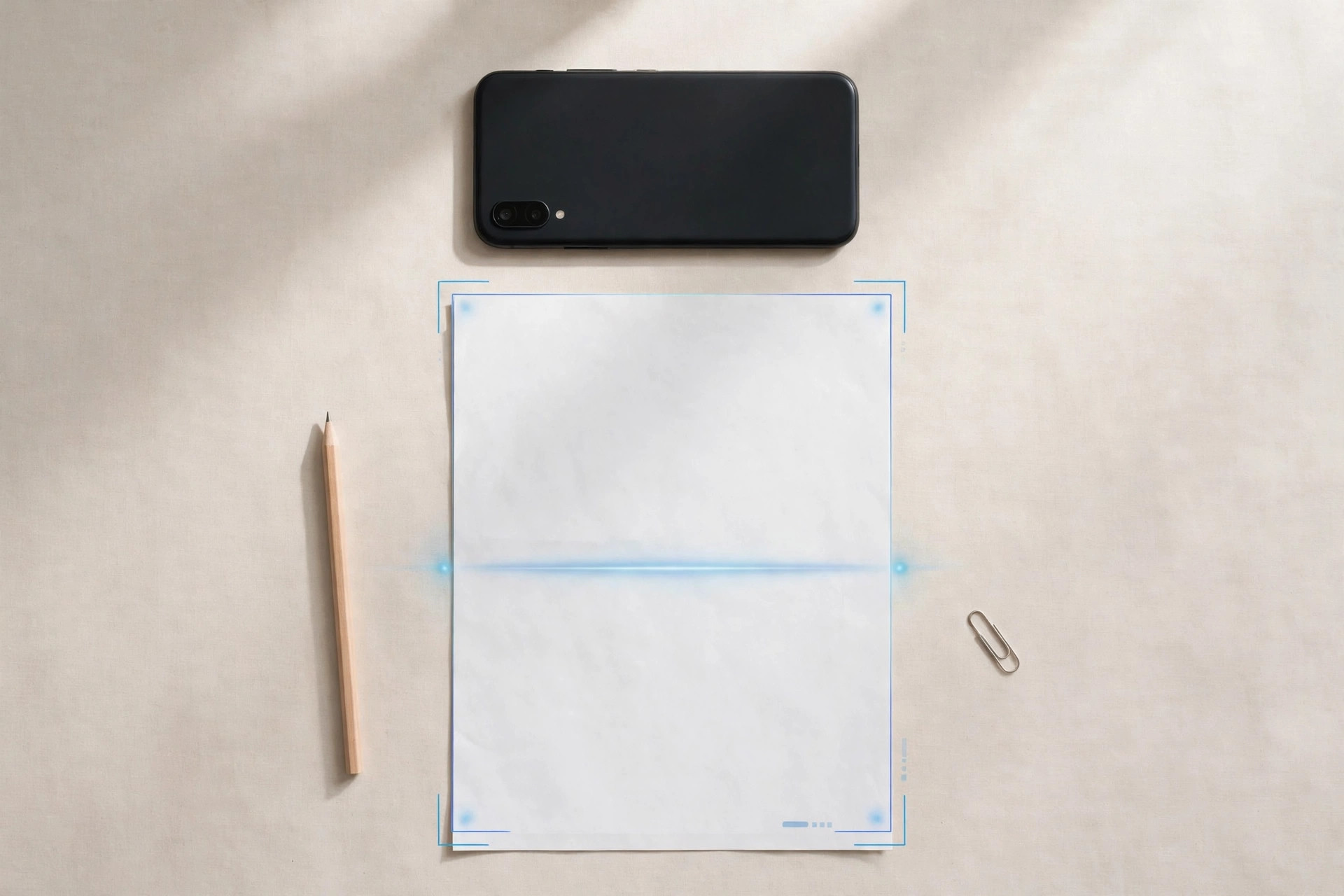
You need very little to get started. A phone with a camera works for most documents, or a flatbed scanner if you have one. Your phone may already have a scanning option built into its notes or files app, and free scanner apps are available for both Android and iPhone. You also need good light — natural daylight near a window works best — and a plain, slightly dark surface under the page, which helps the app detect the edges of the paper.
Step-by-Step: Scan Documents With Your Phone
- Prepare the pages. Remove staples and paper clips, and flatten folded or curled pages as much as you can. A flat page scans far better than a wrinkled one.
- Set up good light. Place the page near a window or under a bright lamp. Make sure your own shadow, and the shadow of your phone, does not fall across the page.
- Capture each page. Hold the phone steady, directly above the page, and let the app detect the edges. Take one page at a time rather than rushing through the stack.
- Crop and straighten. Trim away the table or background around the page, and fix any tilt so the text lines run horizontally.
- Check readability. Zoom in on the scan. The text should be sharp and easy to read. If a page is blurry or cut off, retake it straight away — it is much harder to fix later.
- Combine the pages into one PDF. Most scanning apps can export all pages as a single multi-page PDF. If your pages are saved as separate images instead, a free image-to-PDF tool can combine them: iboxseo.org’s Screenshot to A4 PDF tool turns images into a clean A4 PDF right in the browser, with no login needed.
- Name and save clearly. Use a name you will recognise later, such as electricity-bill-october-2026.pdf, and save a backup copy in cloud storage or on your computer.
Scan With a Computer Scanner
If you have a flatbed scanner, place each page face down on the glass and choose PDF as the output format. A resolution of 300 dpi is a good standard choice for documents — sharp enough to read and print, without creating an unnecessarily huge file. Scan all the pages into one file if your scanner software allows it. If it saves each page as a separate PDF, you can join them afterwards with iboxseo.org’s free PDF Merge tool, which combines multiple PDFs into one file in the browser.
Tips for Clean, Readable Scans
Use a dark background under white pages so the app finds the edges correctly. Scan in colour for documents with stamps, signatures or coloured seals, and in black-and-white for plain text pages to keep the file smaller. Keep the original paper until you have checked the final PDF. If the finished PDF is too large to email, check whether your scanning app offers a smaller file size or compression option before sending.
Common Mistakes to Avoid
The most common problems are shadows and glare across the page, tilted or half-cut pages, and text that is too small because the photo was taken from too far away. Another frequent mistake is saving pages as scattered JPG images instead of one PDF — the receiver then has to open each file separately, and pages can easily arrive out of order. Take a few extra seconds per page and you will avoid all of these.
Final Word
Converting scanned documents to PDF is mostly about patience: good light, a flat page, a steady hand, and a quick readability check on every page. Once you have a clean PDF, it is ready to email, upload to a form, or store safely in the cloud — and the original paper can go back in the drawer.
Leave a Reply