One long PDF often holds several parts you need separately. You may want the first chapter, the middle pages and the appendix as three files. When you split PDF by ranges, you choose the exact pages for each new file. This guide shows four free methods that work online and offline.
What It Means to Split PDF by Ranges
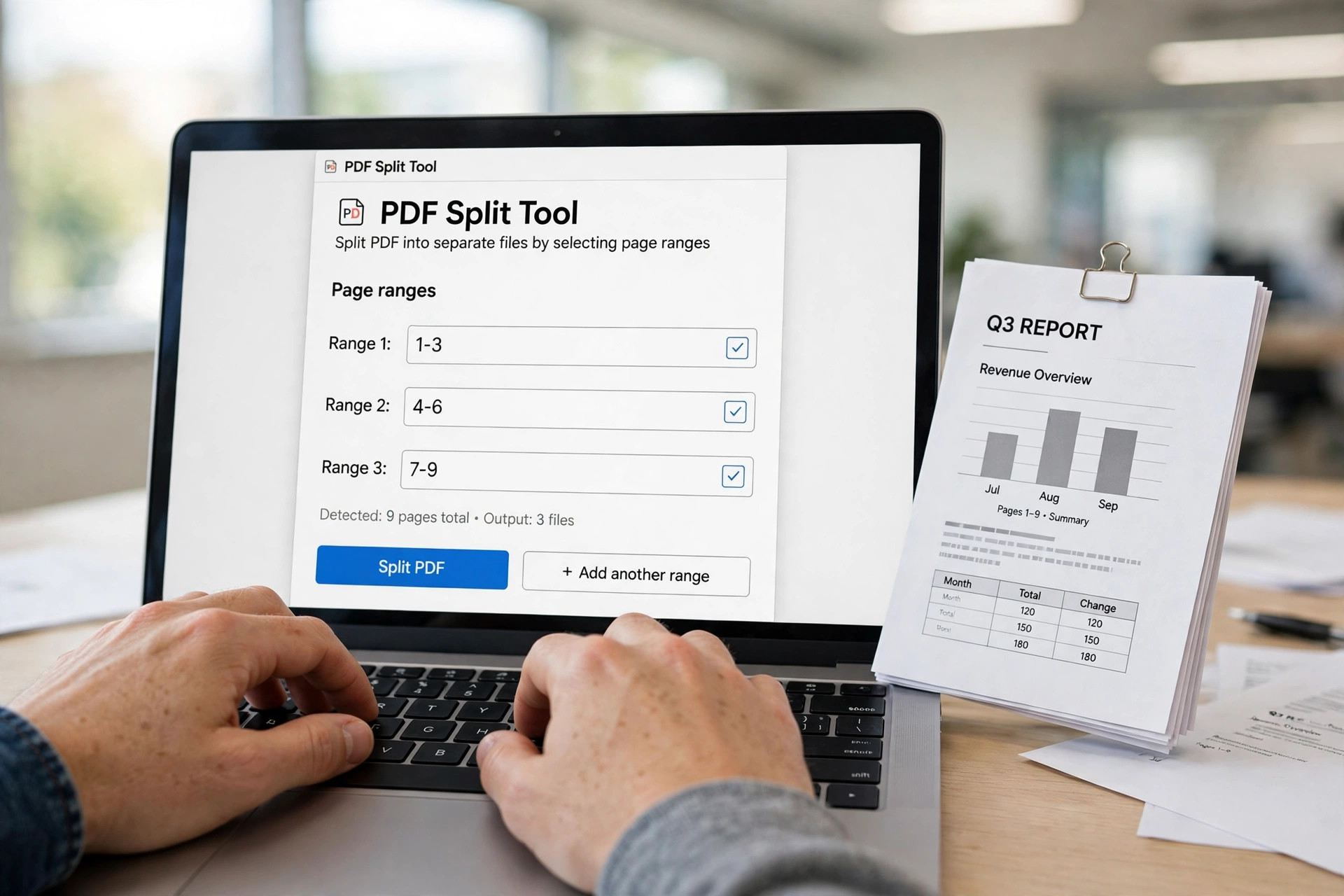
Splitting by ranges means cutting one PDF into smaller files at page numbers you pick. You might take pages 1 to 4 for the cover and introduction. Pages 5 to 12 could form the main chapter instead. Pages 13 to 16 then become the appendix file. Each range becomes its own PDF file with the same quality as the original.
This is different from splitting every page into its own file. That method creates dozens of tiny documents instead. Range splitting keeps related pages together in one useful file. It suits reports, ebooks, scanned books and long application forms. For a single page, read our guide on splitting a PDF into separate pages.
Method 1: Split PDF by Ranges With iLovePDF
iLovePDF is a free online tool that splits PDF files by ranges in your browser. You upload the file, type the ranges you want, and download the results. The free plan handles files up to 100 MB without any account. It also lets you merge all ranges back into one file if needed.
Step 1: Open the iLovePDF Split PDF tool in your browser window.
Step 2: Upload your PDF file by dragging it into the upload area.
Step 3: Choose Split by range and type ranges like 1-4, 5-12 and 13-16.
Step 4: Tick Merge all ranges in one PDF file only if you want that.
Step 5: Click Split PDF and download the new files to your device.
Files are deleted from iLovePDF servers after two hours, which protects your privacy. The tool keeps text and images at the same quality as the source. The iLovePDF Split PDF page explains the range options in full detail.
Method 2: Split PDF by Ranges With Sejda
Sejda is another free online splitter that works with page ranges and single pages. You can split specific ranges or extract every page into its own document. The free service covers documents up to 200 pages or 50 MB. It allows three tasks per hour, which suits most one-off jobs.
Step 1: Open the Sejda Split PDF tool and upload your PDF file.
Step 2: Select Split by pages and type the ranges you need.
Step 3: Preview the split points on the page thumbnails shown.
Step 4: Click Continue, then download each new PDF file.
Sejda deletes uploaded files after two hours, so your documents do not stay online. The tool also offers a desktop app that works fully offline. If your file is scanned, make it searchable first with our OCR guide.
Method 3: Split PDF by Ranges Offline With PDFsam Basic
PDFsam Basic is a free open-source app that splits PDF files on your own computer. Nothing is uploaded, so it suits private or sensitive documents best. It runs on Windows, macOS and Linux with no file size limit. The app also merges, rotates and extracts pages in one place.
Step 1: Download PDFsam Basic from its official site and install it.
Step 2: Open the Split module and add the PDF file to split.
Step 3: Choose Split by pages and enter the page numbers for breaks.
Step 4: Set the output folder and click Run to create the files.
PDFsam can also split by bookmarks, by size, or every few pages. That makes it handy for ebooks and long reports with clear chapters. The PDFsam Basic page lists all six tools and the free download.
Method 4: Split PDF by Ranges in Adobe Acrobat Pro
Adobe Acrobat Pro splits PDF files by ranges through its Organize Pages panel. You can extract a range into one new file or split by bookmarks. This is a paid tool, so use it only if you already have it. The steps below work in current Acrobat versions on Windows and Mac.
Step 1: Open the PDF and choose All tools, then Organize pages.
Step 2: Select the page thumbnails for the range you want.
Step 3: Click Extract pages and leave both boxes unchecked.
Step 4: Click Extract, then save the new PDF with a clear name.
Leave Extract pages as separate files unchecked when you want one file per range. Tick Delete pages after extracting only to remove them from the original. The Acrobat page extraction guide shows the same steps with screenshots.
How to Plan Your Page Ranges First
Good ranges start with a quick look at the document structure first. Note where each chapter, section or appendix begins and ends. Write the ranges on paper before you open any tool at all. A short plan saves you from splitting the same file twice.
Use ranges like 1-4, 5-12 and 13-16, with commas between each group. Keep each output file focused on one topic or one chapter only. If the file has bookmarks, split at those points for a clean result. Our guide on adding bookmarks to a PDF shows how to build that outline.
Mistakes to Avoid When You Split PDF by Ranges
The most common mistake is typing a range that skips a page by accident. Always check the last page number of the file before you start. A second mistake is splitting a password-protected file without unlocking it first. Unlock the file first with our guide on unlocking a PDF for free.
A third mistake is using an online tool for a file with private data. Use an offline app like PDFsam for contracts, medical records or bank papers. A fourth mistake is forgetting to check the output before sharing it. Open each new file and confirm it holds the right pages.
Frequently Asked Questions
Can I split a PDF by ranges for free?
Yes, iLovePDF, Sejda and PDFsam Basic all split by ranges for free. iLovePDF and Sejda work in the browser with no install. PDFsam Basic runs offline and has no file size limit.
Will the text stay selectable in the split files?
Yes, splitting copies pages as they are, so text stays selectable. Images and fonts also carry over without any quality loss. Scanned pages stay as images unless you run OCR first.
Can I split a PDF by bookmarks instead of page numbers?
Yes, PDFsam Basic and Acrobat Pro can split at bookmark levels. Each top-level bookmark becomes the start of a new file. This works well for ebooks and reports with clear chapters.
Is it safe to split a PDF with an online tool?
It is safe for most files, since trusted tools delete uploads within hours. Still, avoid online tools for contracts or papers with private data. Use an offline app like PDFsam for those files instead.
What is the difference between splitting by ranges and extracting pages?
Splitting by ranges divides the whole file into several new files. Extracting pages pulls only chosen pages into one new file. Both use the same tools, so pick the method that fits your goal.
When you split PDF by ranges, a long document becomes a set of focused files. Plan the ranges, pick the tool that fits your file, and check the output. Free tools handle most jobs in minutes, with no paid software needed. Share only the pages your reader needs, and keep the rest safe.
Leave a Reply