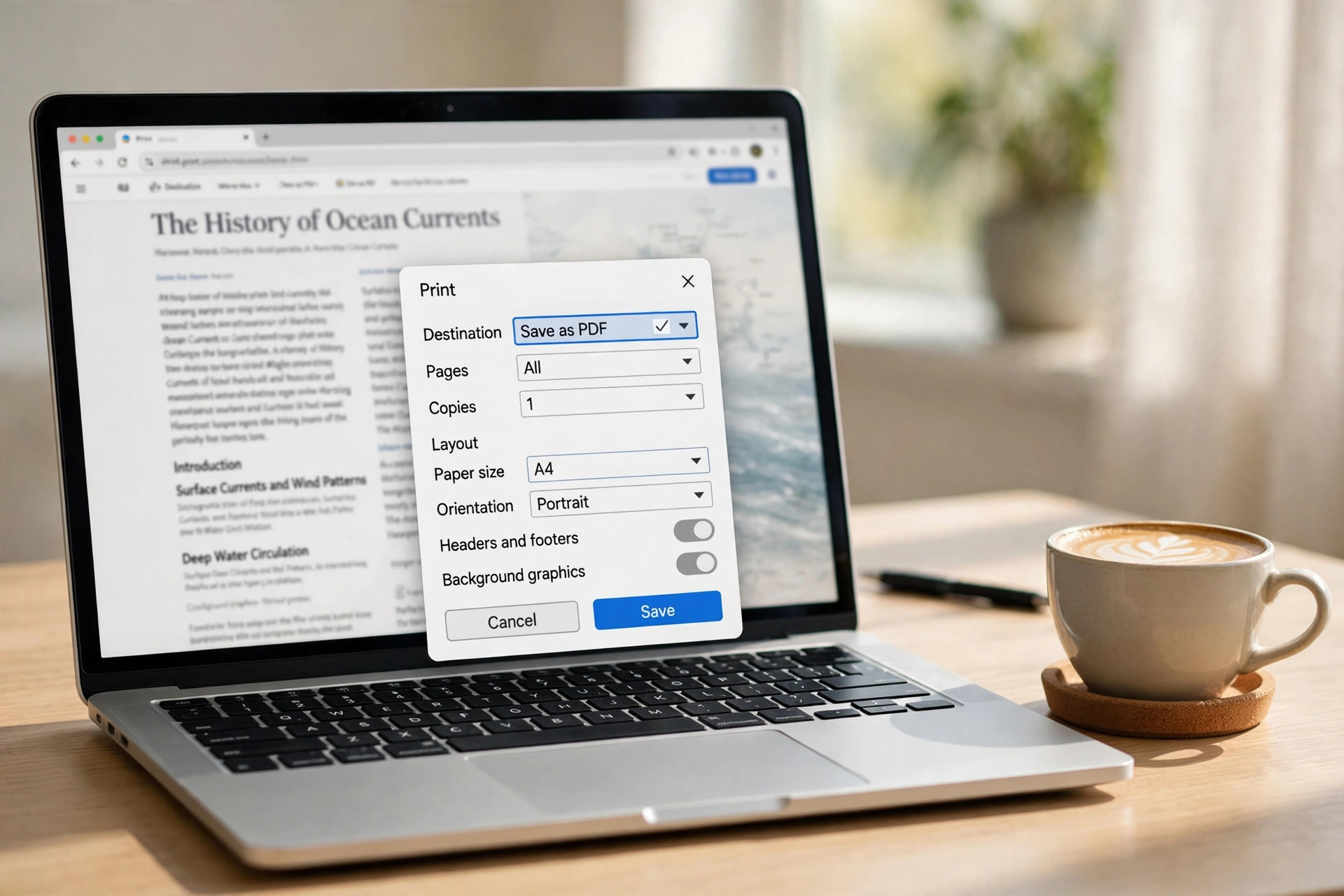
You can save a long web page as PDF in under a minute with your browser. Press Control plus P, choose Save as PDF, and keep Pages on All. The result is a paginated document with selectable text and clickable links. This guide shows six free methods for desktop and mobile. It also fixes pages that cut off mid-sentence.
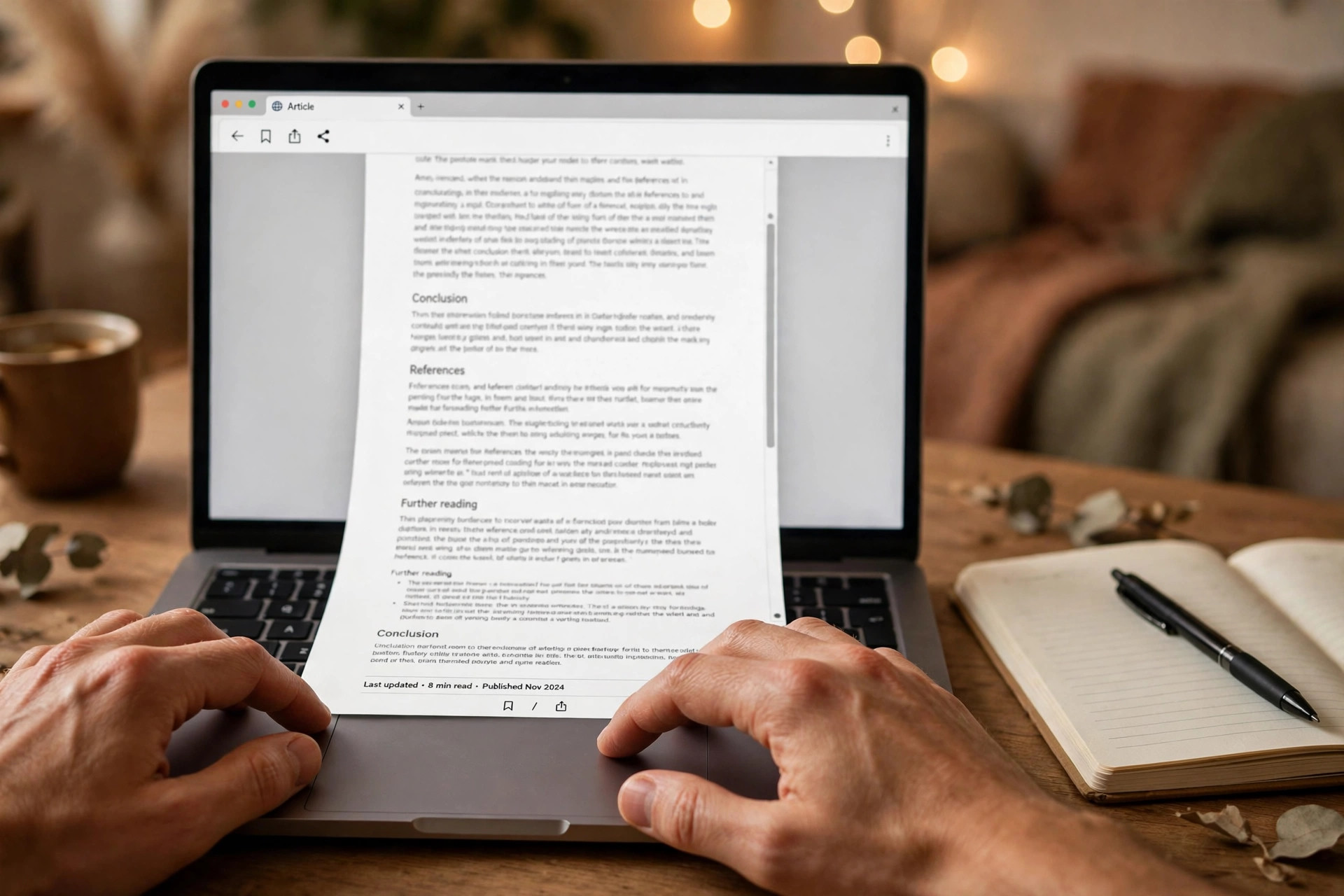
Why Print to PDF Beats a Screenshot for Long Pages
A screenshot saves a long page as one flat image file. Text inside that image cannot be searched or copied later. Print to PDF keeps the text selectable and the links clickable. It also splits the page into clean A4 sheets for printing. That makes it the better choice for articles, receipts and records.
A full page screenshot still has its uses sometimes. Our full page screenshot guide shows how to take one. Use screenshots when a page blocks printing or uses heavy animation. For most reading and archiving, though, save a long web page as PDF instead. The file stays small, sharp and easy to share by email.
Method 1: Save a Long Web Page as PDF in Chrome or Edge
Chrome and Edge share the same print engine, so the steps match. This is the fastest way to save a long web page as PDF on a computer. It needs no extension, no account and no extra software at all.
Step 1: Open the page and wait for images to finish loading. Scroll to the bottom once, then return to the top. This wakes up lazy images before you print the page.
Step 2: Press Control plus P on Windows or Command plus P on Mac. The print dialog opens with a preview of the saved pages. Check that the last page looks complete before you save.
Step 3: Set Destination to Save as PDF and Pages to All. Click More Settings to adjust scale, margins and background graphics. Turn on background graphics to keep colours and shaded blocks.
Step 4: Click Save, name the file and pick a folder. Open the PDF and check the first and last pages. The digitalcitizen guide shows the same Chrome print to PDF steps with screenshots.
Method 2: Save a Long Web Page as PDF in Safari on Mac
Safari on Mac offers two routes, and both are free. Export as PDF saves the page as one continuous file. Print to PDF splits it into paged sheets like Chrome. Pick the style that fits how you will read it.
Step 1: Open the page in Safari and let it load fully. Scroll to the bottom once so late images appear. Return to the top before you export the page.
Step 2: Click File, then choose Export as PDF. Safari builds one long PDF with no page breaks inside. Text stays selectable and links stay clickable in the file.
Step 3: Name the file and choose where to save it. For paged output instead, press Command plus P and pick Save as PDF. Our Mac full page screenshot guide covers the image route too.
Method 3: Save a Long Web Page as PDF in Firefox
Firefox has its own print dialog, yet the idea stays the same. Press Control plus P, pick a PDF destination, and save the whole page. Firefox also offers a reader view that strips ads before printing.
Step 1: Open the page, then click the reader view icon in the address bar. The icon looks like a small document page on most sites. Skip this step if the icon does not appear.
Step 2: Press Control plus P on Windows or Command plus P on Mac. Set the destination to Microsoft Print to PDF or Save to PDF. Keep Pages set to All so nothing gets left out.
Step 3: Adjust margins and scale, then click Save or Print. Name the file and open it to check the last page. Reader view often fixes pages that print badly in normal view.
Method 4: Save a Long Web Page as PDF on Android
Chrome on Android can save a long web page as PDF without a computer. The route runs through the Share menu, not the print shortcut. It works on Samsung, Pixel and most other Android phones.
Step 1: Open the page in Chrome and scroll to the bottom once. Wait a few seconds so lazy images and comments finish loading. Then scroll back to the top of the page.
Step 2: Tap the three-dot menu, then Share, then Print. Choose Save as PDF from the printer list at the top. Pick a paper size and layout that suits the page.
Step 3: Tap the PDF button to save the file on your phone. The file lands in Downloads unless you pick another folder. Our mobile screenshot to PDF guide shows the image route for phones.
Method 5: Save a Long Web Page as PDF on iPhone
Safari on iPhone saves a long web page as PDF through the Share sheet. The print preview lets you pinch out and save the whole page. No extra app is needed for this method at all.
Step 1: Open the page in Safari and scroll to the bottom once. Let images and comments finish loading before you save. Then return to the top of the page.
Step 2: Tap Share, then tap Print in the share sheet. A print preview opens with the page split into sheets. Pinch out on the preview to turn it into a PDF.
Step 3: Tap Share again, then choose Save to Files. Pick a folder in iCloud Drive or On My iPhone. Our iPhone full page screenshot guide covers the image route too.
Method 6: Fix Pages That Cut Off or Load Late
Some pages print with missing sections, blank gaps or a cut-off last line. The cause is usually lazy loading, where content loads only as you scroll. Scroll the page fully before printing, and most of these faults disappear.
Press End to jump to the bottom in one keystroke, wait three seconds, then press Home. Open the print dialog and check the preview page by page. If the preview still misses content, take a full page screenshot instead. Turn that image into a clean PDF with our screenshot to A4 PDF guide.
Our Chrome full page screenshot guide shows how to capture the whole page first. The rottenwifi guide explains the same print versus screenshot difference in detail. The actuallyusefulextensions guide covers the same Chrome lazy loading fix step by step. A very long screenshot can grow huge in size. Shrink the result with our reduce PDF file size guide before sharing it.
Frequently Asked Questions
Can I save a long web page as a PDF for free?
Yes, every browser above saves pages as PDF without payment. Chrome, Edge, Safari and Firefox all include the feature built in. No account or extension is needed for the basic methods.
Why does my PDF miss the bottom of the page?
The page likely loads content only as you scroll down it. Scroll to the bottom, wait a few seconds, then print again. The preview should now show the missing sections in full.
Does Save as PDF keep links clickable in the file?
Yes, print to PDF keeps most links clickable and text selectable. Screenshots cannot do this, since they store only flat pixels. That is one more reason to save a long web page as PDF.
Is a screenshot better than Print to PDF for a long page?
It depends on what you need from the saved file. A screenshot keeps the exact look, while Print to PDF keeps text searchable. For reading and archiving, Print to PDF usually wins the day.
Chrome print to PDF handles most long pages in seconds. Safari Export as PDF suits one-page reading instead. Use the scroll-first trick whenever a page cuts off or loads late. Save a long web page as PDF today for easy reading. Shrink it with our reduce PDF file size guide if the file runs large.
Leave a Reply