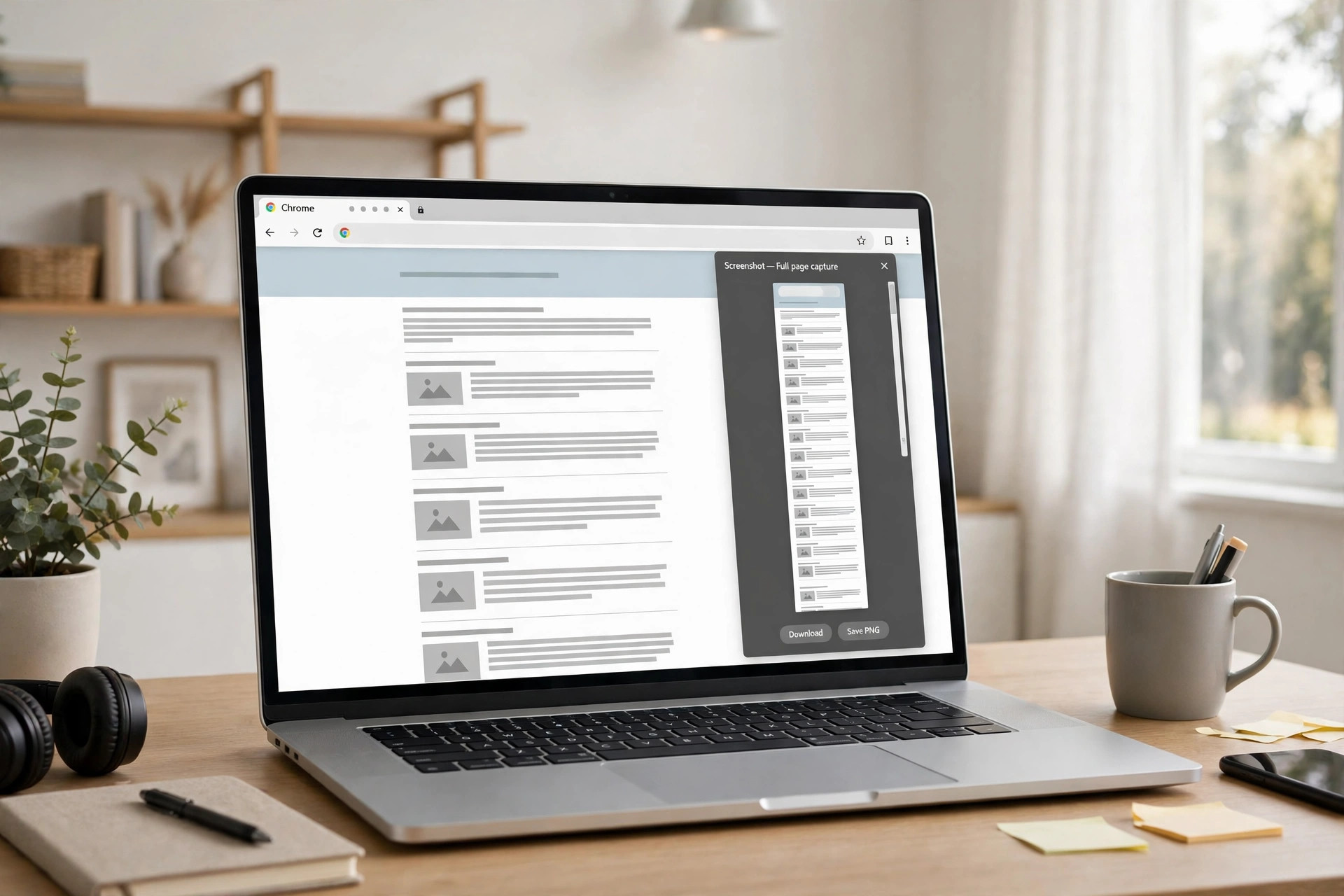
Chrome has no built-in button for a full page screenshot. Long pages get cut off at the fold, so guides and receipts lose their lower half. The capture command hides inside Developer Tools, yet it takes under a minute to run. This guide shows four free ways to take a full page screenshot in Chrome.
Why Chrome Hides the Full Page Option
Chrome keeps screenshots simple, so it offers no full page button on its toolbar. The browser team placed the capture command inside Developer Tools instead. Most users never open Developer Tools, so the feature stays hidden from view. Google documents the command in its DevTools guides for developers. The same menu also holds viewport and area captures for smaller jobs.
Our Windows guide covers Edge and Firefox too, while our Mac guide covers Safari and Firefox.
Method 1: DevTools Command Menu (No Extension)
The DevTools command menu works on Windows, Mac, Linux and Chromebook with no install. A full page screenshot in Chrome saves as one PNG file in Downloads. The steps below take about a minute once you know the keys.
Step 1: Open the page in Chrome. Wait for the page to load fully, then scroll to the bottom once. Return to the top before you open Developer Tools.
Step 2: Open Developer Tools. Press F12 or Control plus Shift plus I on Windows and Linux. Press Command plus Option plus I on a Mac instead.
Step 3: Open the command menu. Press Control plus Shift plus P on Windows and Linux. Press Command plus Shift plus P on a Mac instead.
Step 4: Type screenshot and choose the command. Type screenshot into the menu and wait for the list to filter. Choose Capture full size screenshot from the results shown.
Step 5: Open the saved PNG file. Chrome downloads one tall PNG to your Downloads folder. Scroll to the bottom to check that nothing is missing.
The command captures the page only, not the Chrome toolbar or your desktop. Sticky headers can repeat on very long pages, so check the result first. The capture always saves as PNG, never as JPG, with no quality setting.
Method 2: Device Mode for Mobile Layouts
Device mode shows how a page looks on a phone or tablet inside desktop Chrome. It has its own full size screenshot command in the toolbar menu. Use it to capture the mobile layout of a page for a client or a report. A full page screenshot in Chrome works the same in device mode as on desktop.
Step 1: Open Developer Tools and device mode. Press F12 or Control plus Shift plus I to open Developer Tools. Press Control plus Shift plus M to toggle the device toolbar.
Step 2: Pick a device size from the toolbar. Choose a phone or tablet preset from the dimensions menu at the top. Set the width you need if the preset list lacks your size.
Step 3: Capture from the device toolbar menu. Click the three-dot More options menu in the device toolbar. Choose Capture full size screenshot to save the mobile layout.
The DevTools docs explain the device mode screenshot command in detail.
Method 3: GoFullPage Extension in One Click
GoFullPage is a free extension for a full page screenshot in Chrome. It scrolls the page and stitches the parts into one image. It exports the result as PNG, JPEG or PDF from its own editor.
Step 1: Install GoFullPage from the Chrome Web Store. Open the extension page in the Chrome Web Store and click Add to Chrome. Confirm the install when Chrome asks for permission.
Step 2: Open the page and click the icon. Load the page fully, then click the GoFullPage icon in the toolbar. The extension scrolls the page and builds one tall image.
Step 3: Download the result as PNG or PDF. The capture opens in a new tab with download buttons at the top. Choose PNG for an image or PDF for a document.
Extensions can fail on animated pages or login walls, so keep DevTools as backup. The extension asks for no extra permissions beyond the page it captures. Check the result for gaps before you share it with anyone. Convert the PDF export back to JPG with our PDF to JPG guide.
Method 4: Long Screenshot in Chrome on Android
Chrome on Android has its own long screenshot feature built into the Share menu. It captures a page by scrolling, with no extension and no computer. The option appears as Long screenshot on most Android phones. A full page screenshot in Chrome on Android uses the Share menu, not DevTools.
Step 1: Open the page in Chrome on Android. Load the page fully and wait for images to appear. Scroll down once so lazy images load before you capture.
Step 2: Tap Share, then choose Long screenshot. Tap the three-dot menu, then Share, to open the share sheet. Tap Long screenshot to start the scrolling capture.
Step 3: Adjust the edges and save the image. Drag the top and bottom handles to keep only the part you need. Tap the tick, then save the image to your phone.
Some Android phones also offer Capture more after a normal screenshot on Android 12 or later. The exact label varies by phone brand, so check your share sheet first. Chrome on iPhone has no built-in long screenshot, so use Safari there instead.
Fix Common Full Page Capture Problems
A blank full page screenshot in Chrome usually means the page had not finished loading. Scroll to the bottom first, wait a few seconds, then run the command again. Lazy images and videos need that scroll to load at all.
A repeated header or footer comes from sticky elements that stay fixed while the page scrolls. DevTools cannot remove them, so try the GoFullPage extension instead. Very tall pages can also hit Chrome memory limits and split into parts.
A capture that stops halfway often points to a page that blocks scrolling or uses frames. Try device mode, which renders the page in a fresh viewport. If the page needs a login, sign in first and retry the capture. Crop the tall image to keep only the section you need with our crop guide.
Frequently Asked Questions
What is the fastest way to take a full page screenshot in Chrome?
The DevTools command menu is fastest, since it needs no install at all. Open DevTools, press Control plus Shift plus P, type screenshot, and choose the full size command.
Can I take a full page screenshot in Chrome without an extension?
Yes, the built-in DevTools command captures the whole page with no extension. Extensions only add one-click ease and extra export formats like JPEG and PDF.
Why does my full page screenshot in Chrome come out blank?
The page had not finished loading when you ran the capture command. Scroll to the bottom once, wait a few seconds, then run the command again.
Can I save a full page screenshot in Chrome as a PDF?
DevTools saves only a PNG, so use GoFullPage or Print to PDF instead. Print to PDF keeps the text selectable, while GoFullPage exports a PDF image.
Pick the method that fits your day: DevTools for quick captures, GoFullPage for daily work. Compress the tall PNG before you email it or upload it anywhere. Our image compression guide shows how to shrink it without visible quality loss. Turn the capture into a clean A4 PDF with our screenshot to PDF guide.
Leave a Reply