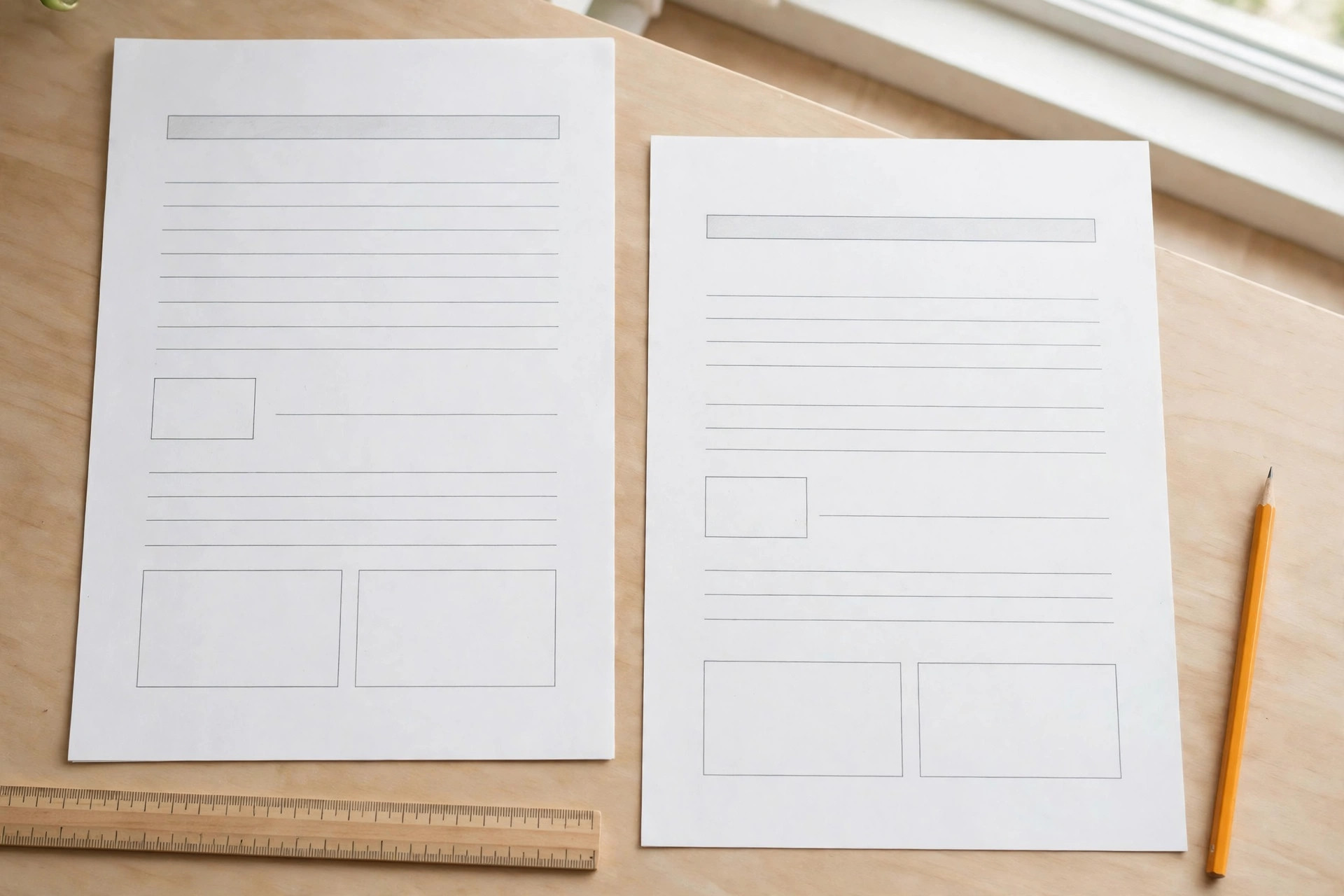
You can change PDF page size from A4 to US Letter in under a minute, free. Open the file, pick the new paper size, and save a fresh copy. This guide shows five methods for Windows, Mac and phones, plus how to avoid cut-off edges.
A4 vs US Letter: The Sizes at a Glance
A4 measures 210 by 297 millimetres, and it is the standard sheet in most countries. US Letter measures 8.5 by 11 inches, and it rules in the United States and Canada. Letter is slightly wider than A4, while A4 is slightly taller.
Changing size matters when a printer, a portal or a client needs one exact format. A form made for Letter can print with cut-off edges on A4 paper. The fix is to change PDF page size, not the printer settings alone.
Screenshots saved as A4 PDFs face the same mismatch when printed on Letter.
| Size | Millimetres | Inches | Used In |
|---|---|---|---|
| A4 | 210 x 297 | 8.27 x 11.69 | Most of the world |
| US Letter | 215.9 x 279.4 | 8.5 x 11 | United States and Canada |
| US Legal | 215.9 x 355.6 | 8.5 x 14 | United States |
| A3 | 297 x 420 | 11.69 x 16.54 | Posters and plans |
Method 1: Print to PDF in Chrome or Edge
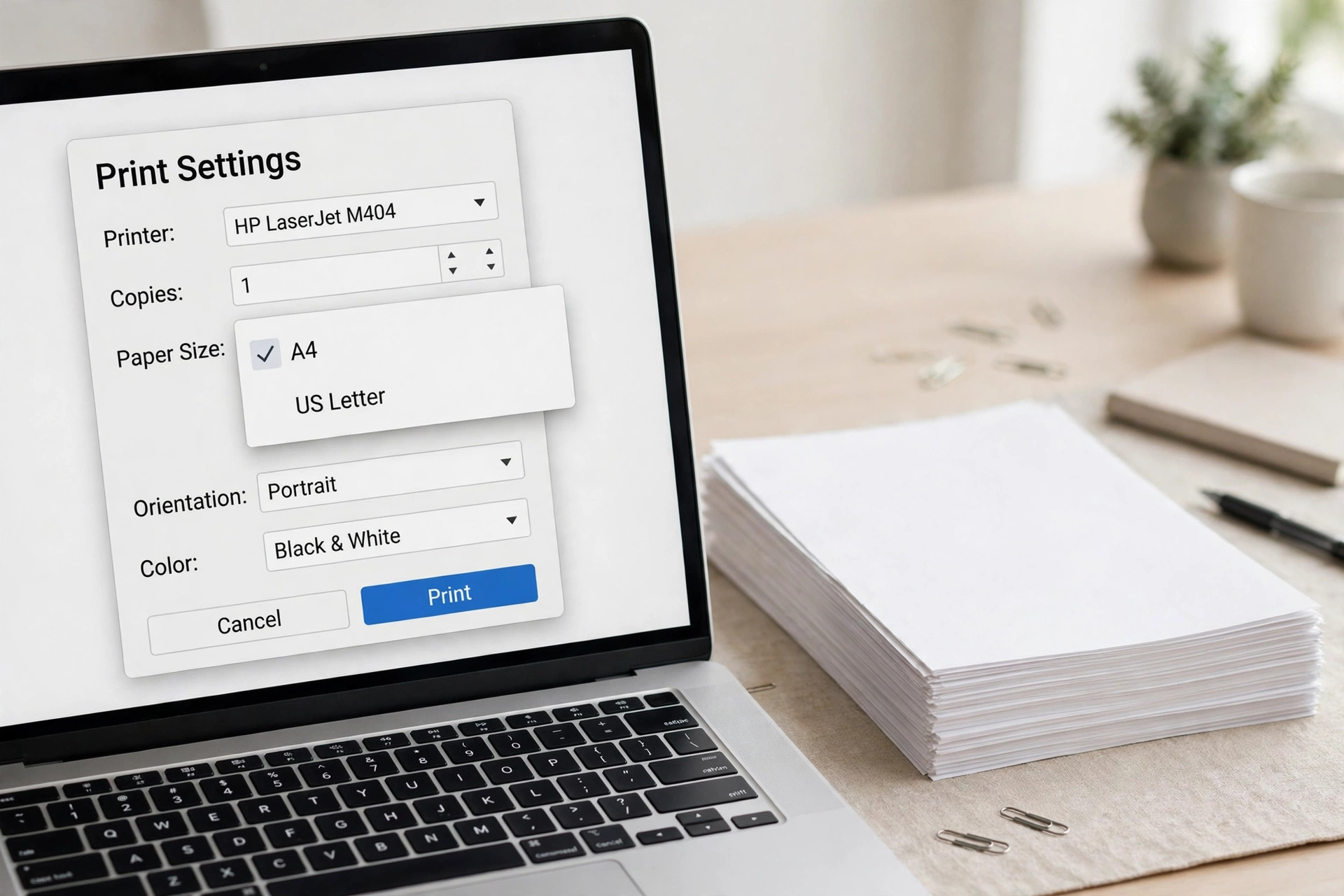
The print dialog is the quickest free way to change PDF page size on any computer. Open the PDF in Chrome or Edge, press Ctrl+P, and pick the new paper size. The browser saves a fresh copy with the content scaled to fit. For print quality basics, read our guide on DPI versus pixels for print and web.
Step 1: Drag the PDF into a Chrome or Edge window.
Step 2: Press Ctrl+P on Windows or Cmd+P on Mac.
Step 3: Set the destination to Save as PDF.
Step 4: Open More settings and choose Paper size.
Step 5: Pick A4 or US Letter, then set Scale to Fit to page.
Step 6: Click Save and name the new file.
Fit to page scales the content so nothing gets cut off at the edges. Default scale can crop the margins, so always check the preview before saving. PDF Lemon’s resize guide walks through the same print method with screenshots.
Method 2: Preview on Mac
Preview can change PDF page size on a Mac without extra software. Open the file, open the print dialog, and pick the new paper size. Tick Scale to Fit so the content shrinks to the new sheet.
Step 1: Open the PDF in Preview.
Step 2: Press Cmd+P to open the print dialog.
Step 3: Change Paper Size to A4 or US Letter.
Step 4: Tick Scale to Fit, then click Print.
Step 5: Choose Save as PDF and pick a file name.
Preview may flatten form fields when it saves through the print dialog. Check the new file before you send it, and keep the original as a backup.
Method 3: Adobe Acrobat Pro
Acrobat Pro can change PDF page size without reprinting the whole file. Use Page Setup in the print dialog for a quick change, or Preflight for exact control. This method keeps links, bookmarks and form fields intact. You can also rotate or rearrange pages in Acrobat before resizing.
Step 1: Open the PDF in Acrobat Pro.
Step 2: Choose File, then Print, then Page Setup.
Step 3: Pick the new paper size and set Page Sizing to Fit.
Step 4: Print to PDF and save the resized copy.
For exact control, open Tools, then Print Production, then Preflight. Choose Edit Page Boxes and set the target width and height in points.
Method 4: Free Online Resize Tools
Online tools can change PDF page size in under a minute with no install. Upload the file, pick A4 or Letter, choose Fit to page, and download the result. Pick a tool that works in your browser so the file never leaves your device.
Step 1: Open a free resize tool in your browser.
Step 2: Upload the PDF you want to resize.
Step 3: Pick the target size, such as A4 or US Letter.
Step 4: Choose Fit to page and download the new copy.
Avoid online tools for bank papers, contracts or medical records. Those files should stay on your device, resized in Chrome, Preview or Acrobat.
PeacefulPDF’s guide explains the A4 and Letter mix-up with a worked example. PDFgear’s free tool also changes page size in the browser.
Fit to Page vs Fill Page (Avoid Cut-Off Edges)
Fit to page shrinks the whole page so every line stays visible. Fill page stretches the content to cover the sheet, which can cut off the edges. For forms and official papers, always choose Fit to page.
Check the new file page by page before you send or print it. Look for cut-off headers, missing footers and squeezed tables. If anything looks wrong, resize again with Fit to page.
Fit to page is the safest choice when you change PDF page size for printing. Pages that still look off can be cropped with our PDF crop guide.
Frequently Asked Questions
How do I change a PDF from A4 to US Letter?
Open the PDF in Chrome and press Ctrl+P. Set the destination to Save as PDF, then pick US Letter under Paper size. Choose Fit to page and save the new copy.
Does changing page size change the file size too?
Page size and file size are different things, so resizing pages rarely shrinks the file much. To cut megabytes, compress the PDF instead of resizing its pages.
Will my links and form fields survive resizing?
Online resize tools and Acrobat Pro usually keep links and form fields intact. The print-to-PDF method can drop them, so use Acrobat when the file must stay interactive.
Can I resize only some pages in a PDF?
Most free tools resize every page at once, which suits mixed files poorly. Split the PDF first, resize the pages you need, then merge the file back together.
What if my PDF prints with cut-off edges?
Your paper size and the PDF page size do not match. The printer then crops the edges, so resize the PDF to match your paper.
Match the page size to your printer or portal before you send the file. A one-minute resize now saves a reprint, a rejected form, or a cut-off page later. You can change PDF page size free in minutes, with no paid software at all.
Leave a Reply