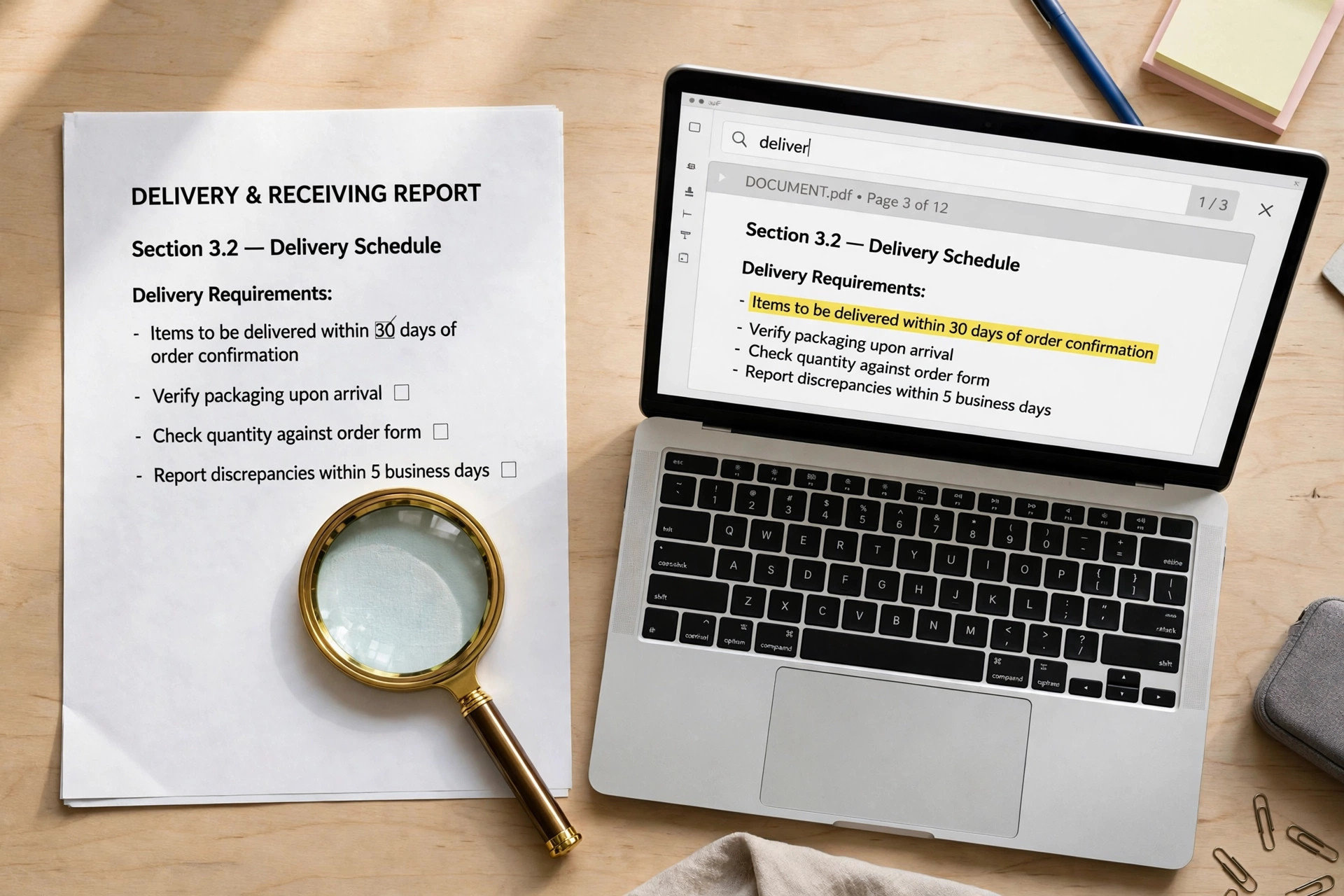
You can make a scanned PDF searchable in a few minutes with free OCR tools. OCR reads the picture of each page and adds a hidden text layer behind it. The pages look exactly the same, but every word becomes searchable, selectable and copyable. This guide shows five free methods for Windows, Mac and phones.
What OCR Does to a Scanned PDF
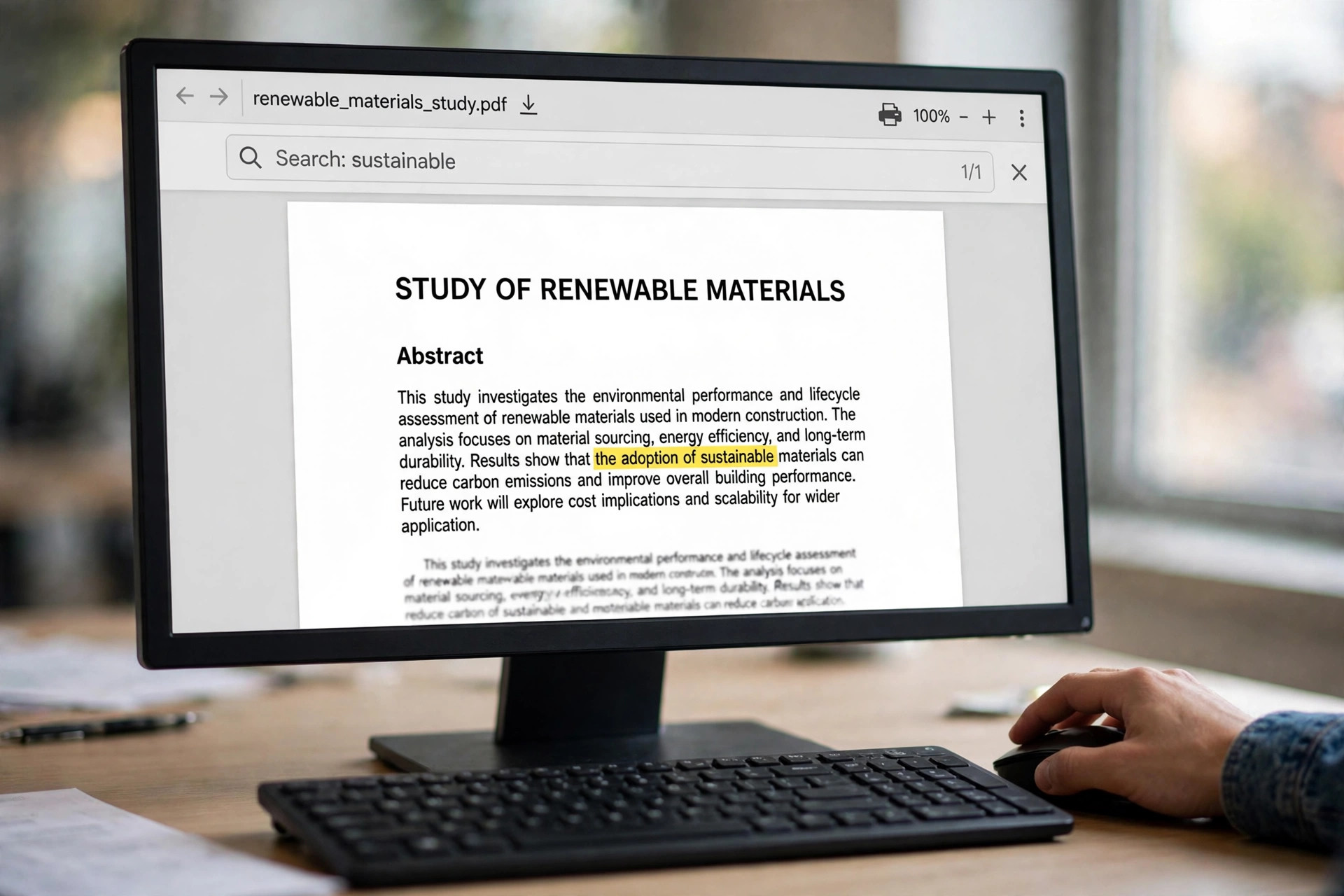
A scanner saves each page as a flat picture with no real text inside it. That is why search finds nothing and copy and paste selects nothing at all. OCR software reads those pictures and writes a hidden text layer behind each page. It recognises the letters and words on every page before it builds that layer. The visible page stays unchanged, while the file gains real text for search and reading.
A searchable PDF is easier to work with in almost every office and study task. Every method below turns a scanned PDF searchable the same basic way. You can find a single clause in a long contract without reading every page. You can also copy a quote from a scanned book in seconds. If your scan started as paper, read our guide on converting scanned documents to PDF first. Then add the OCR layer to the finished file. You can also extract text from a PDF when you only need the words.
Method 1: Google Drive OCR (Free, No Install)
Google Drive has built-in OCR, and it is the easiest free route for most people. It works in any browser, needs no install, and handles clean English scans well. The trade-off is that Drive gives you editable text, not a searchable PDF back. The recognised text opens in a new Google Doc. That is fine when you only need the words themselves. It falls short when you must keep the original file.
Step 1: Upload the scanned PDF to Google Drive.
Step 2: Right-click the file and choose Open with Google Docs.
Step 3: Wait while Drive runs OCR and opens the text.
Step 4: Copy the text or download it as a new file.
Drive OCR works best on straight, high-contrast pages with one column of text. Multi-column layouts and tables often come out with scrambled word order. Handwriting is usually recognised poorly, so typed pages give far better results. For a searchable PDF that keeps the scan, use one of the methods below instead.
Method 2: Adobe Acrobat Online OCR (Free)
Adobe offers a free online OCR tool that makes a scanned PDF searchable in one pass. You upload the file and the tool recognises the text inside it. You then download a PDF that looks just the same. You need to sign in to an Adobe account to download the result. Files are deleted from Adobe servers if you do not sign in. Keep a local copy of the original file.
Step 1: Open the Adobe online OCR tool in your browser.
Step 2: Upload the scanned PDF from your device.
Step 3: Let the tool recognise the text in the file.
Step 4: Sign in and download the searchable PDF.
Adobe states that its OCR tool works in English, German, Spanish, French and Portuguese. It also handles scanned paper, image-only PDFs and photos with text. This is the quickest route when you have one file and want a searchable PDF back. Adobe explains the free tool on its OCR for PDF page. That page also lists which file types it accepts.
Method 3: Adobe Acrobat Pro (Best Accuracy)
Acrobat Pro has the most accurate OCR engine of the desktop tools most people can buy. Acrobat Pro makes a scanned PDF searchable with the best accuracy. It handles multi-column layouts, tables and mixed pages better than free tools. It also lets you review and fix uncertain words before you save. Use it when accuracy matters, such as legal papers or long reports.
Step 1: Open the scanned PDF in Adobe Acrobat Pro.
Step 2: Choose Tools, then Scan and OCR, then Recognize Text.
Step 3: Pick In This File and choose the document language.
Step 4: Set the output to Searchable Image and click Recognize.
Step 5: Use Find First Suspect to correct uncertain characters.
Choose Searchable Image when the page must look exactly the same. It keeps the scan visible and hides the text layer behind it. Choose Editable Text and Images only when you plan to rewrite the page. After OCR, the file is larger than the original scan. Reduce the PDF file size if you need to email it.
Method 4: OCRmyPDF and Tesseract (Free, for Batches)
OCRmyPDF is the best free option when you have many files or long documents. It turns a scanned PDF searchable without changing how the pages look. It wraps the open-source Tesseract engine and handles multi-page PDFs directly. It also adds a proper text layer behind each scanned page. It can save the result as a PDF/A file for archiving. You need a computer and a little comfort with the command line. The Convertlo OCR guide compares free tools and explains what affects accuracy.
Step 1: Install OCRmyPDF with pip install ocrmypdf on your computer.
Step 2: Run OCRmyPDF in a terminal window with your file names.
Run the command with the input file first and the output file second.
Step 3: Open the output file and search for a word.
Tesseract alone can also do the job, and it supports more than 100 languages. It reads images rather than PDFs, so the pages must come out first. A tool like pdftoppm can pull those pages out for you. OCRmyPDF does that work for you, which is why it is the simpler choice. Batch users can also split a PDF into separate pages before running OCR on one part.
Method 5: Scan It Right on Your Phone
The easiest searchable PDF is one that never needs fixing later. A good phone scan makes a scanned PDF searchable with far less effort later. Free phone apps like Adobe Scan and Microsoft Lens apply OCR as they capture each page. They also fix the scan first with auto-crop, perspective correction and better contrast. A clean capture gives the OCR engine far less work to do.
Step 1: Open Adobe Scan or Microsoft Lens on your phone.
Step 2: Capture each page in bright, even light.
Step 3: Let the app correct the crop and contrast.
Step 4: Save the result as a searchable PDF.
Adobe Scan recognises text on up to five pages free. A paid plan raises that page limit further. Microsoft Lens has no such page cap for basic scanning. Either way, scan at 300 DPI or higher for the best accuracy. Low light, shadows and skewed pages are the most common causes of bad OCR.
Scan Quality Tips and Accuracy Checks
OCR accuracy depends more on scan quality than on the tool you choose. A clean scan makes a scanned PDF searchable with fewer errors. Start with the cleanest scan you can make, and the text layer will follow. The PDFNoob OCR guide covers language choice and partial-page recognition in detail. Scan at 300 DPI, keep pages flat, and use bright light with no shadows. Pick the right document language before you run OCR, since the wrong language creates strange errors. Check the result with Ctrl+F, and search for a word you know is on the page.
| Problem | What Causes It | Quick Fix |
|---|---|---|
| Missing words | Low resolution scan | Rescan at 300 DPI |
| Scrambled order | Multi-column layout | Use Acrobat Pro |
| Wrong letters | Wrong language set | Set the right language |
| Skewed lines | Page not flat | Straighten the scan |
| Faded text | Low contrast | Raise contrast first |
After OCR, always test the file before you share or archive it. Try to select a sentence with your mouse and copy it into a note. Search for two or three words from different pages. If the words are found, the text layer is working. Keep the original scan as a backup until the searchable copy is checked. You can then merge PDFs into one searchable file for easy sharing.
Frequently Asked Questions
How long does OCR take on a long scanned document?
A short file of ten pages usually takes under a minute with an online tool. A 200-page scan can take ten minutes or more, and desktop tools are faster. OCRmyPDF handles long files well because it works page by page without uploads.
Does OCR change how my scanned PDF looks?
No, a proper OCR run leaves the visible page exactly as it was. The text layer sits behind the scan, so the file looks the same. Only the Editable Text output in Acrobat rebuilds the page, and that can shift the layout.
Can OCR read handwriting in a scanned PDF?
Most OCR tools read printed text well but struggle badly with handwriting. Neat handwriting may partly work in Google Drive, but the results need checking. For handwritten notes, type the key parts yourself or use a dedicated handwriting app.
Why does my PDF still show no text after OCR?
The most common cause is a failed run on a very low quality scan. That leaves you with a scanned PDF searchable only in name, with no real text layer. Try a cleaner scan at 300 DPI and run OCR again. Also check that you saved the output file after OCR. Some tools show a preview without saving the file.
Is free OCR safe for private documents?
Online tools upload your file to a server, so avoid them for private papers. Use Google Drive, Acrobat Pro or OCRmyPDF on your own device instead. Local tools never send the file anywhere, which keeps sensitive pages private.
OCR turns a scanned PDF searchable in minutes, with no change to the pages. Pick Google Drive for quick text and Adobe online OCR for one file. Use OCRmyPDF when you have whole batches to process. Scan cleanly at 300 DPI and test the result with Ctrl+F. Keep the original scan until you are sure the copy works.
Leave a Reply