Scanned documents and assembled PDFs rarely come out perfect on the first try. A page is upside down, two pages are in the wrong order, or a blank page sneaks in at the end. Sending a PDF like that looks careless, and it confuses the reader. The fix is simple: rotate the sideways pages, drag the pages into the right order, and delete the ones you do not need. You can do all three with a browser-based PDF page tool, and this guide shows you how, one task at a time.
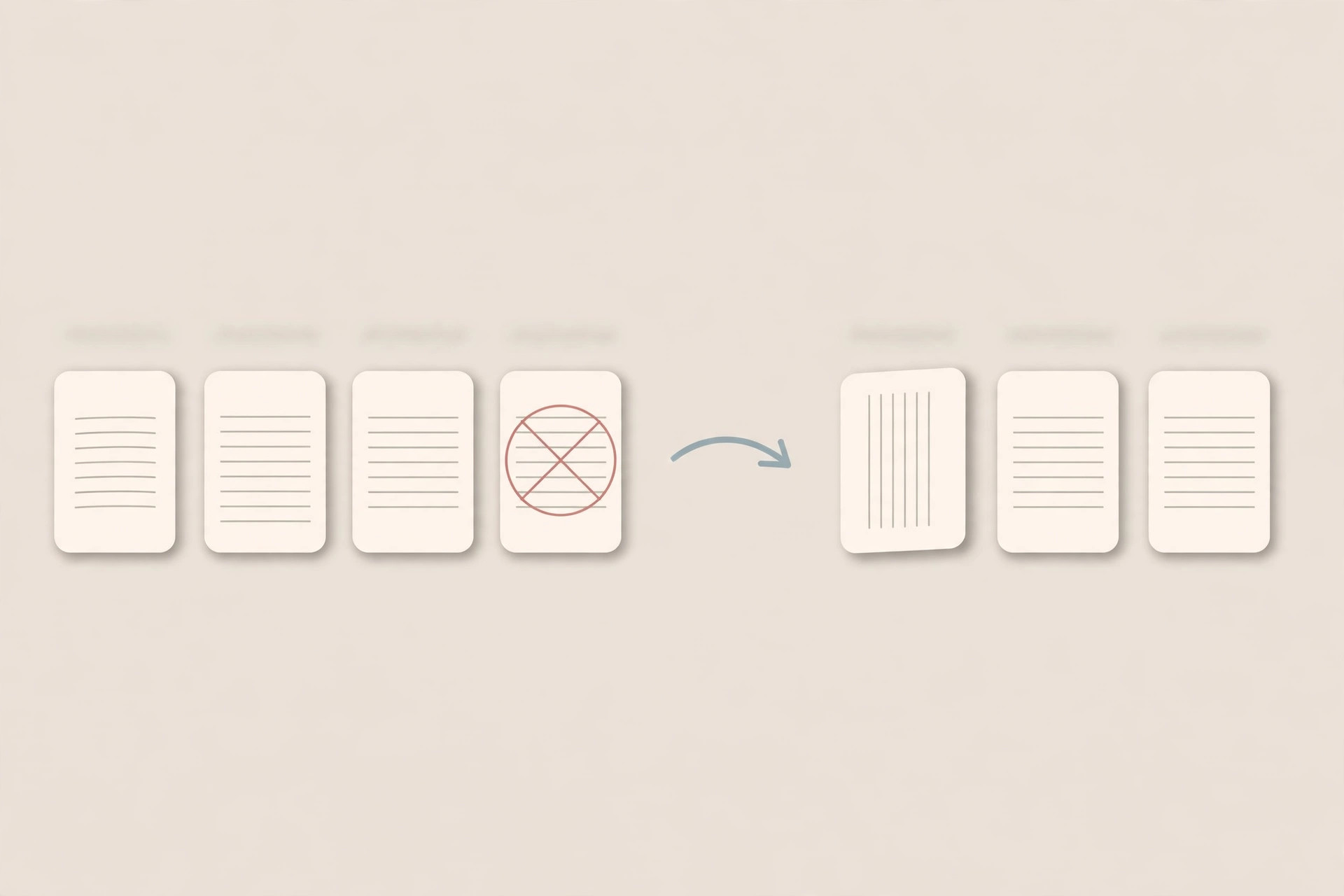
Rotate pages that are upside down or sideways
Scanned pages are the usual culprit here, because a scanner does not always know which way up a page goes.
- Open your PDF in a PDF page organizer tool that shows pages as thumbnails.
- Find the pages that are rotated. Thumbnails make this easy, since you can spot a sideways page at a glance instead of opening each page.
- Select the page, or several pages at once if they all need the same fix, and use the rotate button. Each click usually turns the page 90 degrees, so click until the page reads upright.
- Check the result in the preview. Text should run left to right and images should sit the right way up.
- Save the file. Rotating changes the page itself, so make sure you download the updated version rather than the original.
Rearrange pages into the right order
Wrong page order is common when a document is scanned in a hurry or assembled from several files. Fixing it takes a minute once you can see the thumbnails.
- Open the PDF in the same thumbnail view and look at the full sequence of pages.
- Decide the correct order before you start moving anything. If the document has page numbers, they are your best guide.
- Drag each page thumbnail to its correct position. Most tools show a gap or highlight where the page will land, so drop it carefully.
- Work from the front to the back, placing one page at a time, and re-check the sequence after every few moves.
- Preview the whole document from start to finish. A quick scroll confirms the story now flows in the right order.
Delete pages you do not need
Blank pages, duplicate scans, and draft pages that were never meant to be shared all make a PDF longer and messier than it should be.
- In the thumbnail view, identify the pages to remove. Blank pages and exact duplicates are the obvious candidates.
- Select each unwanted page. Be careful with pages that look similar — check the content, not just the thumbnail, before deleting.
- Use the delete option and confirm. The remaining pages close up automatically.
- Check the new page count and flip through the document once more. Deleting a page can change how the rest reads, so confirm nothing important went with it.
- Save and download the cleaned-up file.
Tips for fixing PDFs safely
Always work on a copy of the original file. If you delete the wrong page or rotate something by mistake, the original is still there to start again from. Fix rotation first, then order, then deletions — that sequence avoids re-doing work when the page order changes. After every round of changes, preview the full document rather than trusting the thumbnails alone. Pay special attention to the first and last pages, since those are the ones people notice first and the ones where a stray blank page usually hides. Finally, give the finished file a clear name, such as document-final.pdf, so you never confuse it with the unedited original.
Final word
A few minutes of page cleanup turns a rough scan into a document you can share with confidence. Rotate what is sideways, put everything in order, and remove what does not belong — then preview once before sending. For other PDF jobs, iboxseo.org also offers free browser-based tools such as PDF Merge, which combines separate PDFs into one, and PDF to Image, which turns PDF pages into images. Clean pages, correct order, and nothing extra: that is all a good PDF needs.
Leave a Reply