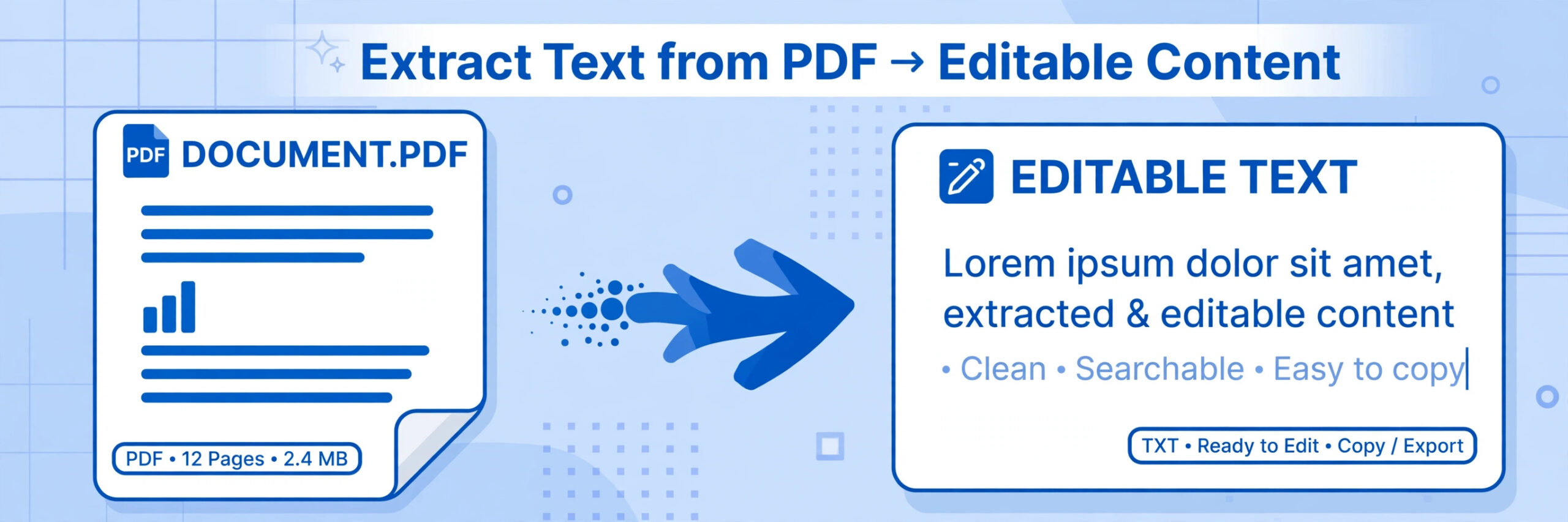
To extract text from a PDF for free, open the PDF in a browser or PDF reader, select the text you need, copy it, and paste it into a text editor or document. If the text can be selected, this takes less than a minute on both mobile and PC. If the text cannot be selected, the PDF is probably a scanned image, and you will need an OCR step first, which is explained below.
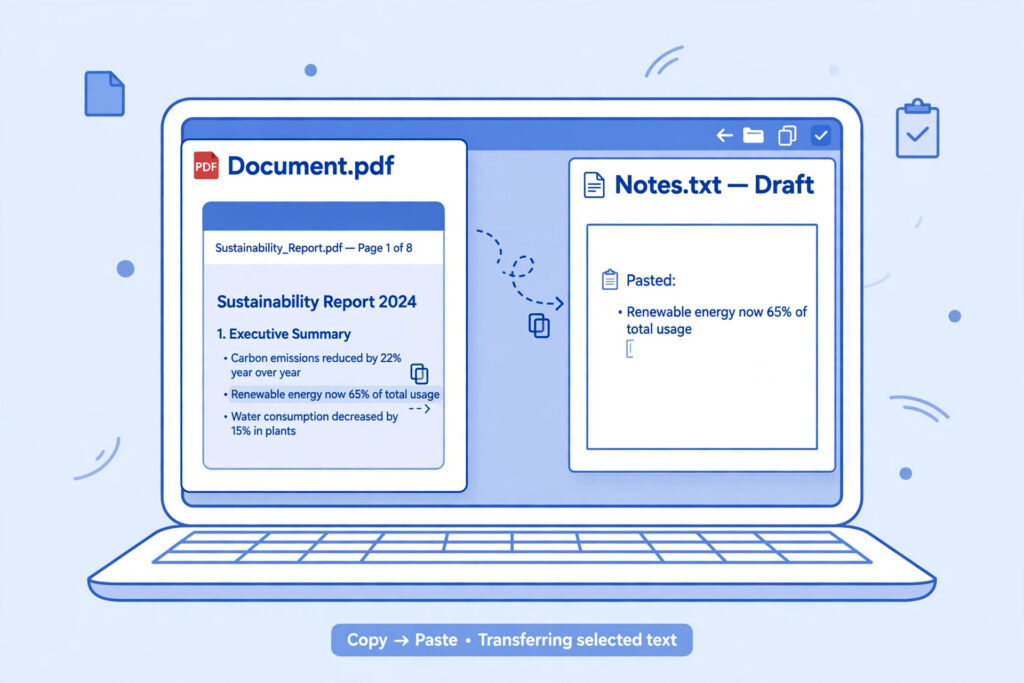
How to Extract Text from a PDF on a PC for Free
Start with the simplest method. Open the PDF in your web browser, such as Chrome, Edge, or Firefox. Click and drag over the text to select it, then press Ctrl+C to copy it and Ctrl+V to paste it into Notepad, Word, Google Docs, or an email. To copy a whole page, click on the page first, press Ctrl+A to select all, and then copy and paste.
If the PDF has many pages, copying page by page gives you more control over formatting. Pasting into a plain-text editor first can help remove odd fonts and spacing before you move the text into your final document. Check the pasted text for broken lines, missing spaces, and symbols that did not copy correctly.
Another free option is to open the PDF in Google Drive and open it with Google Docs. Upload the file to Google Drive, right-click it, choose Open with, and then choose Google Docs. Google Docs will show the extracted text, which you can edit, copy, or download as a document. This method is also useful for scanned PDFs, because Google Docs can often recognise text in images.
How to Extract Text from a PDF on Mobile for Free
On a phone, open the PDF in your browser or in a free PDF reader app. Tap and hold on a word until selection handles appear, then drag the handles to cover the text you need. Tap Copy, switch to your notes app or document app, tap and hold in the text area, and tap Paste.
For a longer document, it is often easier to open the PDF in Google Drive on your phone and open it with Google Docs, or to share the PDF to a notes or documents app that can show selectable text. You can then copy the text in sections and paste it where you need it.
What to Do If the PDF Text Cannot Be Selected
If you cannot select any text, the PDF is likely made from scanned images or photographs of pages. In that case, copying will not work, because there is no text layer to copy. You need optical character recognition, usually shortened to OCR, which reads the text in an image and turns it into selectable text.
A free way to do this is to upload the scanned PDF to Google Drive and open it with Google Docs, as described above. Another option is to use a free OCR tool or app, convert the scanned pages, and then copy the recognised text. Always proofread OCR results carefully, because scanned text can contain errors, especially with small print, handwriting, tables, or unusual fonts.
Tips for Clean, Usable Extracted Text
- Copy one section at a time for long or complex documents, so formatting problems are easier to fix.
- Paste into a plain-text editor first if the formatting looks messy, then reformat headings, lists, and paragraphs.
- Check page numbers, headers, footers, and footnotes, which may be copied in the wrong order.
- Keep the original PDF until you have checked the extracted text, in case you need to copy a section again.
- Use headings and short paragraphs when you reuse the text, so it stays easy to read.
On iboxseo.org, you will also find other free PDF tools listed on the home page, such as PDF to Image and PDF Merge. Those tools are for converting or combining PDFs, while the steps in this guide are for extracting text from a PDF.
Common Mistakes When You Extract Text from a PDF
- Assuming a scanned PDF can be copied like a normal PDF, when it first needs OCR.
- Copying an entire document at once and then spending a long time fixing broken formatting.
- Forgetting to check tables, where columns may paste as a single block of text.
- Sharing or publishing extracted text without checking who owns it or whether you have permission to reuse it.
- Deleting the original PDF before checking that all pages and sections were copied correctly.
A quick final check makes a real difference. Read the extracted text from start to finish, compare it with the original PDF for any missing sections, and fix spacing, punctuation, and headings before you use it.
Frequently Asked Questions
Can I extract text from a PDF for free?
Yes. For most PDFs, you can select, copy, and paste text for free in a browser or PDF reader. For scanned PDFs, a free OCR step, such as opening the file with Google Docs, is usually needed.
Why can I not select text in some PDFs?
The PDF may be a scanned image, or it may have copy restrictions set by its creator. Scanned PDFs need OCR, while restricted PDFs may need permission from the owner before the text can be copied.
Will the formatting stay the same after extraction?
Not always. Simple paragraphs usually copy well, but tables, columns, and complex layouts may need reformatting after pasting. Pasting into a plain-text editor first can make this cleanup easier.
Is it safe to upload a PDF to an online tool?
Use trusted tools only, and avoid uploading sensitive or private documents to a service you do not know. For private files, prefer offline methods, such as copying text in your browser or PDF reader, rather than uploading the file.
Leave a Reply