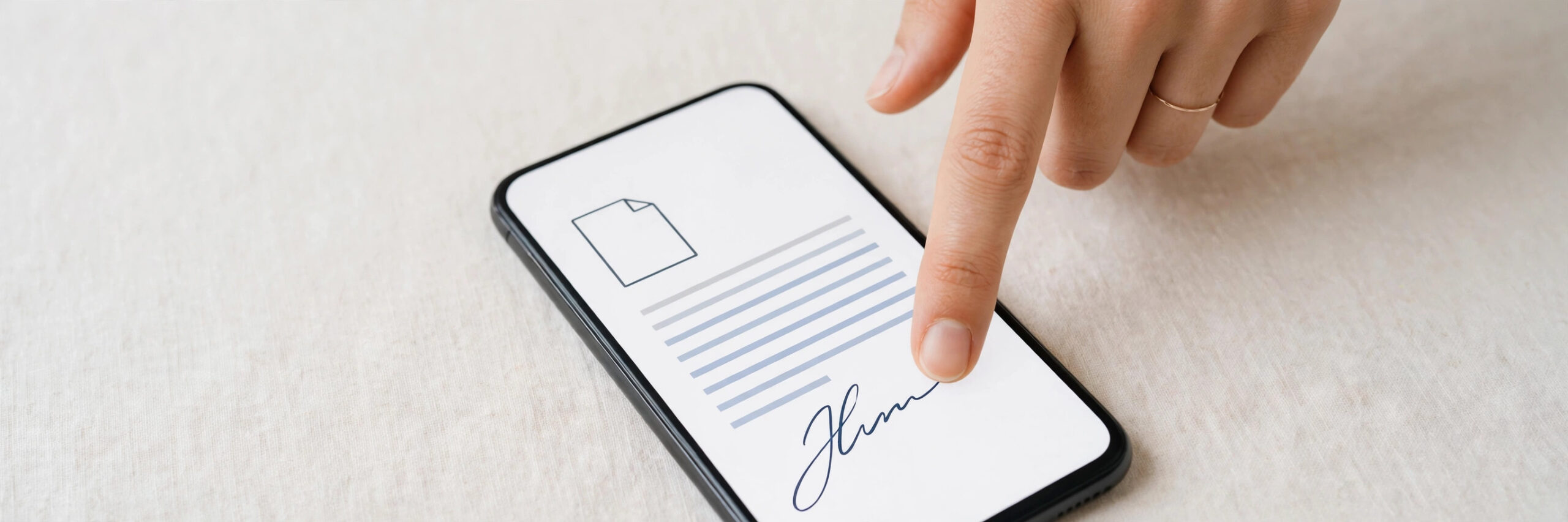
Signing a PDF used to mean printing it, signing it by hand, and scanning it back. Today you can do the whole thing on your phone in a few minutes, for free, and the result looks just as professional. Whether it is a form, a contract, or a permission letter, this guide shows you the easiest free methods to sign a PDF on your phone.
Before You Start
You need two things: the PDF file on your phone, and a way to sign it. Your phone may already have a free option built in — for example, the Files or Notes app on iPhone, or Google Drive’s markup tools on Android. If not, several free PDF apps in the app store can do it. Make sure you have the latest version of the PDF saved, so you do not sign an old draft by mistake. And never sign a document you have not read fully — a digital signature is just as binding as a handwritten one.
Method 1: Draw Your Signature With Your Finger
- Open the PDF in a free PDF app or your phone’s built-in viewer.
- Tap the sign or markup option, then choose to draw a signature.
- Draw your signature slowly with your finger or a stylus. Take your time — a careful signature looks far more professional than a rushed scribble.
- Place the signature on the signature line and resize it to fit neatly.
- Save or export the signed PDF. Most apps let you save a new copy so the original stays untouched.
Method 2: Use a Photo of Your Handwritten Signature
- Sign your name on a plain white piece of paper with a dark pen.
- Take a clear photo of just the signature in good light.
- In your PDF app, add the photo as an image and place it on the signature line.
- Some apps let you remove the white background so only the ink shows — use this option if it is available, as it looks much cleaner.
- Resize the signature to match the line, then save the signed PDF.
Method 3: Type Your Name as a Signature
Some forms accept a typed signature. In your PDF app, add a text box on the signature line, type your full name, and choose a script-style font if one is offered. This is the quickest method, but check first whether the person receiving the document accepts typed signatures — for formal contracts, a drawn or photographed signature is usually safer.
Tips for a Professional Result
- Sign at the right size. A signature that is too large looks careless; one that is too small looks uncertain. Match it to the space provided.
- Keep the original PDF. Always save the signed version as a new file, so you can redo it if something goes wrong.
- Check the whole document before sending. Scroll through every page to confirm nothing else was accidentally changed, and that the signature sits exactly on the line.
- If you sign PDFs often, save your signature in the app so you can reuse it with one tap next time.
- If the signed PDF becomes too large to send, you can reduce its size afterwards with a free online PDF tool. For splitting or combining signed pages, tools like the PDF Merge feature on iboxseo.org handle multi-page PDFs right in the browser.
Is a Phone Signature Legally Valid?
In most everyday situations — school forms, office letters, rental applications, delivery confirmations — a signature drawn on a phone is accepted just like a handwritten one. For highly formal legal or government documents, the receiving party may require a certified digital signature instead. If you are unsure, ask the recipient before signing. When in doubt, a photographed handwritten signature is the closest match to signing on paper.
Common Mistakes to Avoid
Do not sign the wrong version of a document — always check the date and content first. Do not place the signature in the wrong spot, or half off the line. Do not send the signed PDF without opening it once to check the signature actually saved, as some apps require an extra export step. And never share your saved signature image with others; it is your identity on paper.
Final Word
Signing a PDF on your phone takes minutes: open the file, draw or place your signature, check it, and save. No printer, no scanner, no waiting. Keep your original safe, save the signed copy separately, and you will never need to print a form just to sign it again.
Leave a Reply