
To convert PDF to Excel for free, upload the PDF to a free PDF-to-Excel converter and download the spreadsheet, or open the PDF in a free spreadsheet app and copy the table across. The whole job usually takes a few minutes, and the result is a normal Excel file you can sort, filter and calculate with. This guide covers the easiest methods for computer, phone and browser, plus how to fix the formatting problems that commonly appear after conversion.
Why PDF Tables Are Hard to Use
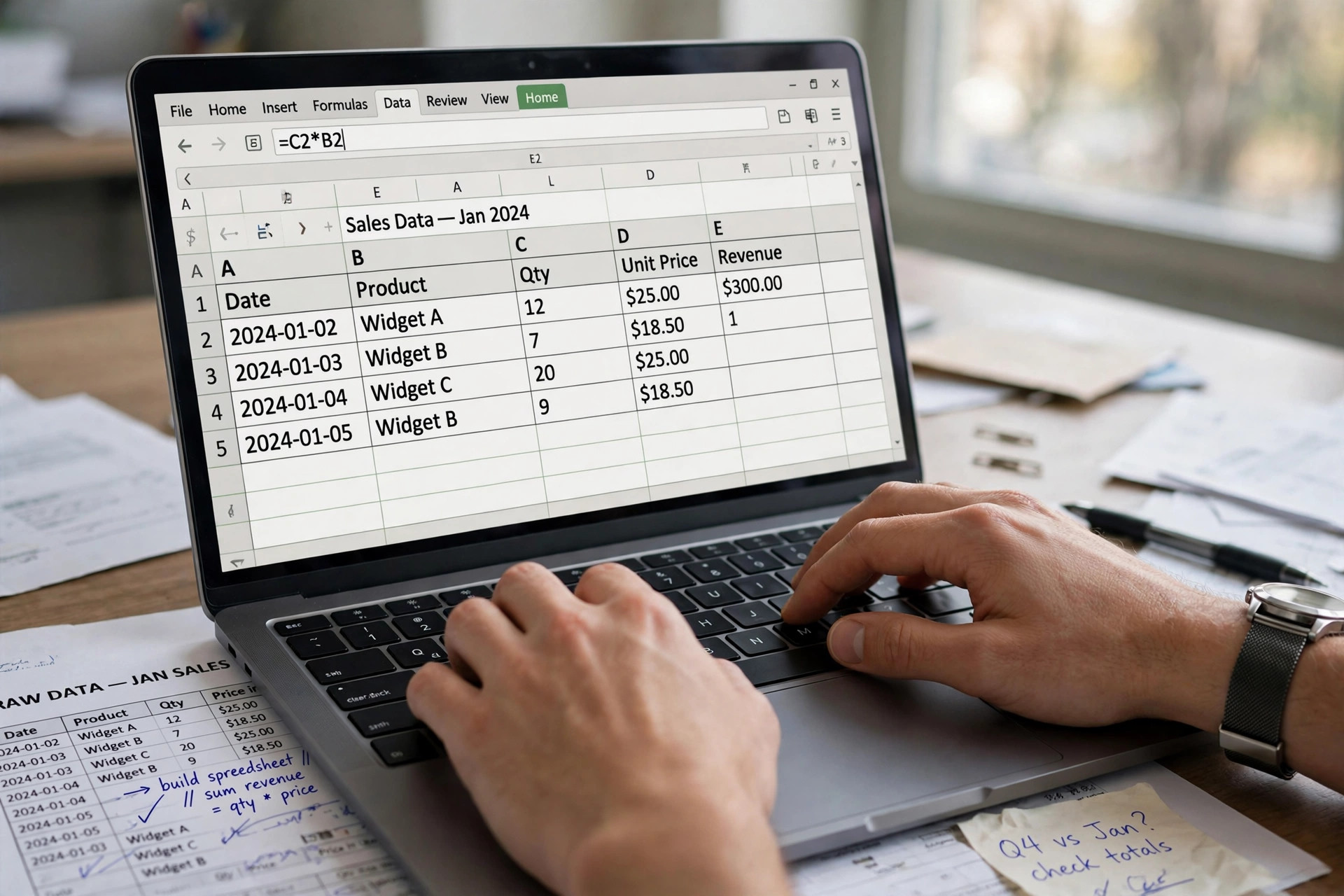
A PDF is designed to look the same everywhere, not to be edited. Its tables are fixed in place: you cannot sort a column, add up a row, or filter out entries without retyping everything. That is why bank statements, invoices, price lists, attendance sheets and exam results usually arrive as PDFs but need to become spreadsheets before anyone can actually work with them. Converting the PDF to Excel turns that frozen layout back into real rows, columns and numbers.
Method 1: Convert PDF to Excel Online (Easiest)
This is the fastest method for most people, and it works on any device with a browser.
- Open a free online PDF-to-Excel converter. Pick one that clearly states it is free and does not force you to create an account for a basic conversion.
- Upload your PDF from your device or cloud storage. Most tools accept drag and drop.
- Choose Excel (.xlsx) as the output format, if the tool asks.
- Start the conversion and wait a few seconds. Large files with many pages take a little longer.
- Download the spreadsheet, then open it and check the tables before you use them. Look for merged cells, split rows and numbers stored as text, and fix those with the tips below.
Online conversion suits one-off jobs. For private or sensitive documents, such as salary sheets or bank statements, prefer the desktop method below so the file never leaves your computer.
Method 2: Convert PDF to Excel on Your Computer
If you convert tables often, a free desktop app gives you more control.
- Install a free office suite that can open PDFs, such as LibreOffice, or use Microsoft Excel’s data import if you have it.
- Open the PDF in the app, or import it as data, and let the app detect the tables.
- Review the detected table layout. Adjust column boundaries if a column has been split in the wrong place.
- Save or export the result as an Excel (.xlsx) file, keeping the original PDF untouched.
- Open the saved spreadsheet and check totals, dates and headings against the PDF.
Desktop conversion is the better choice for long statements and for files you do not want to upload anywhere.
Method 3: Copy and Paste a Small Table by Hand
For a single small table, manual copying is sometimes quicker than any tool:
- Open the PDF, select the table, and copy it.
- Paste it into a blank spreadsheet using “Paste Special” and “Text” or “Unformatted text” if your app offers it.
- Use the “Text to Columns” option to split the pasted text into proper columns, choosing the delimiter (tab, comma or space) that matches your data.
- Clean up the headings and delete any stray blank rows.
This method works well for one page. For multi-page tables, an online or desktop converter saves far more time.
How to Fix Messy Results After Conversion
Converted spreadsheets rarely come out perfect. These are the most common problems and their fixes:
- Numbers stored as text: Select the column, look for the warning icon, and choose “Convert to Number”. Until you do this, sums and formulas will ignore those cells.
- One column split into two: Merge the split columns back together, or re-run the conversion with adjusted table detection.
- Dates in the wrong format: Select the date column and set its number format to the date style you use, so sorting works correctly.
- Extra blank rows: Sort or filter the sheet to find blank rows quickly, then delete them in one go.
- Headings repeated on every page: Delete the repeated heading rows, keeping only the first one, so filters and sorting treat the table as one block.
What Converts Well — and What Does Not
Clean, computer-generated PDFs convert well: invoices, statements and reports with straight rows and columns. Scanned PDFs convert poorly, because the “table” is really a picture of a page. For a scanned PDF, first run it through a tool with OCR (text recognition) to turn the picture into real text, then convert the result — and expect to tidy up more afterwards. Handwritten tables will almost always need manual checking.
Tips for a Clean Spreadsheet
- Always work on a copy. Keep the original PDF so you can compare figures.
- Check totals after conversion. If a column total matches the PDF, the conversion is almost certainly right.
- Convert one table at a time when a PDF mixes several tables on one page.
- Freeze the top row in Excel so headings stay visible while you scroll.
- If you need to combine several converted tables, the PDF Merge tool on iboxseo.org can join the source PDFs into one file first, so you convert a single document.
Common Mistakes to Avoid
- Trusting the converted file without checking it. Always compare a few rows against the PDF.
- Uploading sensitive financial documents to a random converter without checking its privacy policy. For private files, use a desktop app instead.
- Converting a scanned PDF and expecting perfect tables. Scans need OCR first, and even then need checking.
- Overwriting the original PDF. Save the spreadsheet as a new file and keep the PDF as your reference.
Frequently Asked Questions
Q: Can I convert PDF to Excel for free?
A: Yes. Free online converters and free desktop office suites both handle PDF-to-Excel conversion. Paid software is only needed for very large or complex documents.
Q: Will the formatting stay exactly the same?
A: Usually close, but not identical. Column widths, colours and fonts may shift slightly. The data matters most — check figures, then tidy the formatting.
Q: Why are my numbers not adding up after conversion?
A: They are probably stored as text. Select the column and convert it to numbers, and your formulas will start working.
Q: Can I convert a scanned PDF to Excel?
A: Yes, but only with OCR first. Use a tool that recognises text in scanned pages, then convert and check every figure carefully.
Converting a PDF to Excel is a small job that unlocks the data inside a frozen document. Pick the online method for a quick one-off, the desktop method for private or long files, and always check totals against the original PDF before you rely on the spreadsheet.
Leave a Reply