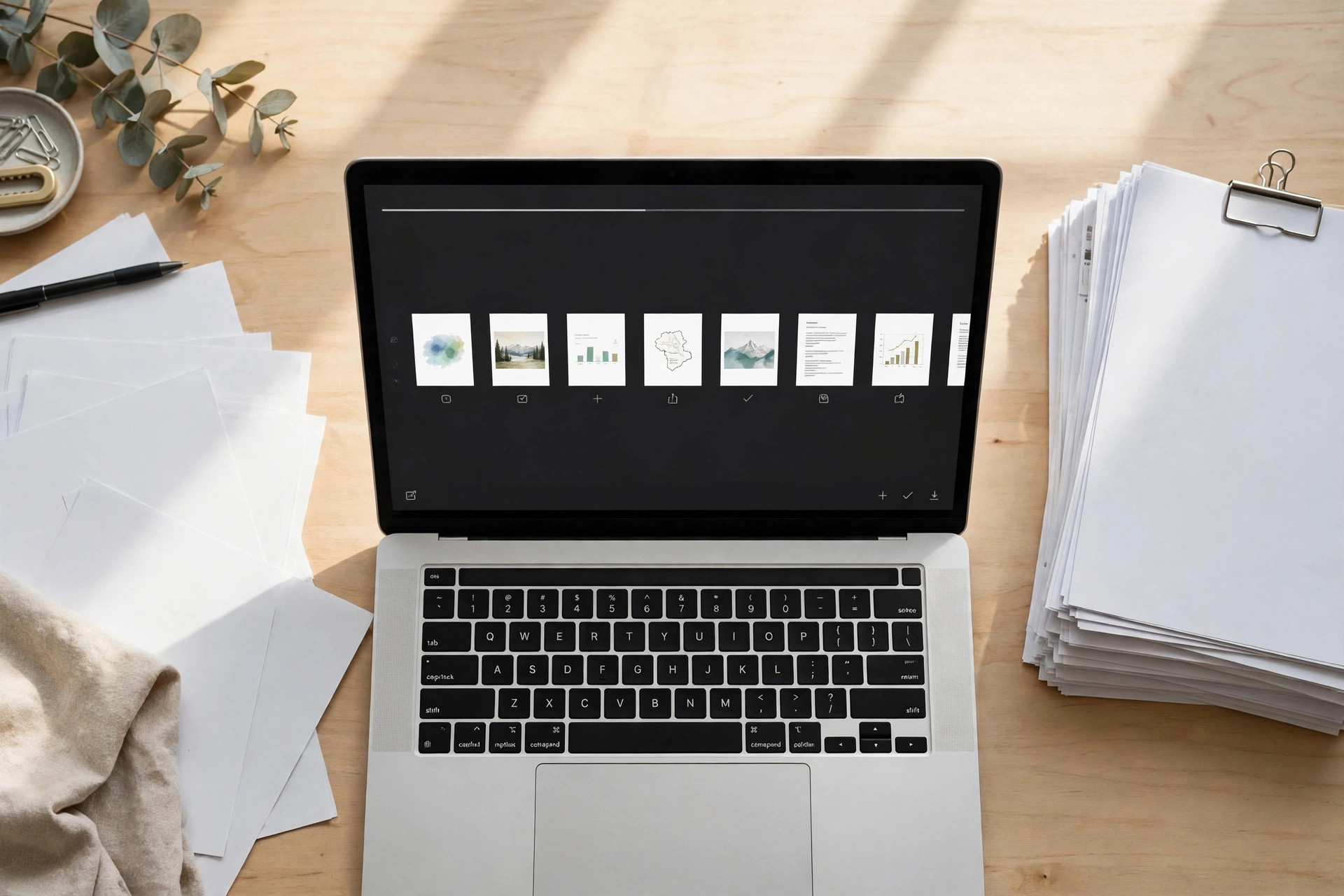
Merging whole PDFs often pulls in pages you do not need at all. You may want the cover of one file and three pages from another. When you merge PDFs with selected pages, you pick only the pages that matter. This guide shows four free methods to combine them in order.
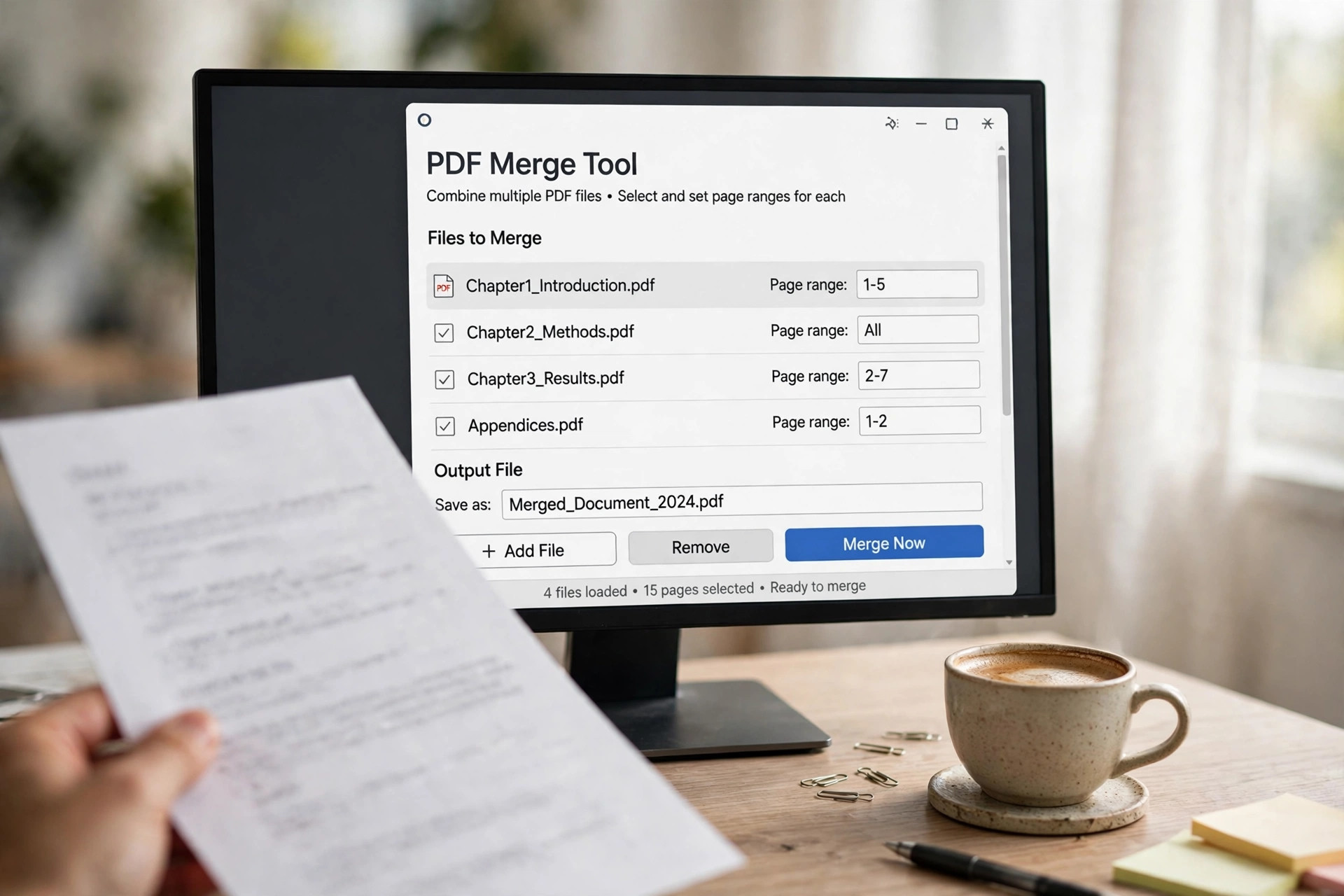
What Merging Selected Pages Means
Merging selected pages means building one new PDF from chosen pages of several files. You might take pages 1 to 3 from a report and page 7 from a form. The rest of each file stays out of the merged result. The new file keeps the order you set for every page.
This is different from a plain merge, which joins whole files end to end. A plain merge is faster, but it keeps blank pages and old drafts too. Page selection gives you a clean file with only the content you need. If you want whole files joined, read our guide on merging PDFs into one file.
Method 1: Merge PDFs With Selected Pages in iLovePDF
iLovePDF Merge lets you combine PDFs and pick the pages from each file. You upload the files, set the order, and type the ranges to keep. The free plan works in the browser with no account needed. Files are deleted from its servers after two hours for privacy.
Step 1: Open the iLovePDF Merge PDF tool in your browser window.
Step 2: Upload two or more PDF files by dragging them in.
Step 3: Drag the files into the order you want them merged.
Step 4: Open a file’s page view and remove the pages to skip.
Step 5: Click Merge PDF and download the combined file to your device.
Check the page count in the downloaded file before you share it. A missing page is easy to miss when files are long. The page total tells you at once if a range was wrong. The Starlight Tools merger also works fully in the browser with no uploads.
Method 2: Merge PDFs With Selected Pages in Sejda
Sejda Merge PDF lets you combine files and set page ranges for each one. You can type ranges like 1-3, 5 or 8-10 for every file you add. The free service covers documents up to 200 pages or 50 MB. It allows three tasks per hour, which suits most one-off jobs.
Step 1: Open the Sejda Merge PDF tool and upload your files.
Step 2: Drag the files into the order for the merged file.
Step 3: Click More options on a file and type its page range.
Step 4: Click Merge PDF files and download the result to your device.
Sejda deletes uploaded files after two hours, so your documents do not stay online. The tool also offers a desktop app that works fully offline. If a file is password-protected, unlock it first with our guide on unlocking a PDF.
Method 3: Merge PDFs With Selected Pages Offline in PDFsam
PDFsam Basic is a free open-source app that merges PDFs on your own computer. You can set a page selection for each input file, like 1-10 or 14. Nothing is uploaded, so it suits private documents best. It runs on Windows, macOS and Linux with no file size limit.
Step 1: Download PDFsam Basic from its official site and install it.
Step 2: Open the Merge module and add the PDF files to combine.
Step 3: Type a page selection for each file, like 1-3, 5 or 8-.
Step 4: Set the output file name and click Run to merge.
PDFsam can also add a table of contents and normalise page sizes in the merge. That helps when files come from different sources with mixed sizes. The PDFsam Basic page lists the merge options and the free download.
Method 4: Merge PDFs With Selected Pages in Acrobat Pro
Adobe Acrobat Pro combines PDFs and lets you pick pages before merging. You open the Combine Files tool, add the files, and trim each one. This is a paid tool, so use it only if you already have it. It also keeps bookmarks from the source files when you choose.
Step 1: Open Acrobat Pro and choose Tools, then Combine Files.
Step 2: Click Add Files and choose the PDFs to combine.
Step 3: Click a file thumbnail to open its pages and remove extras.
Step 4: Click Combine, then save the merged file with a clear name.
Acrobat keeps bookmarks only when the merge settings include them, so check the output. Open the merged file and click each bookmark to test it. Our guide on adding bookmarks to a PDF shows how to fix a broken outline.
How to Write Page Ranges That Work
Page ranges use a simple pattern that most tools read the same way. Type 1-3 to include pages 1, 2 and 3 from a file. Type 5, 8-10 for page 5 plus pages 8 through 10. Pages always keep their original order, even if you type them out of order.
Some tools accept an open range like 8- for page 8 to the end. Check the tool help if a range is ignored or gives an error. Always preview the page count before you press merge or download. The FileCrisp merge guide shows the range syntax with clear examples.
The pattern is the same in every tool you use to merge PDFs with selected pages. Learn it once, and it works in Sejda, PDFsam and Acrobat too. Keep a note of the ranges you used for each file. That note helps you repeat the merge later without guessing.
Mistakes to Avoid When You Merge Selected Pages
The most common mistake is merging files in the wrong order by accident. Always check the file list before you press the merge button. A second mistake is typing a range past the end of a file. Most tools ignore those numbers, but the result may surprise you.
A third mistake is merging a file that still has pages in the wrong order. Fix the order first with our guide on rotating and rearranging PDF pages. A fourth mistake is forgetting that bookmarks and form fields may not carry over. Check the merged file and add any missing bookmarks back.
Frequently Asked Questions
Can I merge only selected pages from each PDF for free?
Yes, Sejda, PDFsam Basic and iLovePDF all merge selected pages for free. Sejda and iLovePDF work in the browser with no install. PDFsam Basic runs offline and has no file size limit.
Do bookmarks survive when I merge PDFs with selected pages?
It depends on the tool, since some merge tools drop bookmarks from both files. Acrobat Pro keeps them when the merge settings include them. Always check the outline after merging and add missing entries back.
Can I change the order of pages inside one file while merging?
Most merge tools keep the original order of pages inside each file. To reorder pages, use an organise tool before you merge them. Our guide on rotating and rearranging PDF pages shows the steps.
Will merging selected pages reduce the file size?
Yes, leaving out pages makes the merged file smaller than the full files. The saving depends on how many pages you drop from each file. To shrink it further, read our guide on reducing PDF file size.
Is it safe to merge PDFs with an online tool?
It is safe for most files, since trusted tools delete uploads within hours. Still, avoid online tools for contracts or papers with private data. Use an offline app like PDFsam for those files instead.
When you merge PDFs with selected pages, the result holds only what your reader needs. Pick the pages, set the order, and check the page count first. Free tools handle most jobs in minutes, with no paid software needed. Keep the originals safe, then share the clean merged file.
Leave a Reply