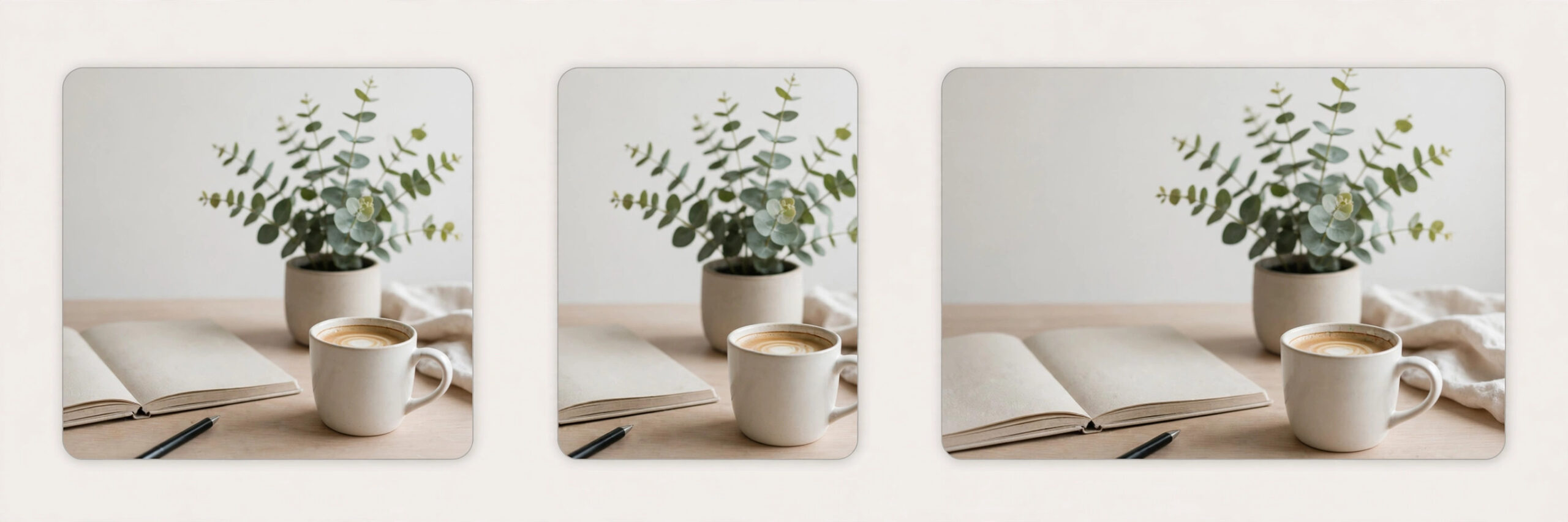
You post a photo, and the platform crops the edges, blurs the details, or squeezes it into a shape you never intended. The photo itself was fine — the size was wrong. Every social platform displays images at its own dimensions, and using the right size is the simplest way to make your posts look professional. This guide explains why size matters, gives you the commonly recommended sizes for the major platforms, and shows you how to prepare an image for each one.
Why the right size matters
When an image is much larger than the platform needs, the platform compresses it, which can soften fine detail. When it is much smaller, it gets stretched and turns blurry. And when its shape does not match the display area, the platform crops it automatically — often cutting off heads, text, or the main subject. Starting at the recommended size avoids all three problems: the image is displayed as you designed it, it stays sharp, and nothing important gets cut. Size also affects loading speed, which matters for viewers on slow connections and for how polished your post feels.
Recommended sizes for the major platforms
These are the commonly recommended sizes that work well in most cases. Platforms change their layouts from time to time, so treat them as reliable starting points rather than fixed rules.
- Instagram square post: 1080 x 1080 pixels. Portrait post: 1080 x 1350 pixels. Story and reel cover: 1080 x 1920 pixels.
- Facebook post image: 1200 x 630 pixels. Profile picture: at least 320 x 320 pixels. Cover photo: 851 x 315 pixels on desktop.
- X post image: 1600 x 900 pixels for a wide image that displays well in the feed.
- YouTube thumbnail: 1280 x 720 pixels. Channel art: 2560 x 1440 pixels.
- LinkedIn post image: 1200 x 627 pixels. Profile photo: 400 x 400 pixels.
If you only remember one rule, remember this: design at the exact size for the platform you are posting to, instead of uploading one large image everywhere and hoping each platform handles it well.
How to size an image correctly
- Pick the platform and format first. A square Instagram post and a wide X image need different shapes, so decide before you start editing.
- Set the exact dimensions. Use an image resizer and type in the width and height in pixels, rather than dragging a corner and guessing.
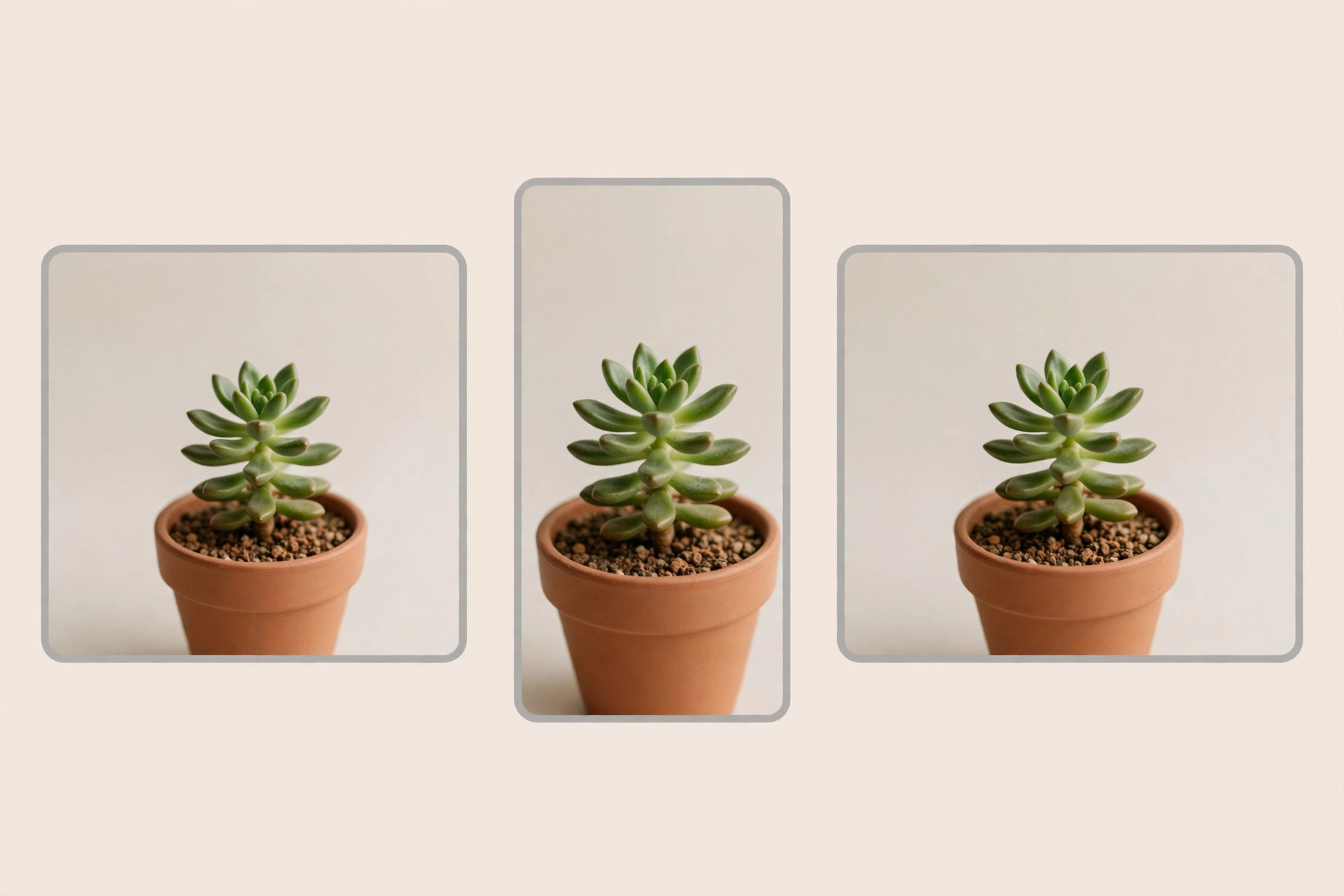
- Keep the proportions right. If the new shape differs from the original, crop deliberately — choose what stays in the frame — instead of stretching the image to fit.
- Position the subject with room to spare. Keep faces and text away from the edges, because some platforms trim a small border on certain screens.
- Export in the right format. JPG suits photos, PNG suits graphics and anything with text or sharp lines.
- Check the result at actual size. Open the exported image and look at it at 100 percent zoom. If it looks sharp there, it will look sharp in the post.
Tips for consistent, sharp posts
Keep one high-quality master copy of every image, then export a separate version for each platform from that master. Never resize an already-resized copy, because each round loses a little quality. If a platform offers both a square and a portrait option, portrait usually takes up more screen space in the feed and gets noticed more. For graphics with text, leave generous margins so nothing important sits near the edges where cropping happens. After resizing, compress the file if it is very large — a smaller file uploads faster and is less likely to be heavily re-compressed by the platform. Finally, test with one post before rolling out a whole series in a new size, so you can see exactly how it appears to your audience.
Final word
The right image size is a small detail with a big payoff: no surprise cropping, no blur, and posts that look the way you designed them. Find the platform’s recommended size, resize from your master copy, crop with intent, and check the result before posting. If you need a quick way to hit exact dimensions, iboxseo.org offers a free Image Resizer tool that works right in your browser, with no login needed. One size per platform, done properly, is all it takes.
Leave a Reply