AVIF images look sharp and load fast, but many apps still cannot open them. When you convert AVIF to JPG, the file works in almost every editor, browser, and form. This guide shows free online and offline methods for every need. It also covers batch steps and quality settings for great results.
What Is AVIF and Why Convert It
AVIF is a modern image format built on the AV1 video codec. It stores sharp photos at much smaller file sizes than JPG. Phones and new browsers save photos in AVIF by default now. Older editors, office apps, and upload forms often reject AVIF files. That is why many people convert AVIF to JPG before sharing. JPG opens in almost every app, editor, browser, and online form.
Our guide on JPG vs PNG vs WebP explains which format fits each job. Our guide on converting HEIC photos to JPG solves the same problem.
Method 1: Convert AVIF to JPG Online in CloudConvert
CloudConvert is a trusted online converter with a free daily allowance. It runs in the browser, so you install nothing on your device. Converted files are deleted from its servers after one day.
Step 1: Open the CloudConvert AVIF to JPG page in your browser.
Step 2: Click Select File and upload one or more AVIF images.
Step 3: Set the output format to JPG and pick a quality level.
Step 4: Click Convert, wait for the job, then download the JPG files.
Step 5: Check each JPG opens cleanly before you delete the AVIF originals.
The free plan covers 25 conversions per day for most users. For larger batches, split the job across days or use offline tools below.
Method 2: Convert AVIF to JPG Online in Convertio
Convertio is a simple browser converter with no account needed. You can upload files from your device, Google Drive, or Dropbox. The free plan allows files up to 100 MB each in size.
Step 1: Open the Convertio AVIF to JPG page in your browser.
Step 2: Click Choose Files and add the AVIF images to convert.
Step 3: Confirm JPG is set as the output format for each file.
Step 4: Click Convert and download the JPG files when ready.
Convertio deletes uploaded files after 24 hours for privacy. If your AVIF file is very large, try CloudConvert or GIMP instead.
Method 3: Convert AVIF to JPG Offline in GIMP
GIMP is a free open-source editor that opens AVIF files directly. It works offline, so private photos never leave your computer. You can also adjust quality, size, and colour before you export.
Step 1: Download GIMP from its official site and install it free.
Step 2: Open GIMP, choose File, then Open, and select your AVIF image.
Step 3: Choose File, then Export As, and save the file as JPG.
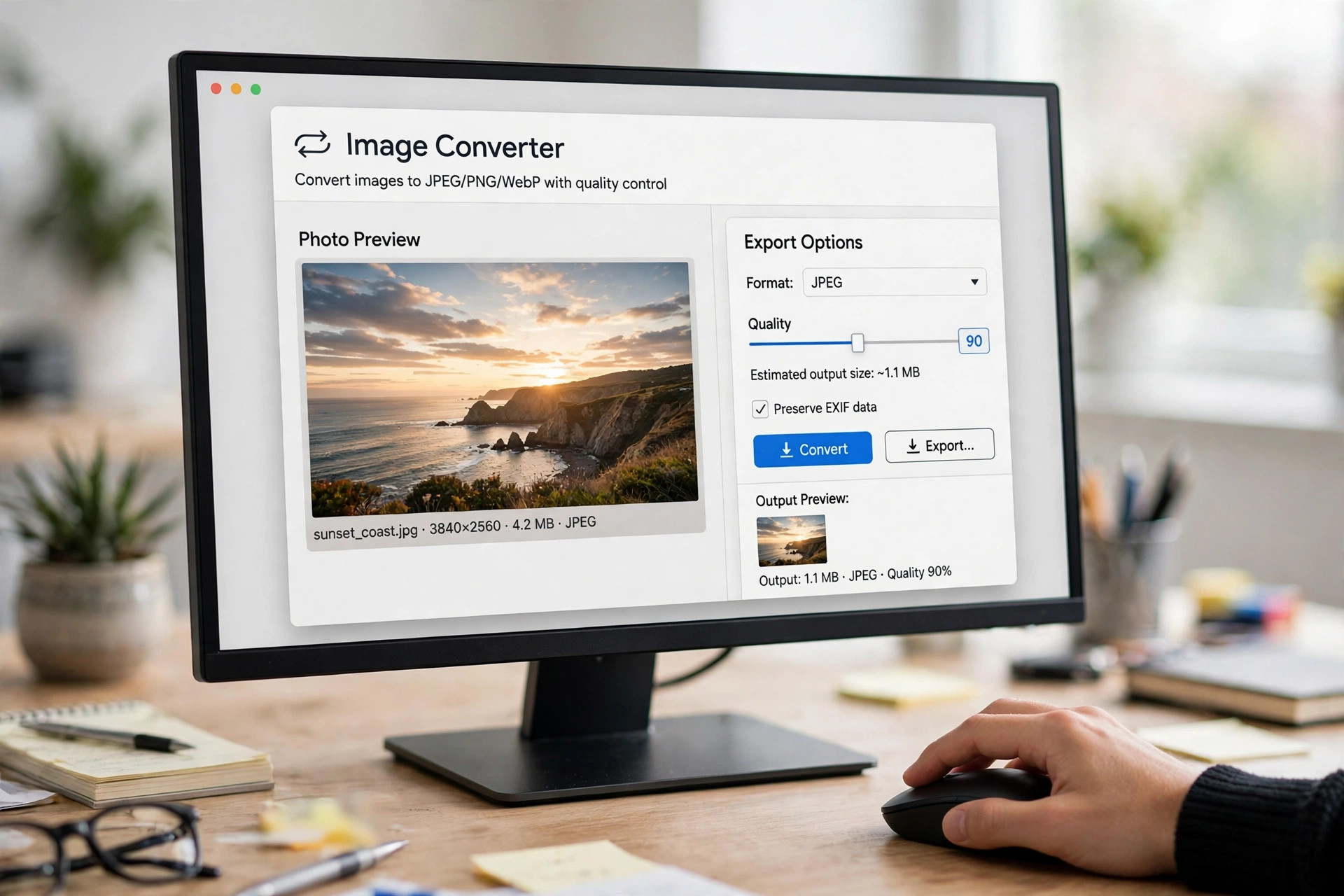
Step 4: Set the quality slider near 90 and click Export to save.
A quality near 90 keeps photos sharp with a small file size. For a full guide on shrinking JPGs after export, read our image compression guide.
Method 4: Batch Convert AVIF to JPG on Windows and Mac
Batch conversion saves time when you have dozens of AVIF files. XnConvert is a free batch tool that runs on Windows and Mac. It converts whole folders in one run with the same settings.
Step 1: Download XnConvert free and install it on your computer.
Step 2: Add the AVIF files or a whole folder to the Input tab.
Step 3: In the Output tab, set the format to JPG and pick a folder.
Step 4: Click Convert and let it process every file in the list.
Check a few outputs first, since one bad setting affects the whole batch. Keep the AVIF originals until you confirm every JPG looks right.
How to Keep Quality High When You Convert
AVIF to JPG conversion is lossy, so some detail is always lost. Start from the original AVIF file, never from a converted copy. Use a quality setting of 85 to 95 for photos you will print. Use 75 to 85 for web uploads, where small files load faster. Avoid converting the same image twice, since each pass loses detail. If the JPG looks soft, raise the quality and convert it again.
Our guide to compress an image to 100KB shows how to shrink JPGs further.
Mistakes to Avoid When You Convert AVIF Files
Do not delete the AVIF originals until every JPG is checked. Do not use a shady converter that asks you to install extra software. Do not convert a tiny AVIF to a huge JPG and expect more detail. Do not upload private photos to a converter you do not trust. Do not forget that JPG has no transparency, unlike PNG files.
For clear backgrounds, read our guide on JPG to PNG with transparency.
Frequently Asked Questions
Can I convert AVIF to JPG for free?
Yes, CloudConvert, Convertio, GIMP, and XnConvert all convert AVIF to JPG free. Free plans have daily limits, but most one-off jobs fit inside them.
Will converting AVIF to JPG reduce image quality?
Yes, JPG uses lossy compression, so a little detail is lost each time. Use a quality setting of 90 or above to keep the loss invisible.
Can I convert many AVIF files to JPG at once?
Yes, XnConvert and GIMP batch tools convert whole folders in one run. CloudConvert also accepts several files in a single free job.
Is AVIF better than JPG for photos?
AVIF gives smaller files at the same quality, but JPG works in more apps. Use AVIF for storage and JPG when you must share or upload.
What should I do if an app cannot open my AVIF file?
Convert the file to JPG with any free method in this guide. Keep the AVIF original safe, since you may need it again later.
Converting AVIF to JPG takes only a minute with the free tools above. Pick an online converter for quick jobs and GIMP for private photos. Set the quality near 90, check the result, and share the JPG anywhere.
Leave a Reply