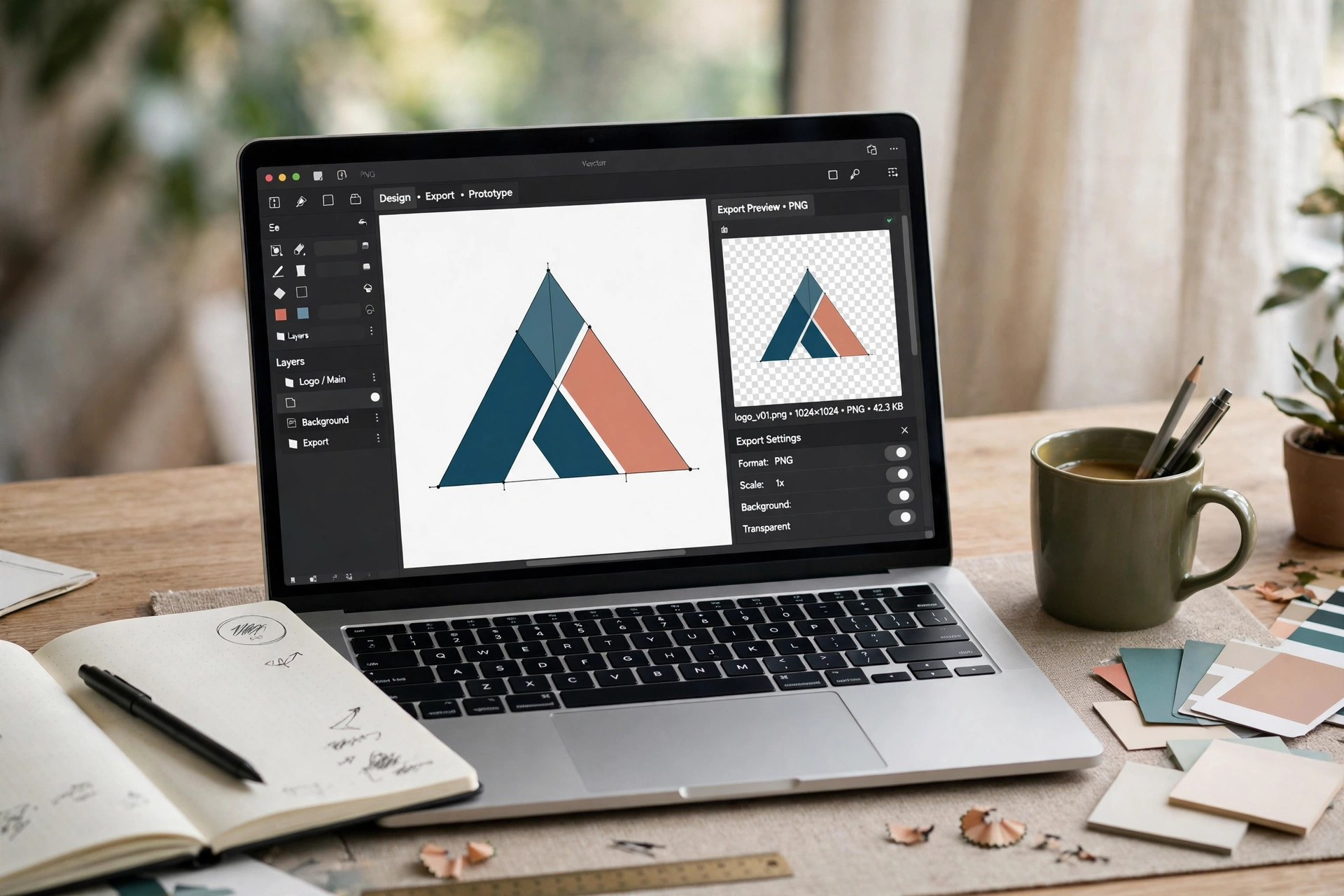
SVG files stay sharp at any size, but many forms and editors still need PNG. When you convert SVG to PNG, you get a fixed-size image that works almost everywhere. This guide shows free online and offline methods for every need. It also covers exact sizes and background tips for clean exports.
What Is SVG and Why Convert It to PNG
SVG is a vector format, so it scales without losing any sharpness. Logos, icons, and line art are often saved as SVG files. Many forms, editors, and social apps still accept only PNG images. PNG is a raster format with a fixed size in pixels. When you convert SVG to PNG, you lock in the size you need. PNG also supports transparency, so logos sit cleanly on any background.
Our guide on JPG vs PNG vs WebP explains how PNG compares with other formats. Our guide on converting WebP to JPG or PNG covers a similar switch.
Method 1: Convert SVG to PNG Online in CloudConvert
CloudConvert handles SVG well and lets you set the exact output size. It runs in the browser with a free daily allowance for conversions. Files are deleted from its servers after one day for privacy.
Step 1: Open the CloudConvert SVG to PNG page in your browser.
Step 2: Click Select File and upload the SVG file to convert.
Step 3: Set the width and height you need for the PNG output.
Step 4: Click Convert, then download the PNG file when ready.
A width of 1000 pixels suits most logos, icons, and web images. For print work, use 3000 pixels or more to keep edges crisp.
Method 2: Convert SVG to PNG Online in Convertio
Convertio is a simple browser converter with no account needed. You can upload files from your device, Google Drive, or Dropbox. The free plan allows files up to 100 MB each in size.
Step 1: Open the Convertio SVG to PNG page in your browser.
Step 2: Click Choose Files and add the SVG file to convert.
Step 3: Confirm PNG is set as the output format for the file.
Step 4: Click Convert and download the PNG file when ready.
Convertio deletes uploaded files after 24 hours for privacy. If the SVG has fonts, outline them first or the text may shift.
Method 3: Convert SVG to PNG Offline in Inkscape
Inkscape is a free vector editor that opens SVG files natively. It works offline, so your logo files never leave your computer. You can export any size, since vectors scale without losing quality.
Step 1: Download Inkscape free from its official site and install it.
Step 2: Open Inkscape and load the SVG file you want to export.
Step 3: Choose File, then Export PNG Image, and set the size.
Step 4: Pick a folder, click Export, and check the PNG file.
Export at two times the display size for sharp retina screens. For a clean logo background, read our guide on removing the background from a logo.
Method 4: Convert SVG to PNG in Your Browser
Modern browsers can open SVG files and save them as PNG images. This method needs no tool, but it gives less size control. It suits a quick one-off export when the size does not matter.
Step 1: Drag the SVG file into a Chrome or Firefox window.
Step 2: Right-click the image and choose Save Image As PNG.
Step 3: Pick a folder and save the PNG file to your device.
If the browser saves a small PNG, use CloudConvert or Inkscape instead. Browser exports use the on-screen size, so zoom in first for larger files.
How to Pick the Right Size and Background
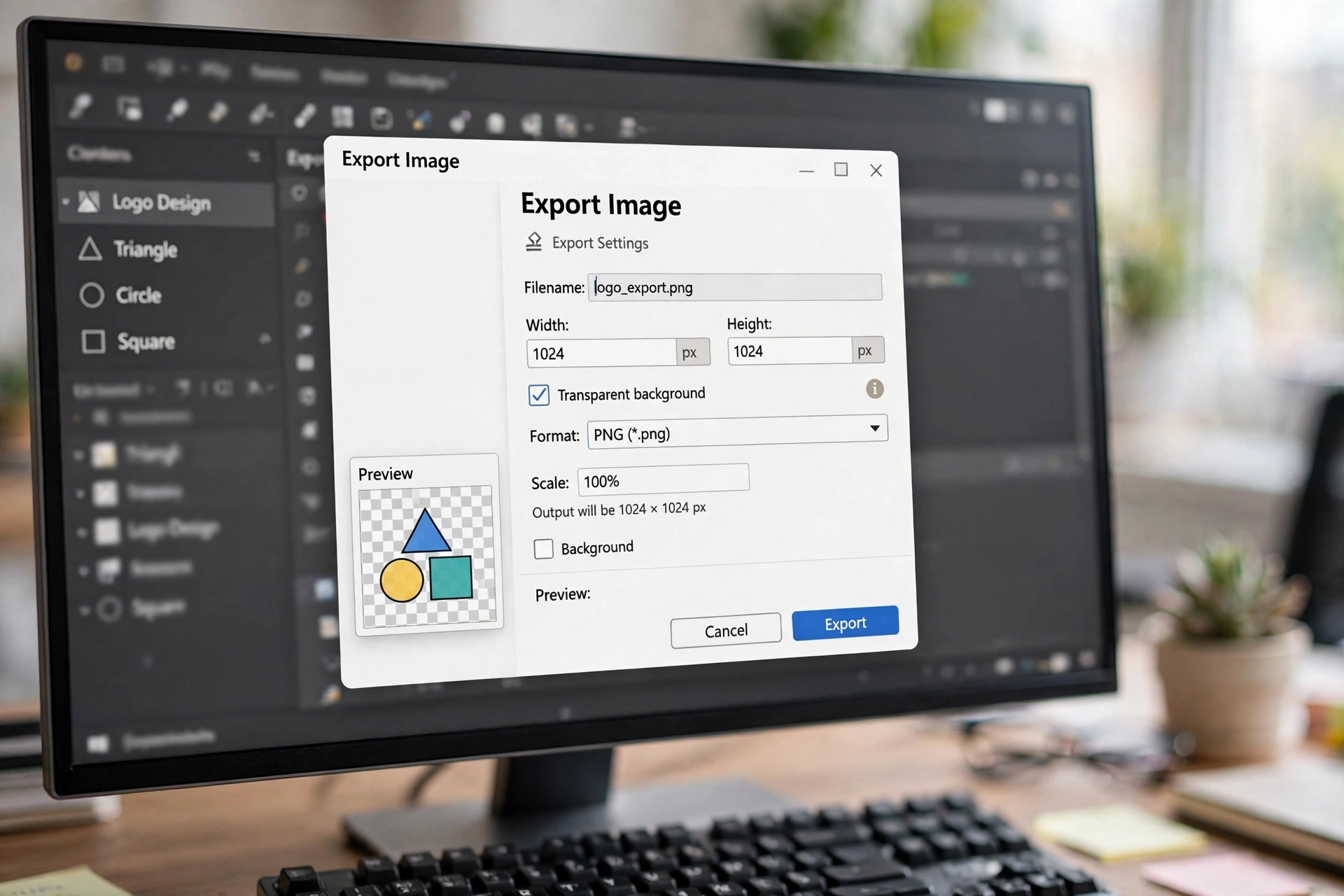
Pick the size from where the PNG will be used, not at random. Use 512 pixels wide for profile pictures, icons, and small web graphics. Use 1200 pixels wide for social posts, banners, and blog images. Use 3000 pixels wide for print work, where edges must stay crisp. Keep transparency on for logos, so they blend with any background. Use a white background for forms, since some systems reject transparent PNGs.
If the PNG ends up too large, our image compression guide shows how to shrink it.
Mistakes to Avoid When You Convert SVG Files
Do not export at a tiny size and stretch the PNG later. Do not forget that PNG files can grow large at high resolutions. Do not use a converter that adds a watermark to your PNG export. Do not ignore missing fonts, since text in the SVG may change shape. Do not save a photo as SVG first, since vectors suit shapes, not photos.
Resize the PNG after export with our guide on resizing an image without losing quality.
Frequently Asked Questions
Can I convert SVG to PNG for free?
Yes, CloudConvert, Convertio, Inkscape, and your browser all convert SVG to PNG free. Free plans have daily limits, but most one-off jobs fit inside them.
Will converting SVG to PNG lose quality?
No, if you export at a large size, since vectors scale without losing sharpness. A small export looks blurry when stretched, so pick the size first.
Can I convert SVG to PNG with a transparent background?
Yes, most converters keep transparency if you do not set a background colour. Check the PNG on a dark background to confirm the transparency worked.
What size should I choose when I convert SVG to PNG?
Match the size to the final use, such as 512 pixels for icons. For print work, export at 3000 pixels wide or more for crisp edges.
Is SVG better than PNG for logos?
SVG stays sharp at any size, but PNG works in more apps and forms. Keep the SVG master safe and export PNG copies whenever you need them.
Converting SVG to PNG takes only a minute with the free tools above. Pick an online converter for quick jobs and Inkscape for exact sizes. Set the size first, keep transparency on for logos, and export with confidence.
Leave a Reply