PDF metadata is the hidden title, author and keyword data inside every PDF file. When it is wrong, search results and readers see the wrong name. You can edit PDF metadata in minutes with free tools. This guide shows four methods that work on Windows and Mac. It also shows how to check the result before you share the file.
What Is PDF Metadata and Why It Matters
PDF metadata is a small set of details stored inside the file itself. It usually holds the title, author, subject and keywords for the document. Readers and search tools use these fields to identify the file. Good metadata helps people find your PDF and trust what they open.
The title is the most important field, since it shows up in search results. Many PDFs still show a file name like report-final-v3 instead of a real title. That is why you may need to edit PDF metadata after a file is created. The author field names the person or team that made the file.
The subject field gives a one-line summary of what the PDF covers. Keywords help search tools match the file to a topic, so add a few honest terms. Metadata also stores the creation date and the software that made the file. You can reduce PDF file size later without touching these fields at all.
Method 1: Adobe Acrobat Pro (Most Reliable)
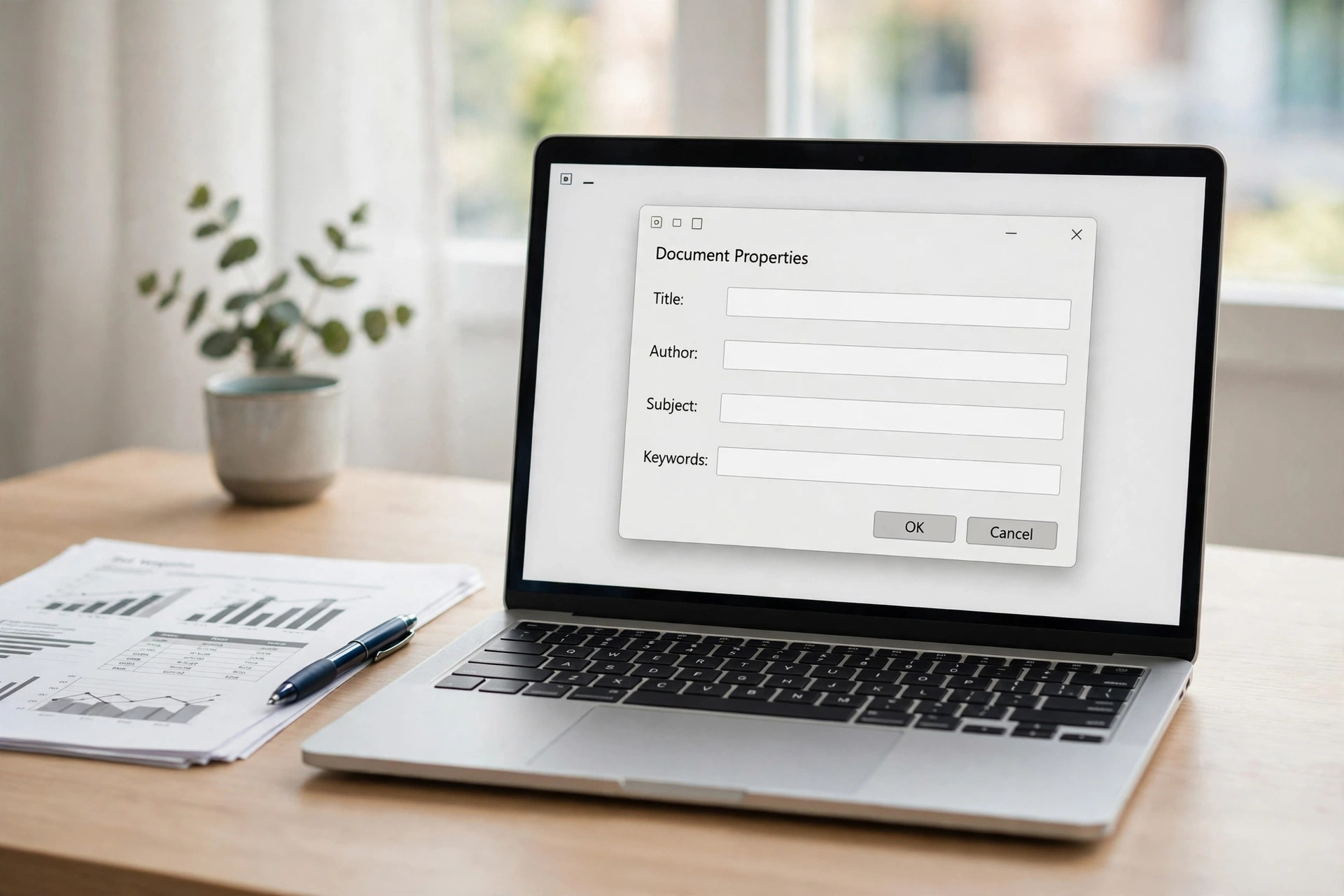
Adobe Acrobat Pro is the most reliable way to edit PDF metadata on any computer. Open the file, press Ctrl+D, and the Document Properties dialog appears. The Description tab holds the Title, Author, Subject and Keywords fields. Edit them, click OK, and save the file to apply the changes.
Step 1: Open the PDF in Adobe Acrobat Pro on your computer.
Step 2: Press Ctrl+D or choose File, then Properties, from the menu.
Step 3: Type the new title, author, subject and keywords on the Description tab.
Step 4: Click the Custom tab to add a custom property like version number.
Step 5: Click OK, then press Ctrl+S to save the file with new metadata.
Acrobat Pro keeps the two metadata stores in step when you save the file. It updates both the old document info and the newer XMP data together. That matters, because some readers show one store and others show the other. The free Acrobat Reader can view metadata but cannot change it at all. The Mapsoft guide to PDF metadata explains both stores in detail, with screenshots of the dialog.
Method 2: Sejda Online Metadata Editor (Free, No Install)
Sejda offers a free online editor that lets you edit PDF metadata in a browser. You upload the PDF, change the fields, and download the updated file. There is no software to install, and it works on any device. Use it only for files with no sensitive data, since you upload the original first.
Step 1: Open the Sejda PDF metadata editor in your browser window.
Step 2: Upload the PDF file you want to fix from your computer.
Step 3: Edit the title, author, subject, keywords and creation date fields.
Step 4: Click Update PDF Metadata and download the new file.
Sejda can edit up to ten fields, including title, author and creation date. That is more than most free online tools offer in one place. Free use has file size and task limits, so check them before a big job. If you need a private option, use Acrobat Pro or ExifTool instead. You can also password-protect a PDF after fixing its details for safety.
Method 3: ExifTool (Free, Precise, for Power Users)
ExifTool is a free command-line tool that can edit PDF metadata with great precision. It reads and writes both the old document info and the newer XMP data. Power users like it because one command can fix a whole folder of files. It runs on Windows, Mac and Linux, and it costs nothing at all.
Step 1: Download ExifTool from the official site and install it first.
Step 2: Open a terminal or command prompt in the folder with your PDF.
Step 3: Run exiftool -Title=”Annual Report 2026″ on the file to set its title.
Step 4: Run exiftool -Author=”Your Name” on the file to set the author.
Step 5: Run exiftool -all= on the file to strip all metadata at once.
ExifTool shows both metadata stores at once, so you can spot a mismatch fast. Run exiftool on the file with no options to list every field it holds. The tool also works on images, so one install covers many file types. The RaptorPDF guide to editing PDF metadata shows the key commands with examples.
Method 4: Set Metadata in Word or Google Docs Before Export
The easiest way to edit PDF metadata is to set it before the PDF exists. Word, Google Docs and LibreOffice all carry document properties into the exported file. Set the title in the source file once, and every PDF you export stays correct. This beats fixing the same fields again after each export.
Step 1: Open the source document in Word, Google Docs or LibreOffice Writer.
Step 2: Find the document properties or file details panel in the app.
Step 3: Type the title, author and description you want in the PDF.
Step 4: Export or save the file as PDF and check the result.
In Word, use File, then Info, to set the title and author before you export. In Google Docs, use File, then Details, to set the title for the document. LibreOffice Writer has File, then Properties, with the same fields available. If the export looks wrong, read our guide on converting Word to PDF for free. Then follow the same steps and export the file again.
How to View PDF Metadata Before You Change It
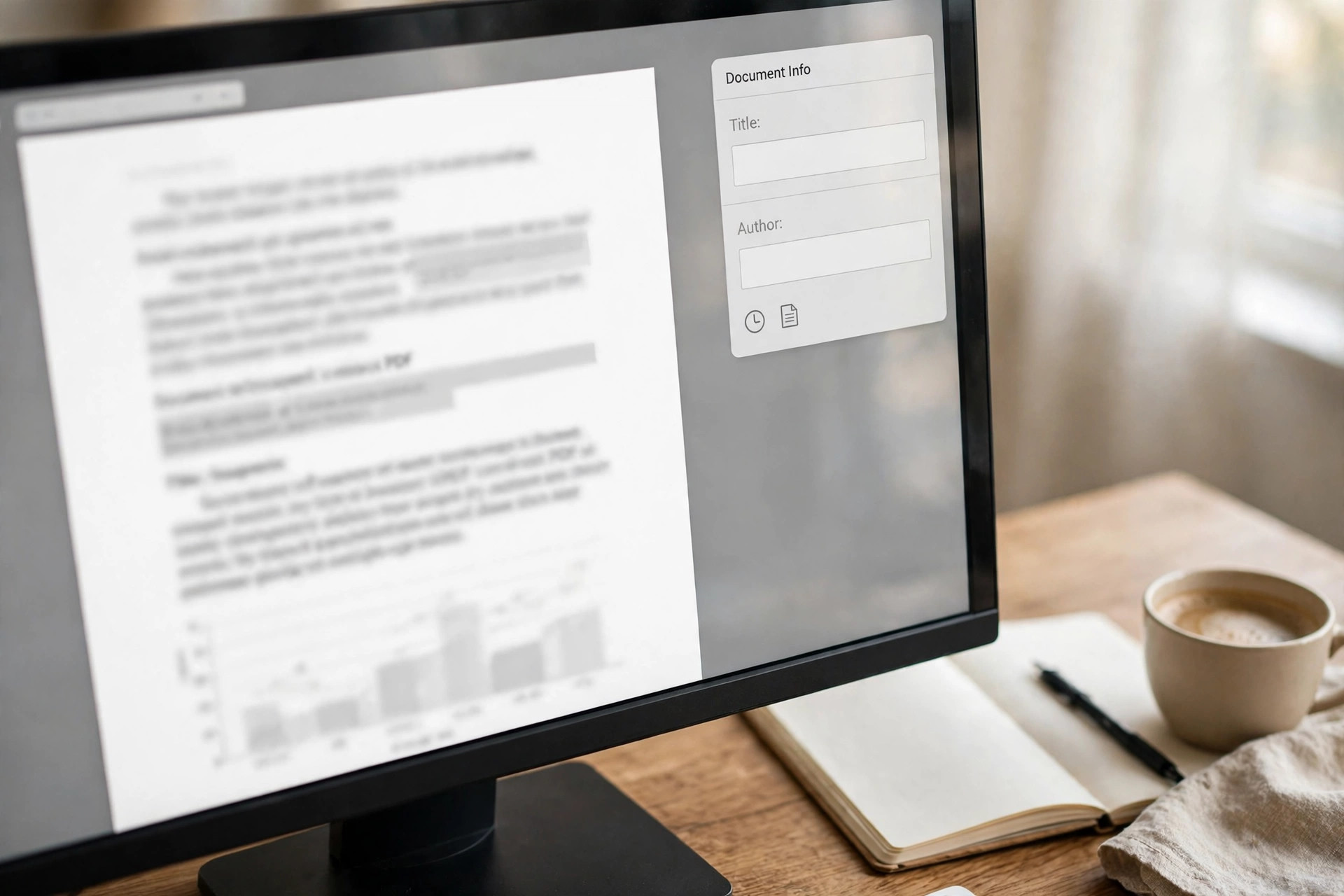
Check the current metadata first, so you know exactly what needs fixing. In Acrobat, press Ctrl+D and read the Description tab for the details. On a Mac, open the file in Preview and use Tools, then Show Inspector. The Inspector shows the title, author and other fields in a panel.
Windows File Explorer can also show some fields in the Details pane. Right-click the file, choose Properties, and open the Details tab. This view only shows the local file data, not the full PDF metadata. For the full picture, use Acrobat, Preview or ExifTool instead. After any change, view the file again to confirm the new values stuck. If the file is a scan, first read our scanned PDF to searchable PDF guide. It shows how to add a text layer before you edit anything.
Common PDF Metadata Mistakes to Avoid
The most common mistake is leaving the file name as the title, like report-final.pdf. Readers see that name in search results, and it looks unfinished and unprofessional. The second mistake is forgetting the author field on shared team documents. A blank author makes the file look anonymous and hard to trace. That is why many people edit PDF metadata only when a file looks wrong.
The third mistake is editing only one metadata store and leaving the other stale. Some tools write the old document info but skip the newer XMP data entirely. Then one reader shows the new title while another shows the old one. Use a tool that updates both stores, like Acrobat Pro or ExifTool. You can also redact a PDF if the metadata itself holds private names or comments.
A fourth mistake is trusting metadata to stay private when you share a file. Metadata can hold author names, comments and edit history from earlier drafts. Strip it before you send a file outside your team or company. The pdf.live guide to PDF metadata explains what each field can reveal.
Frequently Asked Questions
Can I edit PDF metadata for free without Adobe Acrobat?
Yes, Sejda lets you edit PDF metadata online for free in your browser. ExifTool is also free and runs on Windows, Mac and Linux. Both change the title, author, subject and keywords without paying for Acrobat.
Does changing PDF metadata change the file content?
No, metadata only describes the file and never touches the page content. The text, images and layout stay exactly the same after an edit. Only the title, author and other details change in the file.
Why does my PDF show the wrong title in search results?
The title field is often empty, so search tools fall back to the file name. Open the file and edit PDF metadata to set a proper title. Save the file and wait for search tools to pick up the new value.
Can I remove all metadata from a PDF before sharing it?
Yes, ExifTool can strip all metadata with one command on your computer. Acrobat Pro also has a sanitize step that removes hidden data too. Always check the file after stripping to confirm nothing private is left.
Will editing metadata work on a password-protected PDF?
No, a locked PDF blocks edits until you enter the password or remove it. If you own the file, unlock it first with the password you set. Then edit the metadata and save the file under a new name.
Good metadata takes two minutes and makes every PDF look professional. When you edit PDF metadata, the right title shows in search results. Set the title and author before you export, and fix old files with Acrobat or Sejda. Always check the result after saving, so the right details show up. Your files will be easier to find, and readers will trust them more.
Leave a Reply