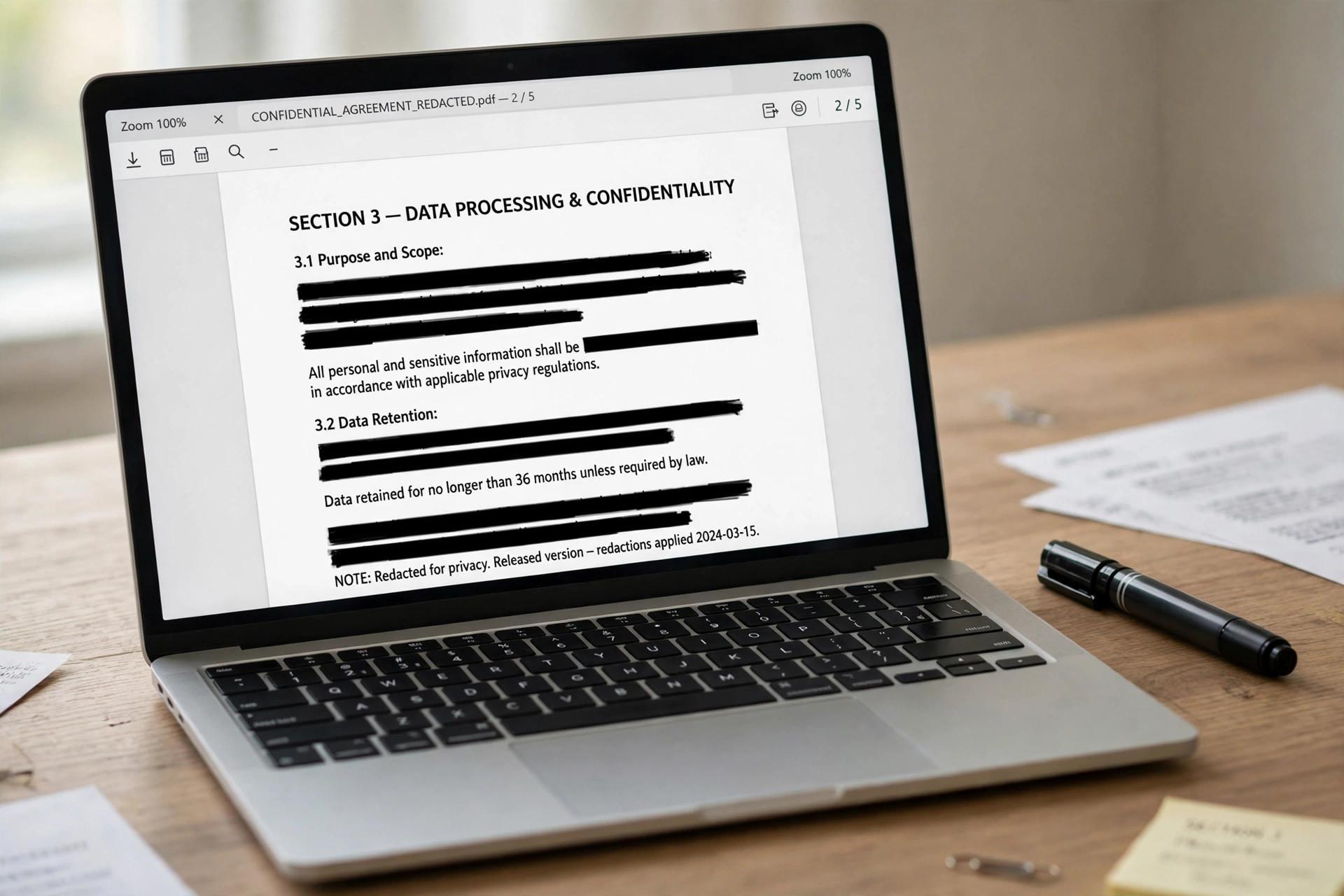
You can redact a PDF in minutes with the right tool. Only true redaction removes the hidden text for good. A black box over a name is not enough, since text still sits underneath it. This guide shows four methods that delete the content for good. It also shows how to check the result before you share the file.
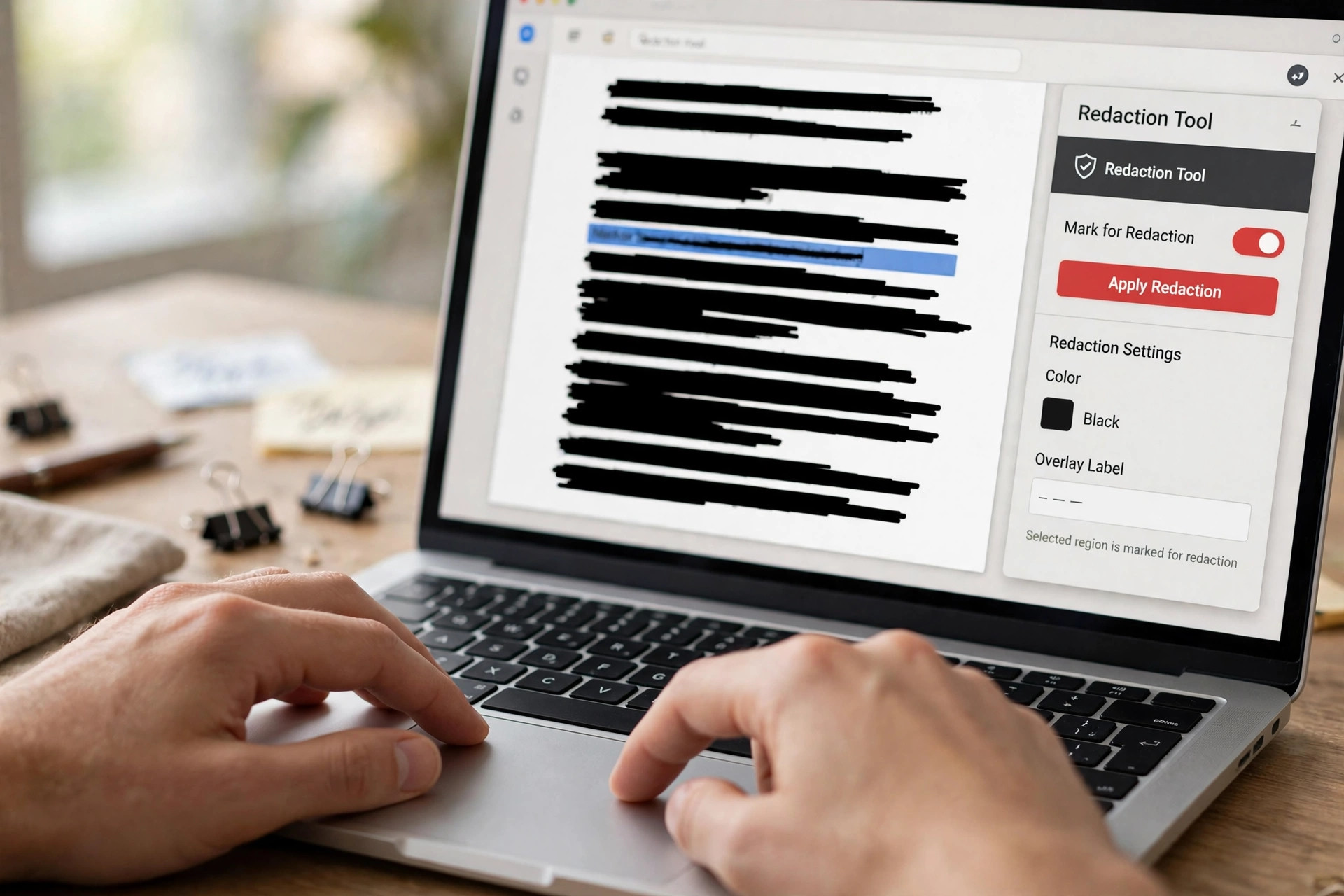
Real Redaction vs a Black Box
Real redaction deletes the text and images you mark, so no one can recover them. A black rectangle only covers the text on screen. Anyone can select the text or delete the shape. That mistake has leaked private details in real court filings and public reports. Always use a tool that removes the content, not one that hides it.
Before you redact, make a copy of the original file and work on the copy. Redaction cannot be undone once you apply it and save the file. Keep the original in a safe place in case you need it later. You should also password-protect a PDF when the file still holds other private details after redaction.
Method 1: Adobe Acrobat Pro (Most Reliable)
Acrobat Pro is the standard tool for redaction, and it works in two clear stages. This is the safest way to redact a PDF for legal or work files. First you mark the text or images to remove, and then you apply the marks. Nothing is deleted until you apply, so you can review every mark first. Acrobat can also search for a word or pattern and mark every match at once.
Step 1: Open the PDF and choose All tools, then Redact a PDF.
Step 2: Select Redact text and images from the left pane.
Step 3: Drag over the text or image you want to remove.
Step 4: Click Apply and choose whether to sanitize hidden data.
Step 5: Save the file under a new name.
Use Find text and redact when the same detail appears on many pages. It can search for one word, several words, or a pattern. Phone numbers and email addresses work as patterns too. Check each result, mark the ones you want, and then apply them all together. The CapLinked guide to redacting a PDF covers the same flow in detail. It also explains how to verify the result before sharing.
Method 2: Mac Preview (Free, Built In)
Mac Preview has a real redaction tool since macOS 11 Big Sur, and it costs nothing. Preview lets you redact a PDF without paying for any software. It removes the marked text when you save, so it is true redaction on modern Macs. Older versions of macOS have no redaction tool at all, so check your version first. On macOS 10.15 or earlier, use another method from this guide.
Step 1: Open the PDF in Preview and duplicate it first.
Step 2: Show the Markup Toolbar if it is not visible.
Step 3: Choose Redaction Selection from the toolbar.
Step 4: Select the text or image you want to remove.
Step 5: Close the document to apply the redaction.
Preview asks you to confirm before it removes anything, so read the warning carefully. You can delete a redaction mark before you close the file if you change your mind. Do not use a plain black rectangle from the shapes menu. That shape only covers the text on screen. The Setapp guide to redacting PDFs on Mac shows the Preview steps with screenshots.
Method 3: LibreOffice Draw (Free, Windows and Mac)
LibreOffice Draw is a free open-source editor with a built-in redaction tool. LibreOffice Draw lets you redact a PDF on Windows and Mac for free. It works on Windows and Mac, and it needs no account or payment. You mark areas with a rectangle or free-form shape, then export a redacted PDF. The export removes the marked content from the new file.
Step 1: Open the PDF in LibreOffice Draw.
Step 2: Choose Tools, then Redact, then Rectangle.
Step 3: Draw over each part you want to remove.
Step 4: Choose Tools, then Redact, then Export Redacted PDF.
Step 5: Pick Black or White and save the new file.
LibreOffice Draw is slower than Acrobat for long files, but it is free and private. Your file never leaves your computer, which matters for legal and medical papers. The Cisdem guide walks through the LibreOffice steps in detail. It covers redacting a PDF without Acrobat Pro as well.
Method 4: Free Online Redaction Tools
Online tools let you redact a PDF fast, with no install at all. Free browser tools can redact a PDF with no install, and they work on any device. You upload the file, mark the text, and download the redacted copy. The trade-off is privacy, since you send the unredacted file to someone else first. Use online tools only for files with no truly sensitive data.
Step 1: Open a free online redaction tool in your browser.
Step 2: Upload the PDF and wait for it to load.
Step 3: Mark the text, or pick a pattern like email addresses.
Step 4: Apply the redaction and download the new file.
Some online tools offer pattern redaction for emails, phone numbers, card numbers and dates. That saves time when a file has many small details to hide. Never upload legal, medical or financial files to a free online tool. For those, use Acrobat Pro, Preview or LibreOffice on your own device.
How to Verify a Redaction Before You Share It
Verification is the step most people skip, and it is the step that matters most. Open the redacted file and search for the hidden word with Ctrl+F or Cmd+F. Try to select the black area with your mouse and copy it. Open the file in a different reader and check it again. Some readers hide text that others still reveal.
If the search finds nothing and nothing can be copied, the redaction is likely safe. Also check the file metadata and any hidden layers, since names can hide there too. Acrobat Pro offers a sanitize step that strips hidden data, and you should use it. When the file passes these checks, it is ready to share. You can also unlock a PDF you own before you start. A locked file can block the redaction tool otherwise.
Common Redaction Mistakes to Avoid
The most common mistake is drawing a black box and calling it redaction. The text stays in the file, and anyone can lift the box or copy the words. The second mistake is forgetting the metadata, which can hold author names, comments and tracked changes. The third is redacting only the first mention of a name. The same name often appears later in the file.
Check every page, including headers, footers and image captions. Names and numbers often repeat in tables, charts and signatures. Redact images too, since a scanned signature or photo can reveal the same detail. After redaction, save the file under a new name and keep the original private. If you must resize the pages, read our guide on changing PDF page size. Do that step before you share the file.
Frequently Asked Questions
How do I redact a PDF for free without Adobe Acrobat?
Mac users can use Preview, which has real redaction built in since macOS 11. Windows users can use LibreOffice Draw for free on their own computer. Free online tools also work for simple files. Avoid them for private files, since you must upload the original.
Does drawing a black box over text count as redaction?
No, a black box only covers the text on screen and leaves it in the file. Anyone can select the text under the box or delete the shape. True redaction deletes the content, so always use a redaction tool and verify the result.
Can someone recover text from a properly redacted PDF?
No, a proper redaction deletes the text from the file, so there is nothing to recover. The risk comes from fake redaction, where a shape only hides the words. Search the output and try to copy from the black area to confirm it worked.
Should I redact metadata and hidden layers too?
Yes, metadata can hold author names, comments and edit history that give away private details. Acrobat Pro can sanitize hidden data when you apply the redaction. Check the document properties after saving and remove anything that should stay private.
What should I do before I redact a legal document?
Make a copy first and redact only the copy, since redaction cannot be undone. Check every page for repeat mentions, including headers and footers. Verify the result by searching and copying, and keep the original in a safe place.
Redaction only works when the content is truly deleted, so never trust a black box. Use Acrobat Pro for the most reliable result available. Preview works on a modern Mac, and LibreOffice Draw is free. Verify every file by searching and copying before you share it. Keep the original copy private in a safe place.
Leave a Reply