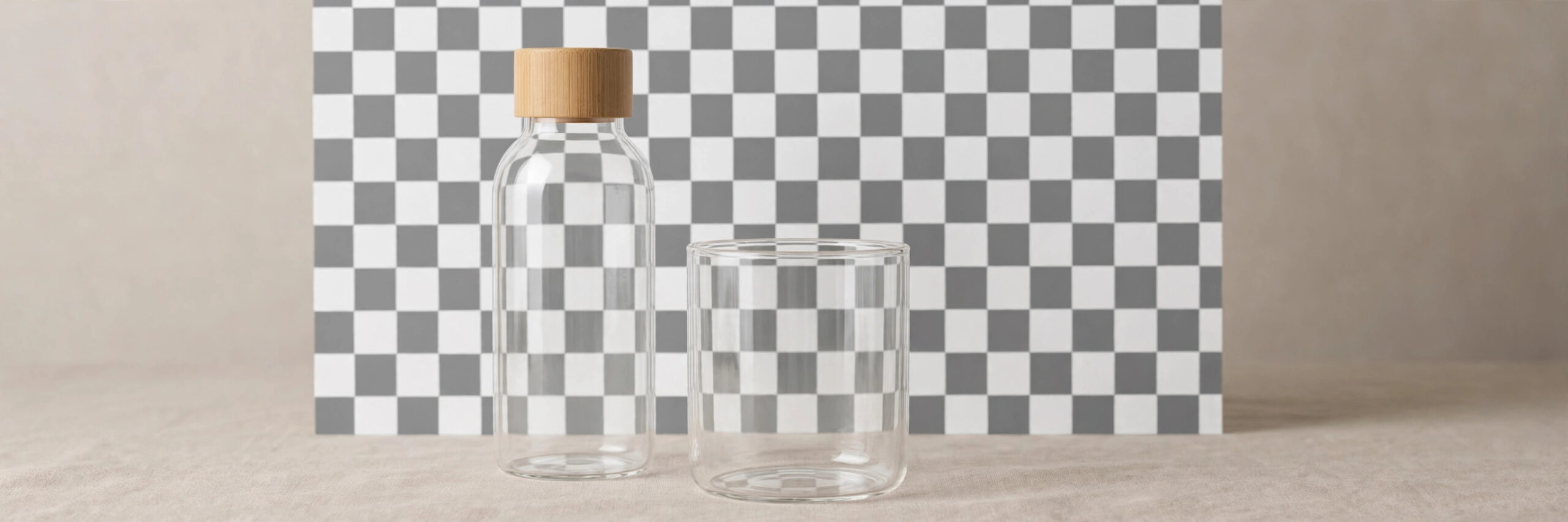
Many people search for how to turn a JPG into a transparent PNG, for a logo, a product photo, or a profile picture. Here is the honest truth first: simply changing the file format does not create transparency. A JPG has no transparency information at all, so a straight conversion just gives you the same image in a bigger PNG file, background and all. To get a genuinely transparent PNG, you need to remove the background first, and then save the result as PNG. This guide walks through both steps, so you end up with a file that actually works.
Why a straight conversion is not enough
Image formats store different kinds of information. JPG stores only colour, with no way to mark any part of the image as see-through. PNG, on the other hand, supports an alpha channel, which is the data that tells software which pixels are transparent. Converting a JPG to PNG adds the ability to hold transparency, but it does not invent that data. The background that was baked into the JPG stays there. So if your goal is only to change the format, a converter is all you need. If your goal is transparency, background removal has to come first.
Step 1: Remove the background
- Start from the highest-resolution version of your image. Clean edges depend on having enough detail to work with, so avoid a small, already-compressed copy.
- Open the image in a background remover tool. Most browser-based removers detect the main subject automatically and erase everything around it.
- Check the edges carefully. Zoom in and look for leftover halos, rough outlines, or missing pieces, especially around hair, fur, or thin objects. Clean up any rough spots with the tool’s erase or restore brush.
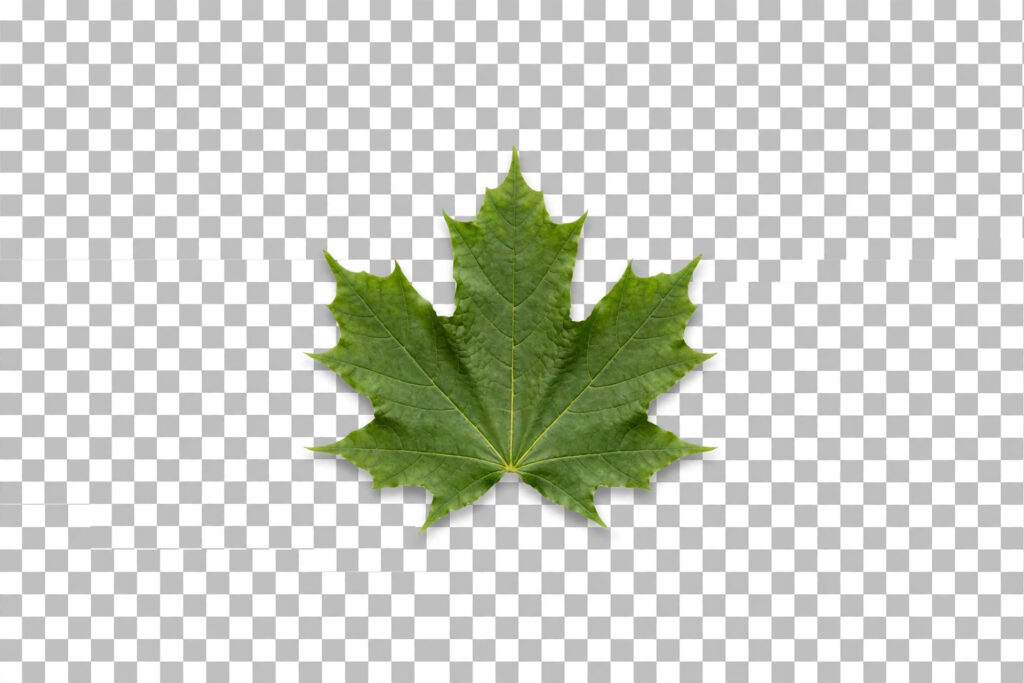
- Preview the result against a coloured background. Transparency is invisible on a white preview, so checking against a dark or coloured backdrop is the only way to confirm the background is really gone.
Step 2: Save the result as PNG
- Export the edited image as PNG. PNG is the format that keeps the transparency you just created, so do not export as JPG, or the background will come back as solid white.
- If your edited file ends up in another format, convert it to PNG. The JPG↔PNG Converter on iboxseo.org works in the browser with no login, and converts the file to PNG while keeping its transparency intact.
- Verify the final file. Open the PNG in an image viewer or place it over a coloured background in any editor. If the background shows through, the transparency worked. If you see a white box, something went wrong in step 1, and the background was not actually removed.
Tips for clean transparent PNGs
Work from the original image whenever possible, not from a screenshot of it. Simple, high-contrast backgrounds are much easier to remove cleanly than busy ones, so if you are photographing a product for this purpose, shoot it against a plain backdrop. Remember that transparent PNG files can be large, so resize the finished PNG to the size you actually need before uploading it. And do not convert JPG to PNG just to gain quality: the conversion cannot add detail that the JPG already lost, it only makes the file bigger.
Frequently asked questions
Can I make a JPG transparent without removing the background? No. Transparency has to be created by removing the background first. A format converter alone can only change the file type, not the image itself.
Why does my transparent PNG show a white background in some apps? Some viewers and social apps flatten transparency to white when displaying or re-saving images. The file itself is still transparent, so test it in an image editor or over a coloured background to confirm.
Is a PNG always bigger than a JPG? For photos, usually yes, often much bigger. For simple graphics with few colours, a PNG can actually be smaller. Size depends on the image content, not just the format.
Final word
A transparent PNG is a two-step job: remove the background, then save as PNG. Skip the first step and you will only have a larger file with the same background. Do both steps properly, check the result against a coloured background, and you will have a clean cut-out that sits neatly on any design, website, or profile.
Leave a Reply