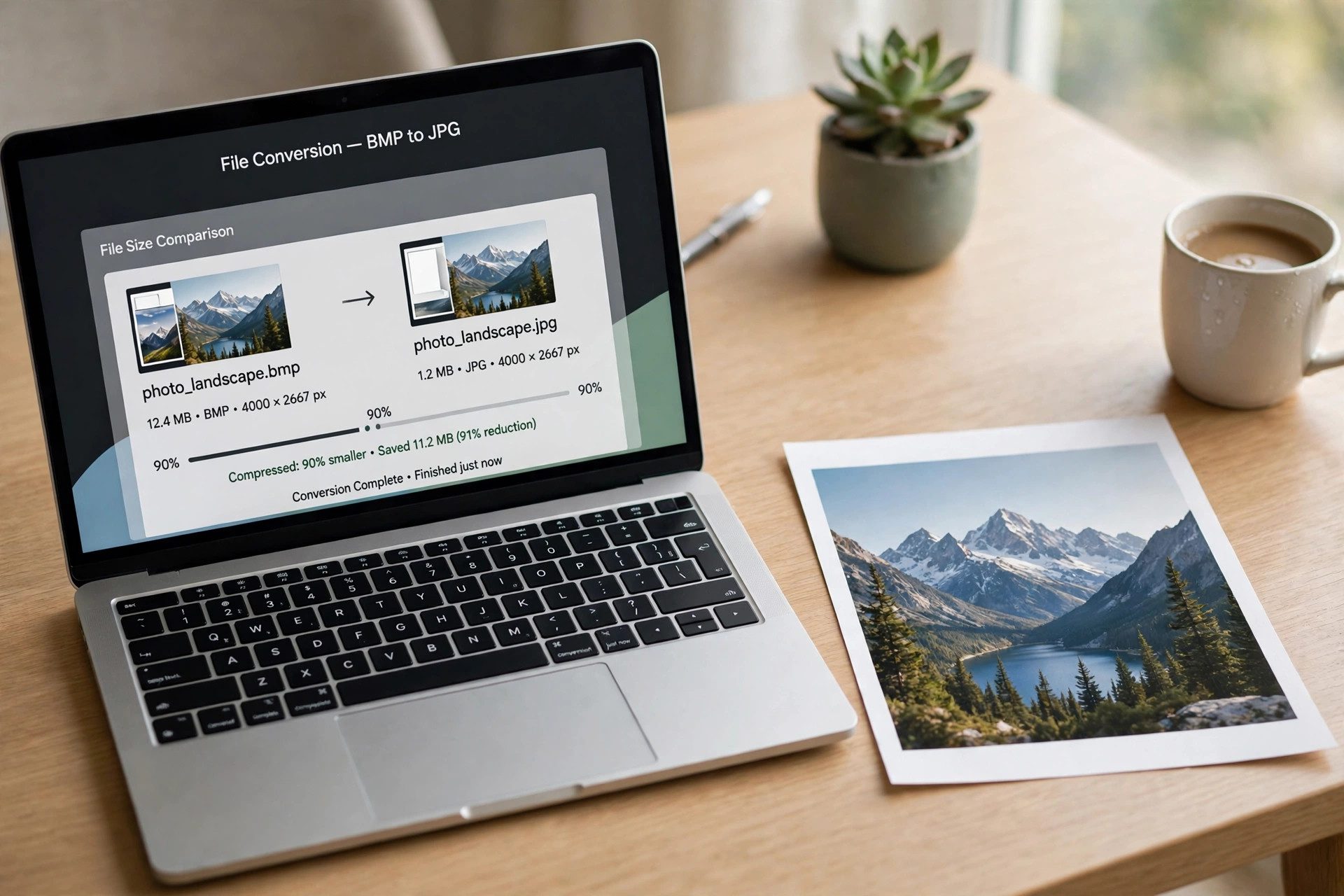
You can convert BMP to JPG free in seconds with an online tool or app. Upload the BMP, choose JPG, and download the smaller file. JPG files are far smaller than BMP files, so they load faster and share easily. Use the steps below for Windows, Mac, and mobile.
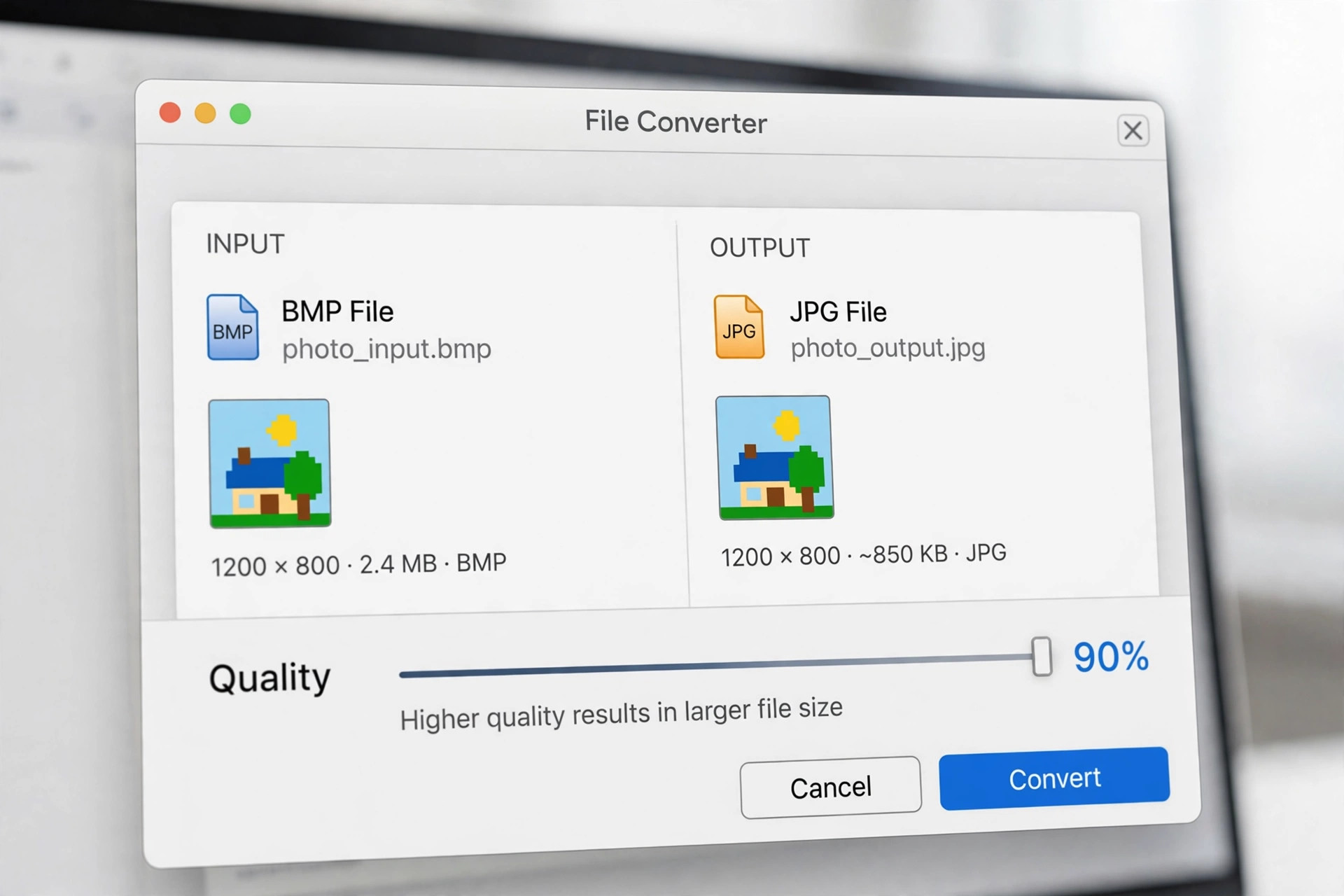
Why BMP Files Are So Large
BMP is an old Windows format that stores every pixel with no compression at all. A single photo can reach tens of megabytes, while the same shot as JPG stays small. BMP keeps full quality, but the huge size makes sharing and uploading slow. That is why most people convert BMP to JPG before they share a photo.
BMP files also open in fewer apps than JPG files do today. Phones, browsers, and social apps all prefer JPG for photos. Our guide on JPG vs PNG vs WebP explains which format fits each job. If your image is a scan, read our guide on converting TIFF to JPG instead.
When You Should Convert BMP to JPG
Convert BMP to JPG when you need to share, upload, or email a photo. JPG files load fast on websites and take little space on phones. Keep BMP only when you need every pixel untouched for editing. For most daily jobs, JPG gives the best balance of size and quality.
JPG also suits online forms, since many portals reject BMP uploads outright. It suits social media too, where BMP files often fail to upload. If the photo is for print, keep a BMP or PNG copy as well. Our guide on compressing images without losing quality helps shrink JPGs further. Adobe’s JPEG format guide explains why JPG suits photos so well.
Method 1: Convert BMP to JPG Online in CloudConvert
CloudConvert is a trusted online converter with a free daily allowance. It runs in the browser, so you install nothing on your device. Converted files are deleted from its servers after one day.
Step 1: Open the CloudConvert BMP to JPG page in your browser.
Step 2: Click Select File and upload the BMP image.
Step 3: Confirm JPG is set as the output format.
Step 4: Click Convert, wait briefly, then download the JPG.
The free plan covers 25 conversions per day for most users. For larger batches, split the job across days or use the offline tools below. CloudConvert handles other formats too, so read our guide on converting AVIF to JPG.
Method 2: Convert BMP to JPG Online in Convertio
Convertio is a simple browser converter with no account needed. You can upload files from your device, Google Drive, or Dropbox. The free plan allows files up to 100 MB each in size.
Step 1: Open the Convertio BMP to JPG page in your browser.
Step 2: Click Choose Files and add the BMP image.
Step 3: Confirm JPG is set as the output format.
Step 4: Click Convert and download the JPG when ready.
Convertio deletes uploaded files after 24 hours for privacy. If your BMP file is very large, try CloudConvert or Paint instead. You can also convert BMP to JPG on your phone with the methods below.
Method 3: Convert BMP to JPG on Windows With Paint
Paint comes free with every Windows computer and opens BMP files easily. It saves any image as JPG in a few clicks, with no upload needed. Your photo never leaves your computer, so private images stay safe.
Step 1: Right-click the BMP file and open it with Paint.
Step 2: Click File, then Save As, and choose JPEG Picture.
Step 3: Pick a folder, name the file, and click Save.
Step 4: Check the JPG opens cleanly before you delete the BMP.
Paint sets a good default quality, so most photos look sharp. If the JPG looks soft, use a converter that lets you set quality. The Microsoft Paint support pages explain the latest Paint features.
Method 4: Convert BMP to JPG on Mac and Mobile
Mac users can convert BMP to JPG free with the built-in Preview app. Android and iPhone users can use a free converter app or website. All three routes take under a minute for a single photo.
Step 1: On Mac, open the BMP in Preview and choose Export.
Step 2: Set the format to JPEG and pick a quality level.
Step 3: On mobile, open a trusted converter site in your browser.
Step 4: Upload the BMP, choose JPG, and download the result.
Preview keeps the process fully offline on a Mac, which suits private photos. On mobile, pick a converter that deletes uploads after a day. Our guide on converting a photo to PDF on phones covers mobile file handling too.
BMP to JPG Quality Tips
JPG is a lossy format, so each save drops a little detail. Start from the BMP original, since it holds every pixel. Use a quality setting of 85 to 95 for photos you will print. Use 75 to 85 for web uploads, where small files load faster.
Avoid converting the same image twice, since each pass loses detail. Keep the BMP original until the JPG is checked and shared. If a JPG looks blocky, raise the quality and convert it again. The MDN image format guide explains how JPG compression works in browsers.
Frequently Asked Questions
Can I convert BMP to JPG for free?
Yes, CloudConvert, Convertio, Paint, and Preview all convert BMP to JPG free. Online tools suit quick jobs, while Paint and Preview suit private photos.
Will converting BMP to JPG reduce image quality?
BMP holds every pixel, so some detail is lost when you save as JPG. At quality 90 or above, the visible difference is usually none. Keep the BMP original if you plan to edit the photo later.
Can I convert many BMP files to JPG at once?
Yes, CloudConvert accepts several files in a single free job. On Windows, you can also use a free batch tool like XnConvert. Check a few outputs first, since one bad setting affects the whole batch.
Why is my BMP file so much bigger than a JPG?
BMP stores every pixel with no compression, while JPG shrinks data with smart compression. A BMP photo can be ten times larger than the same shot as JPG. That size gap is why sharing BMP files feels so slow.
What should I do if an app cannot open my BMP file?
Convert the file to JPG with any free method in this guide. Keep the BMP original safe, since you may need it again later. JPG opens almost everywhere, from phones to office apps.
You can convert BMP to JPG in only a minute with the free tools above. Pick an online converter for quick jobs and Paint or Preview for private photos. Set the quality near 90, check the result, and enjoy smaller files.
Leave a Reply