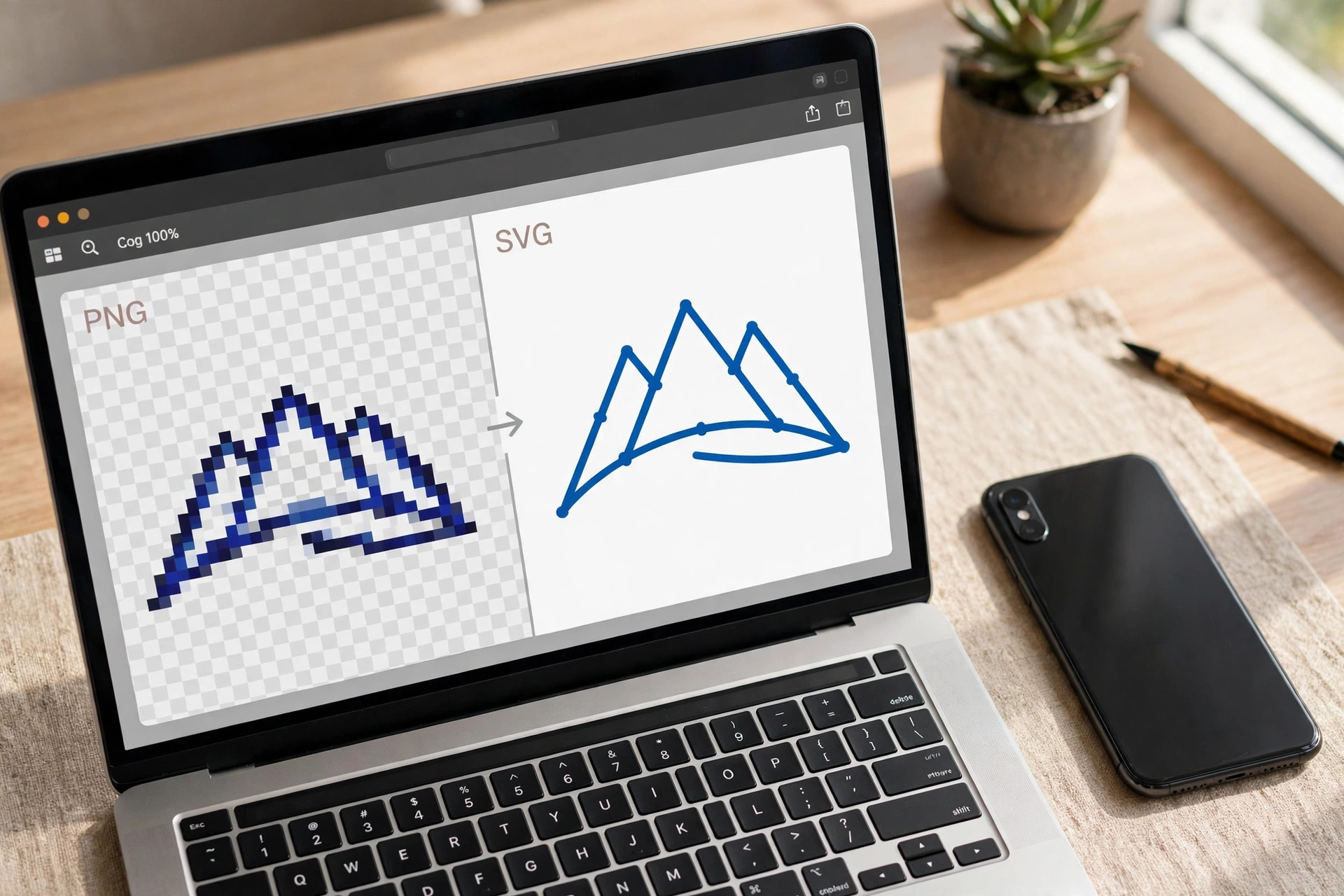
You can convert PNG to SVG free in under a minute with an online tool. Upload your PNG and let the tool trace its shapes into vector paths. Simple logos and icons convert best, while detailed photos often turn out rough. Pick the right method below for a clean, sharp result.
What PNG to SVG Conversion Actually Does
A PNG is a raster image made of fixed pixels, so it blurs when enlarged. An SVG uses maths-based paths, so it stays sharp at any size. Conversion traces the shapes and colours in your PNG and rebuilds them as vector paths. When you convert PNG to SVG, you get a file you can scale and recolour. The file stays sharp at every size you need.
Our guide on JPG vs PNG vs WebP explains which format fits each job. If you need the reverse direction, read our guide on converting SVG to PNG. For flat PNG files, our guide on converting PNG to JPG shows a simpler option.
When Converting PNG to SVG Makes Sense
It pays to convert PNG to SVG for logos, icons, and simple line art. These images have flat colours and clear edges, so tracing stays accurate. Photos, gradients, and soft shadows convert poorly, since tracing cannot copy every tiny shade. Use SVG when you need a logo that scales from a business card to a billboard.
SVG files also suit websites, since they stay tiny and load fast at any screen size. They suit print shops too, because a vector logo prints crisp at every size. If your PNG is a photo, keep it as PNG or JPG instead. Our guide on compressing images without losing quality helps photos load faster.
Method 1: Convert PNG to SVG Online in Vectorizer
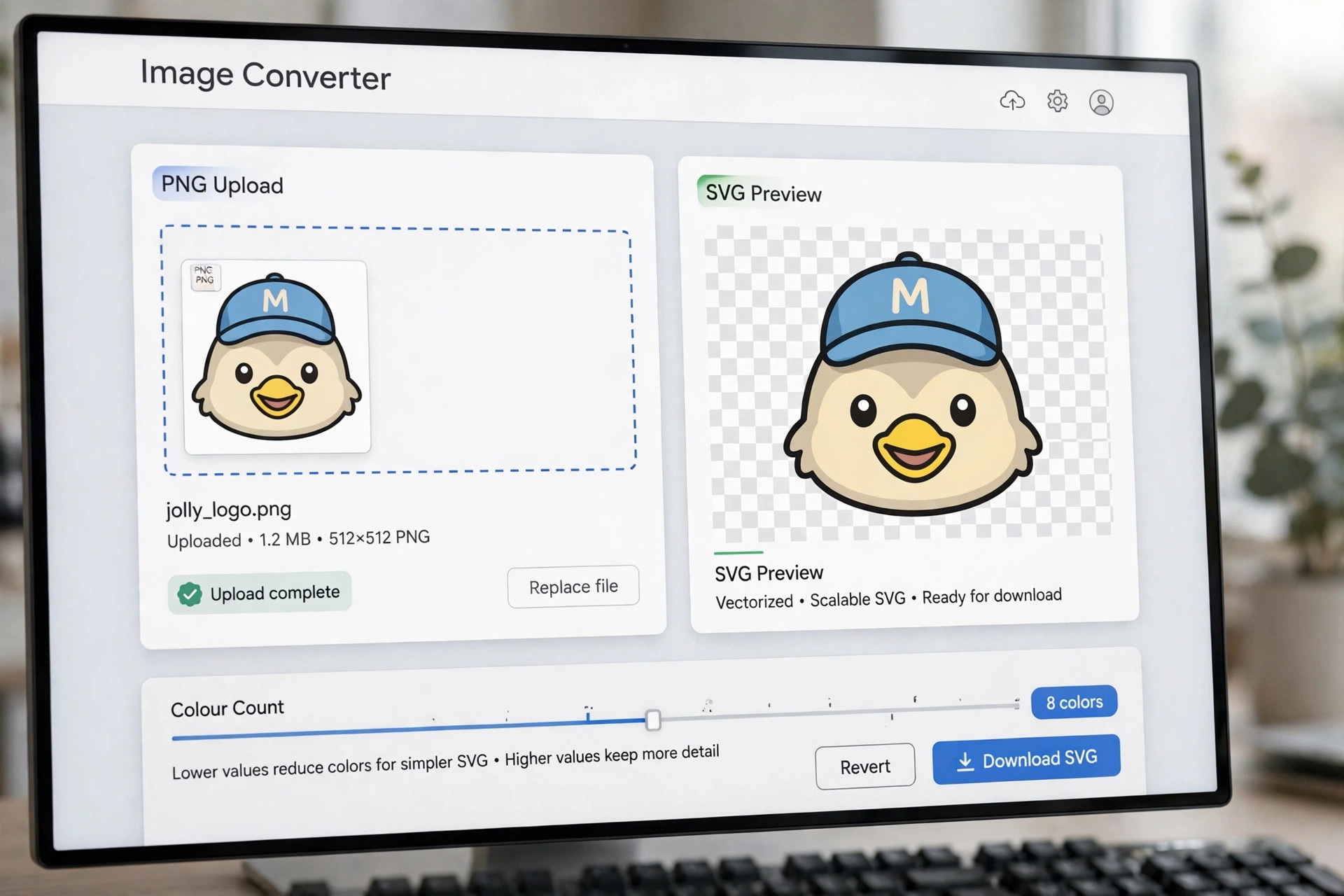
Vectorizer is a free online tracer that can convert PNG to SVG in seconds. It runs in your browser, so you install nothing on your device. You can adjust colours, paths, and detail before you download the result.
Step 1: Open the Vectorizer website in your browser.
Step 2: Click Upload and choose the PNG file to convert.
Step 3: Pick the number of colours and set the detail level.
Step 4: Preview the traced result and adjust the settings if needed.
Step 5: Click Download and save the SVG file to your device.
Vectorizer works best with high-contrast images and simple shapes. If the preview looks jagged, lower the colour count and try again. Keep your PNG original safe until the SVG looks right.
Method 2: Convert PNG to SVG Online in Adobe Express
Adobe Express offers a free image-to-vector tool with no design skills needed. Sign in with a free Adobe account, upload your PNG, and get an SVG in seconds. The tool suits logos and simple graphics more than detailed photos.
Step 1: Open the Adobe Express image-to-vector tool online.
Step 2: Sign in with your free Adobe account to continue.
Step 3: Upload the PNG file you want to convert.
Step 4: Choose the vector style and preview the result.
Step 5: Download the SVG file to your computer or phone.
Adobe Express keeps the process simple, but it needs an account for downloads. For a no-signup option, use Vectorizer or Inkscape from the methods here. Our guide on removing the background from a logo helps clean the PNG first.
Method 3: Convert PNG to SVG Offline in Inkscape
Inkscape is a free open-source vector editor that works fully offline. It can trace any PNG into an SVG with its built-in Trace Bitmap tool. Your files never leave your computer, so private logos stay safe.
Step 1: Download Inkscape free from its official website and install it.
Step 2: Open Inkscape, choose File, then Import, and select your PNG.
Step 3: Select the image, then choose Path and Trace Bitmap.
Step 4: Pick Single Scan or Multiple Scans and click Apply.
Step 5: Delete the PNG layer, then save the file as SVG.
Trace Bitmap gives you more control than most online tools offer. Try Single Scan first for black-and-white logos and simple icons. For colour logos, use Multiple Scans and limit the colour count to keep paths clean. Use it to convert PNG to SVG when privacy matters most. Learn more in the official Inkscape guide and the W3C SVG specification.
How to Get a Clean SVG From Your PNG
Start with the largest, sharpest PNG you have when you convert PNG to SVG. Clean edges trace well, while blurry edges turn into wobbly paths. Remove the background first if the logo sits on a busy photo. A transparent PNG traces cleaner than one with a solid background.
Keep the colour count low, since each colour adds more paths to the file. Two to six colours suit most logos and keep the SVG small. Check the SVG at a large size before you use it anywhere. If edges look rough, raise the detail setting and trace it again. The MDN SVG documentation explains how vector paths work in browsers.
Common PNG to SVG Problems and Fixes
A jagged SVG usually comes from a low-quality PNG or too many colours. Retrace the file with fewer colours and a higher detail setting. A huge SVG file often means the trace created too many tiny paths. Simplify the image first, then trace it again with fewer colours.
If the SVG looks blank, the trace may have missed light colours on white. Try a darker background or raise the brightness threshold in the tool. If text turns into shapes, that is normal, since SVG tracing cannot keep live text. Recreate the text in a vector editor if you need to edit it later. For store listings, read our guide on preparing product photos for online stores.
Frequently Asked Questions
Can I convert PNG to SVG for free?
Yes, Vectorizer, Adobe Express, and Inkscape all convert PNG to SVG free. Online tools suit quick jobs, while Inkscape suits private files and fine control.
Will my SVG look exactly like my PNG?
Simple logos and icons usually trace very close to the original PNG. Photos and gradients lose detail, since tracing rebuilds shapes instead of copying pixels. Always preview the result before you use the SVG anywhere.
Can I convert a PNG photo to SVG?
You can, but the result is often rough and the file can grow large. Photos hold thousands of colours, so tracing creates too many paths. Keep photos as PNG or JPG and reserve SVG for logos and icons.
Is SVG better than PNG for a logo?
Yes, SVG stays sharp at every size and the file is usually smaller. It also lets you change colours and shapes in a vector editor. Use PNG only when the logo must open in an app without SVG support.
What should I do if the SVG file is too big?
Lower the colour count and retrace the PNG with fewer details. Remove tiny paths and smooth the edges in a vector editor. If the file stays huge, the source image may suit PNG or JPG better.
You can convert PNG to SVG in only a minute with the free tools above. Pick Vectorizer for quick jobs, Adobe Express for simple edits, and Inkscape for private files. Start from a sharp PNG, keep colours low, and check the result at a large size.
Leave a Reply