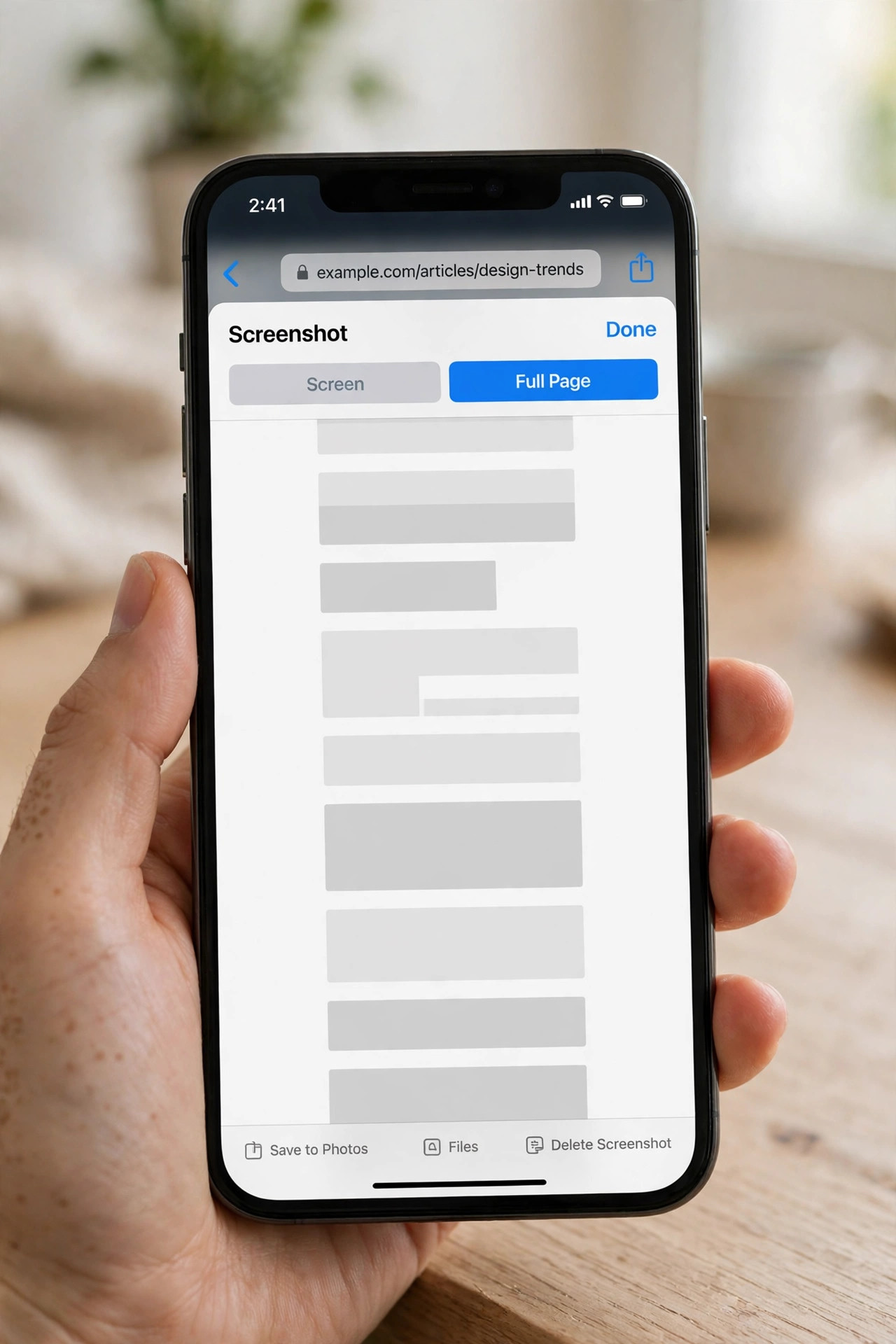
A full page screenshot on iPhone captures a whole Safari page in one file. The normal buttons capture only the visible screen, so long pages get cut off. Safari hides a Full Page tab in the screenshot preview, and it needs no app. This guide shows the Safari method, Chrome on iOS, and scrolling apps.
What a Full Page Screenshot Does on iPhone
A full page screenshot saves a whole web page as one tall image or PDF. It suits recipes, receipts, articles and travel plans that scroll beyond the screen. The file stays readable offline, since it holds the page as it looked. Apple added the feature in iOS 13, so most iPhones today support it.
The option works best in Safari, where Apple built it for whole web pages. It may not appear in chats, social feeds, maps or apps with custom scrolling. A normal screenshot still works there, but it captures only the visible screen.
Method 1: Safari Full Page Tab (Free, Built In)
Safari is the simplest route, since the feature is built into iOS itself. You take a normal screenshot, tap the preview, then switch to Full Page. The whole page appears as one long strip on the right.
Step 1: Open the page in Safari. Load the page fully and let images appear before you capture. Scroll down once so lazy images load properly.
Step 2: Take a screenshot with the buttons. On Face ID models, press the side button and volume up together. On Home button models, press the side button and Home together.
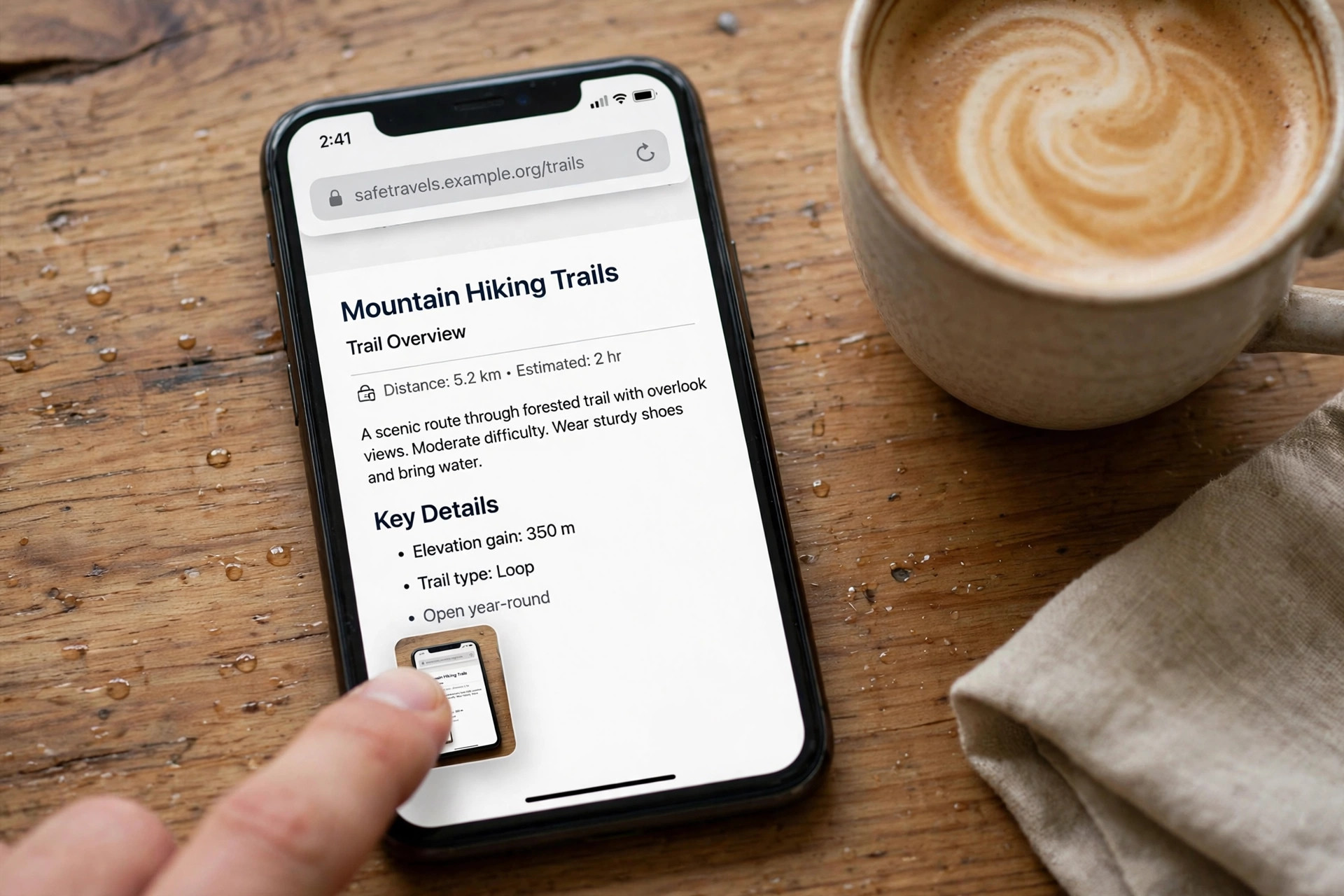
Step 3: Tap the preview, then choose Full Page. Tap the small preview in the bottom-left corner before it slides away. Tap Full Page at the top to switch from the visible screen.
Step 4: Crop or mark up the capture. Drag the side preview to check the whole page from top to bottom. Tap Crop to drop a footer, or Markup to circle a detail.
Step 5: Tap Done and choose where to save it. The save options appear after you tap Done at the top. Pick Save to Photos for an image or Save PDF to Files.
Apple lists the buttons for every iPhone model in its iPhone screenshot guide. If the preview slides away, the shot saves as a normal screen capture only. Take the screenshot again and tap the preview in time.
Save the Capture as PDF or as an Image
The save choice for a full page screenshot on iPhone decides document or picture. Save PDF to Files stores a document in the folder you pick. Save to Photos stores one tall image in your photo library. A full page screenshot on iPhone saves as PDF or image from the same Done button.
Choose the PDF when you need a document to print, file or share by email. Choose the image when you want to share the page in a chat or post. On iOS 16 and earlier, only the PDF option exists at all.
A PDF keeps the page as it looked, so it opens the same way offline. Turn it into a JPG later with our PDF to JPG guide. Our screenshot to PDF guide shows the same save on Android and desktop.
Method 2: Full Page Capture in Chrome on iOS
Chrome on iOS also offers a Full Page tab in the screenshot preview on newer versions. The steps match Safari, since both use the same iOS screenshot editor. Open the page in Chrome, take a screenshot, then tap Full Page.
If the Full Page tab does not appear, Chrome on your version lacks the feature. Switch to Safari for that page, since Safari always offers the tab. You can also share the page from Chrome to Safari in two taps.
Method 3: Scrolling Screenshot Apps for Other Apps
Safari cannot capture a chat thread or a social feed as one long image. Scrolling apps stitch several screenshots into one tall picture for you. Tailor and Picsew are two apps made for this exact job.
Step 1: Take overlapping screenshots of the thread. Capture the chat screen by screen, with each shot overlapping the last one. Keep the scroll steady so the app can match the joins.
Step 2: Open the app and let it stitch them. The app finds your recent screenshots and lines them up by matching edges. Check the joins for gaps or doubled lines before you save.
Step 3: Save or share the stitched image. Export the result to Photos as one tall JPG or PNG file. Share it straight to a chat or email from the app.
Stitched captures can blur text where two shots join, so zoom in and check first. Apps need Photos access to find your screenshots, so grant it only to apps you trust. Free apps may add a watermark, so check the export before you share.
When the Full Page Option Is Missing
The Full Page tab appears only for content that scrolls as one document. Safari shows it for web pages, while most other apps do not offer it. If the tab is absent, the app likely uses custom scrolling that iOS cannot capture.
An old iOS version can also hide the feature, since Full Page arrived with iOS 13. Check your version in Settings, then General, then About on your phone. Update iOS if your phone still runs a version older than 13. Apple lists this feature in its iPhone User Guide for iOS 13 and later.
A page that blocks screenshots will show a black capture instead of the page. Banking and streaming apps often block captures for security and copyright reasons. Use the app share button or the Safari share menu instead.
Our Mac guide covers full page captures on a computer instead. Compress the tall image before you send it, with our image compression guide. Our Windows guide shows the same full page capture on a PC.
Frequently Asked Questions
What is the easiest way to take a full page screenshot on iPhone?
Open the page in Safari, take a screenshot, tap the preview, then choose Full Page. Tap Done and save it to Photos as an image or to Files as a PDF.
Can I take a full page screenshot on iPhone in Chrome?
Yes, newer Chrome versions show the same Full Page tab in the screenshot preview. If the tab is missing, open the page in Safari and capture it there.
Why is there no Full Page option on my iPhone?
The option appears only for scrolling documents like Safari web pages. Chats, feeds and maps use custom scrolling, so iOS cannot capture them as one page.
Can I save a full page screenshot on iPhone as a photo?
Yes, iOS 17 and later offer Save to Photos for a tall image file. On older versions, save the PDF to Files and convert it later.
Use Safari for web pages, Chrome for quick captures, and a stitching app for chats. A full page screenshot on iPhone needs no paid app for web pages at all. Save the capture as a PDF for records, or as an image for sharing.
Leave a Reply