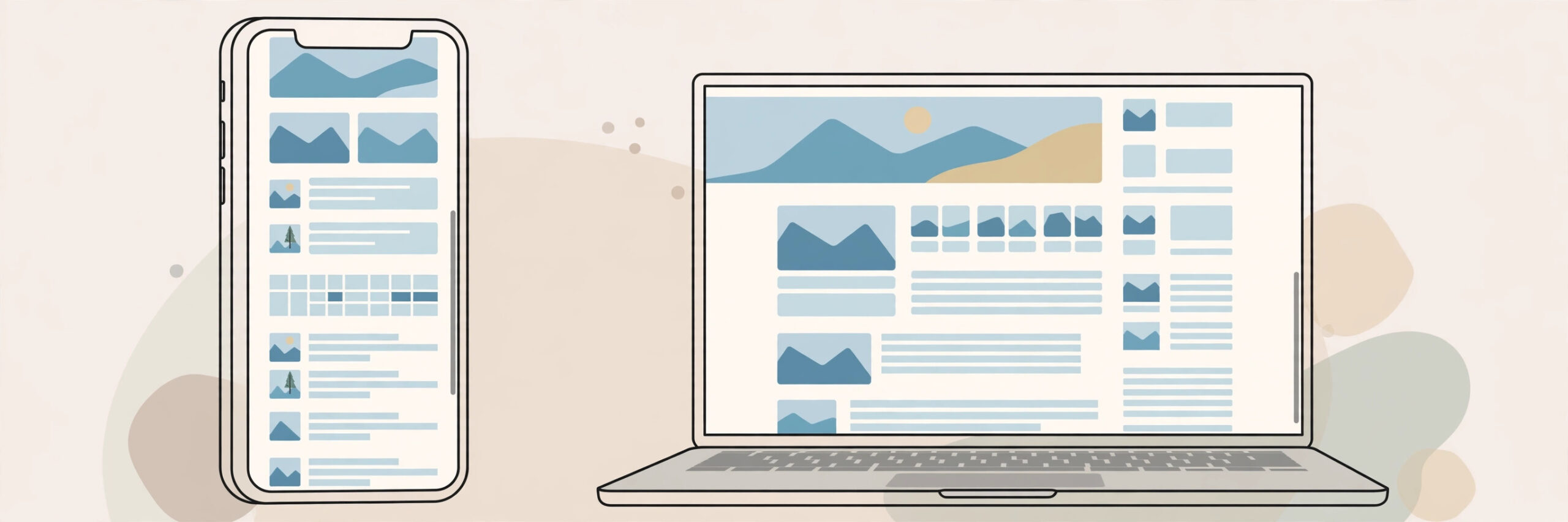
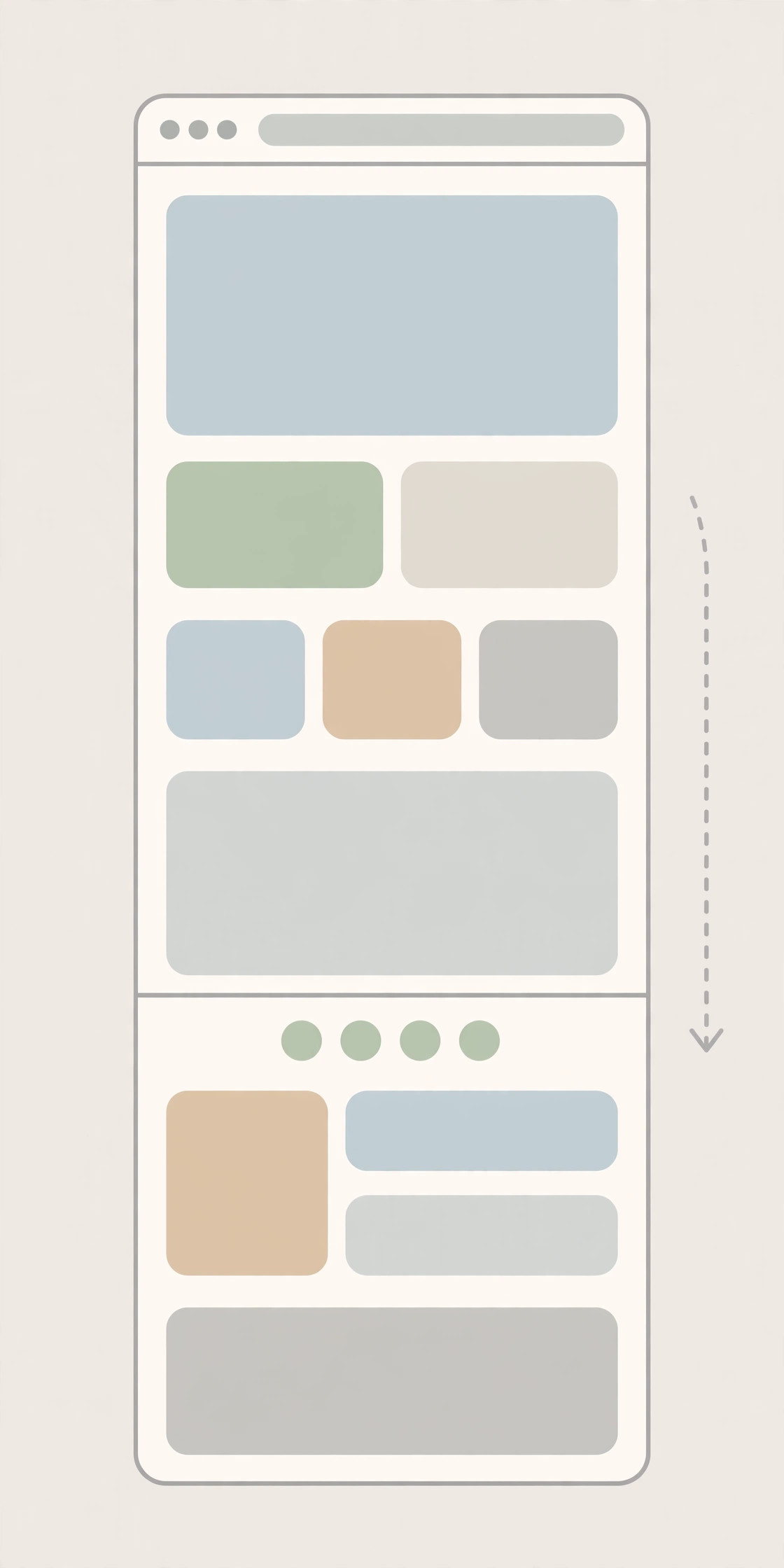
A normal screenshot only captures what is visible on your screen. For a long article, a full receipt, or an entire web page, that means several screenshots and a lot of stitching. A full-page screenshot solves this by capturing the whole page from top to bottom in a single image. The good news is that every major device can already do this built in — the option is just hidden in different places. This guide covers Chrome and Firefox on computers, plus Android and iPhone.
On Windows or Mac with Chrome
- Open the page you want to capture in Chrome, and wait for it to finish loading, including images further down the page.
- Open DevTools by pressing Ctrl+Shift+I on Windows or Cmd+Option+I on Mac.
- Open the command menu by pressing Ctrl+Shift+P on Windows or Cmd+Shift+P on Mac.
- Type “Capture full size screenshot” and press Enter when that option appears.
- Chrome downloads a PNG of the entire page. You will find it in your Downloads folder, ready to share or save.
On Windows or Mac with Firefox
- Open the page in Firefox and let it load completely.
- Right-click on an empty part of the page and choose “Take Screenshot” from the menu.
- Click “Save full page” in the toolbar that appears at the top right.
- Firefox captures the whole page. Click “Download” to save the image to your device.
On Android
- Open the page in Chrome and take a normal screenshot by pressing the power button and volume-down button together.
- Look for a “Capture more” or scroll-capture option in the preview that appears. On Samsung phones this is called “Scroll capture”. The exact name varies by brand, and some phones do not offer it in every app.
- Drag the selection handles to include the full page, then tap Save.
- If your phone has no scroll-capture option, use Chrome’s Share menu, choose Print, and save the page as a PDF instead. You get the full page in one document, just in PDF form.
On iPhone with Safari
- Open the page in Safari and take a screenshot by pressing the side button and volume-up button together.
- Tap the screenshot preview in the bottom-left corner before it disappears.
- At the top of the preview, switch from the “Screen” tab to the “Full Page” tab. You will see the entire page as one long image.
- Tap Done and save it to Files. Note that iPhone saves a full-page capture as a PDF, not an image. If you need it as an image, the PDF to Image tool on iboxseo.org can turn its pages into images in the browser.
Tips for clean full-page screenshots
Close pop-ups and cookie banners before capturing, or they will appear in the middle of your screenshot. Scroll through the page once first, so images that only load when they scroll into view are actually loaded. Remember that very long pages produce very tall images, which can be awkward to share — in that case, converting the capture to a PDF, for example with the Screenshot to A4 PDF tool on iboxseo.org, gives you a neater document with proper pages.
Frequently asked questions
Why is my full-page screenshot blurry in places? The usual cause is images that had not finished loading when the capture ran. Scroll through the page once first and wait a few seconds, then capture again.
Can I take a full-page screenshot inside an app, not a browser? The built-in browser options only work on web pages. Inside apps, use your phone’s scroll-capture feature where it is offered, or capture in sections and combine them.
What format are full-page screenshots saved in? Chrome and Firefox save them as PNG images. iPhone saves a full-page capture as a PDF, which you can turn into images afterwards with the PDF to Image tool on iboxseo.org if you need image files.
Final word
Once you know where the built-in option lives, full-page screenshots take seconds and need no extra app or manual stitching. Use Chrome or Firefox on a computer, scroll capture on Android, or the Full Page tab in Safari on iPhone, and you will have the whole page in one clean file.
Leave a Reply