
To convert PDF to PNG in high quality, open the PDF to Image tool on iboxseo.org, upload your PDF file, choose PNG as the output format, convert the pages you need, and download the resulting images. Check each PNG at full size before you use it, so small text stays sharp and easy to read.
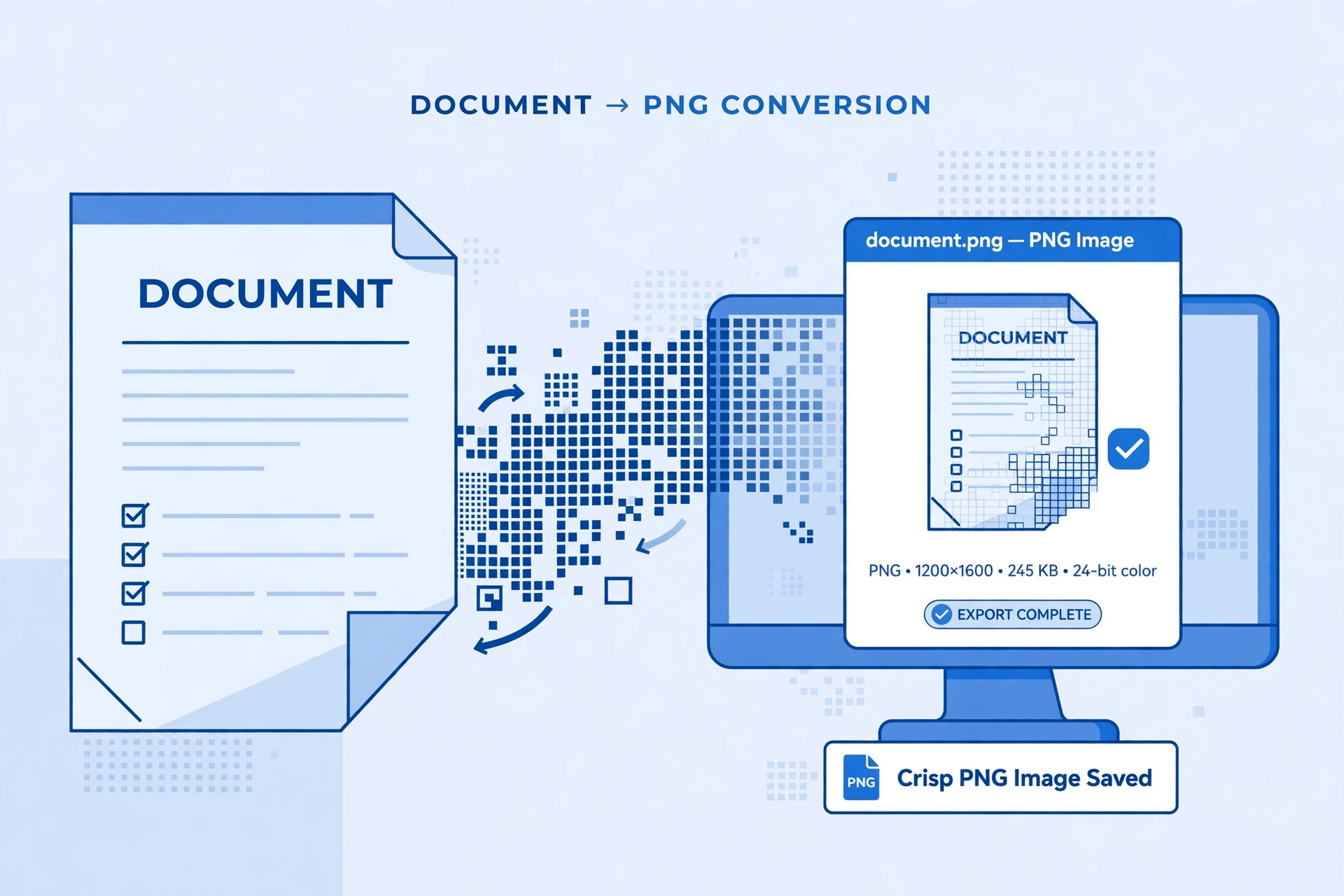
A PDF is made for reading and printing a whole document, while a PNG is made for sharing a single page or image. That is why people turn a PDF page into a PNG when they need to add it to a presentation, a post, a design, or a message. PNG is a good choice for this job because it handles text, lines, and diagrams cleanly, without the soft edges that can appear when a picture is saved in a format made mainly for photographs.
How to Convert PDF to PNG in High Quality
Follow these steps with the PDF to Image tool on iboxseo.org. The steps work the same way in principle on a phone, a tablet, or a computer, because you only need a browser and your PDF file.
- Open the PDF to Image tool on iboxseo.org.
- Upload the PDF file you want to convert.
- Choose PNG as the output image format.
- Convert the pages you need, and wait for the conversion to finish before you move on.
- Download the PNG images to your device.
- Open each PNG at full size and check that the text, lines, and diagrams look sharp before you share or print it.
If a page still looks soft, go back and convert it again at the highest quality or resolution the tool offers, if such a choice is available. Do not try to fix a blurry PNG by enlarging it afterwards, because enlarging a finished image cannot bring back detail that was not captured in the first place.
How to Convert PDF to PNG on Mobile and PC
On a PC, the process is usually the easiest to check. You can upload a file from your computer, download the PNG files, and open them in an image viewer to inspect them at full size. Give each file a clear name, such as the document name and the page number, so you can find the right page later without opening every image.
On a mobile phone, the same steps apply, but take extra care with file locations. After you download a PNG, check where your phone saved it, and open it in your gallery or files app before you send it on. If the image looks small on your phone screen, zoom in to check the text, because a small preview can hide blur that will be obvious when the image is viewed on a larger screen.
Tips for Sharp, High-Quality PNG Images
High quality starts with the original PDF. A clear, well-made PDF will give you a clear PNG, while a scanned page that is already blurry will stay blurry after conversion. Keep these tips in mind for the best result.
- Use the original PDF when you can, rather than a photo of a printed page.
- Convert only the pages you need, so you can check each one properly.
- For printing, use the largest, highest-quality output you can; for sharing online, balance sharpness with a file size that is easy to send.
- Check small text, fine lines, and diagrams at full size, not just in a thumbnail preview.
- Keep a copy of the original PDF, so you can convert a page again if you later need a different size or format.
Common Mistakes When You Convert PDF to PNG
Most poor results come from a few avoidable mistakes. Watch out for these when you convert PDF to PNG.
- Converting at a low quality and then enlarging the PNG to make it look bigger.
- Judging sharpness from a small preview instead of opening the image at full size.
- Using a screenshot of a PDF page instead of a proper conversion, which can cut off edges and soften text.
- Forgetting to check every page, so one blurry or cropped page slips into a presentation or post.
- Saving the result in the wrong format for the job, such as a format that softens text and line art.
Frequently Asked Questions About Converting PDF to PNG
Is PNG a good format for a PDF page? Yes, PNG is a good choice for pages with text, diagrams, charts, and line art, because it keeps edges and lettering crisp. It is less suited to very large photographic pages, where the file size can become large.
Can I convert PDF to PNG on my phone? Yes. Open the PDF to Image tool on iboxseo.org in your phone browser, upload your PDF, choose PNG, convert, and download the images. Then open the downloaded PNG files to check them at full size before sharing them.
Why does my PNG look blurry? The most common reason is that the conversion was done at too low a quality or resolution, or the original PDF page was already blurry. Convert the page again at the highest quality available, and check the result at full size rather than in a small preview.
Can I convert only one page of a PDF? In most cases, yes. Convert the pages you need and download the ones you plan to use. Naming each PNG with its page number makes it easy to find the right image later.
When you convert PDF to PNG in high quality, take a moment to check the result before you use it. A sharp, well-named PNG is easy to share, easy to print, and easy to reuse in presentations, posts, and documents.
Leave a Reply