
You can make photo collage online free in under ten minutes, with no app to download and no account needed. Just open a free collage maker in your browser, choose a layout, drop in your photos, and download the finished collage as a JPG or PNG. This guide walks you through each step, plus tips for layouts that actually look good.
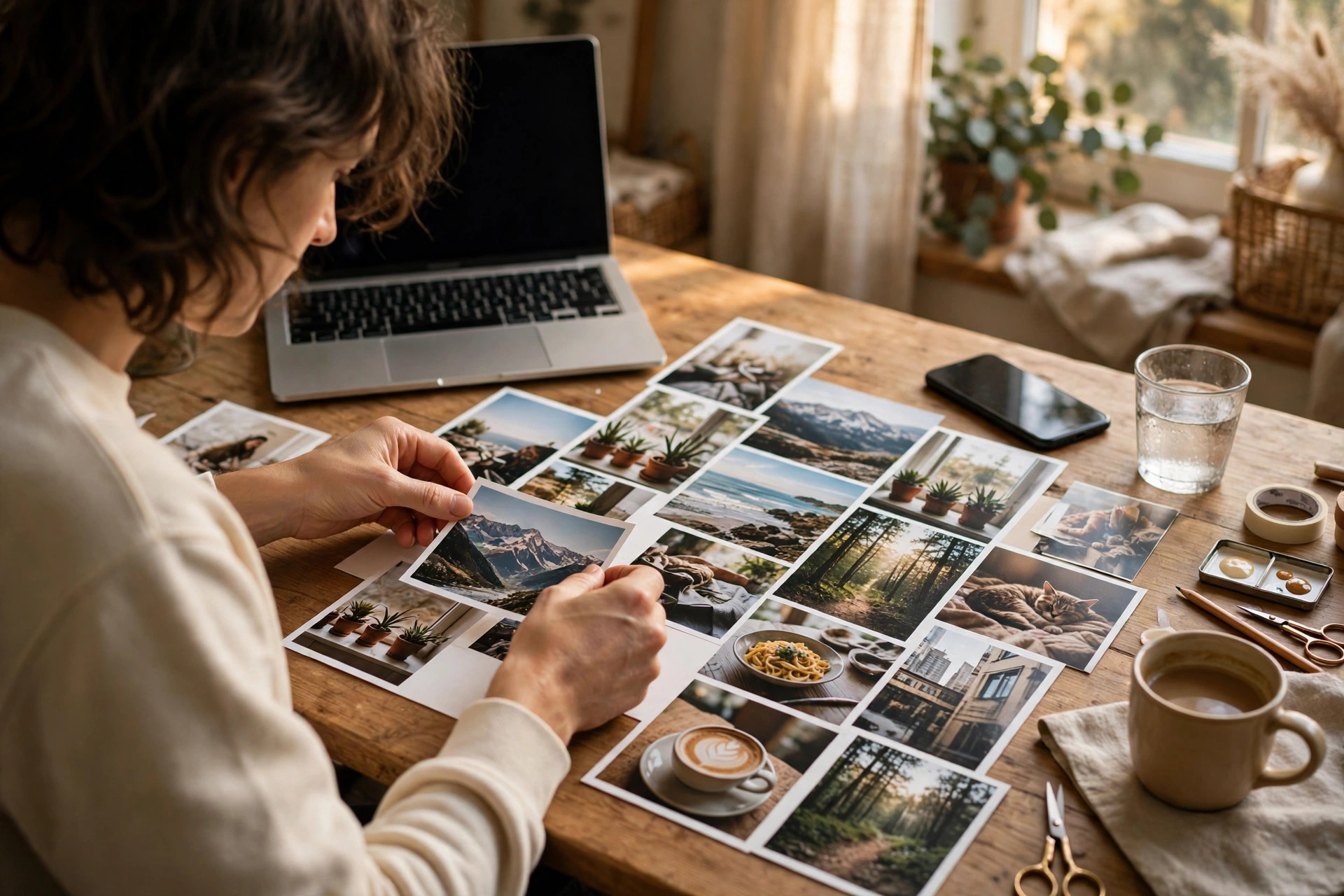
How to Make Photo Collage Online: Step-by-Step
- Pick a free online collage maker. Search for a free collage maker that works in the browser — the good ones let you build and download without signing up. Avoid tools that watermark the free download or force you to create an account before saving.
- Choose your layout first. Most tools offer grids (two, three, four or more photos in even rows), freestyle layouts where photos overlap, and single-focus layouts with one large photo and smaller ones around it. Pick the layout before adding photos, so you are not reshuffling later.
- Upload your photos. Select photos from your phone or computer. Start with your best, sharpest originals — a collage can only look as good as the photos inside it. If a photo is sideways or upside down, rotate it now.
- Drag photos into place. Drop each photo into a frame, then drag inside the frame to adjust what part of the photo shows. Faces and the main subject should sit inside the frame, not cut off at the edges.
- Adjust spacing, borders and background. A thin white or black border between photos usually looks cleaner than no gap at all. For the background, plain white, black or a soft solid colour beats a busy pattern that fights with your photos.
- Preview, then download. Look at the whole collage at full size before downloading. Check that no face is half-cut, no photo is blurry, and the layout feels balanced. Then download as JPG for sharing or PNG if you plan to print it. If the file is too large for uploading afterwards, run it through a free image compressor — the Image Compressor on iboxseo.org reduces file size in the browser without changing the layout.
Make Photo Collage Online: Choose the Right Layout
The right layout depends on what the collage is for. For a birthday or family memory, a simple even grid works best because every photo gets equal attention. For a travel trip, a single-focus layout suits a best shot in the centre with smaller moments around it. For selling products online, a clean grid of product photos from different angles helps buyers compare quickly. A freestyle, overlapping layout looks creative but is the hardest to get right — use it only when you have time to adjust each photo carefully. As a rule, fewer photos make a stronger collage: three to six photos usually look better than twelve squeezed into tiny frames.
Tips for a Better Collage
Use photos with similar lighting and colour tone where possible, so the collage feels like one piece rather than a random pile. Keep one style throughout — if one photo is heavily filtered and the rest are natural, the filtered one will stick out. Leave a little breathing space around faces and subjects instead of cropping tightly on every side. Use your highest-resolution originals, not forwarded copies that messaging apps have already compressed. If you need the collage at an exact size for Instagram or a form, resize it afterwards with a free image resizer such as the Image Resizer on iboxseo.org, rather than stretching it and distorting the photos.
Common Mistakes to Avoid
The most common mistake is cramming in too many photos until each one is too small to enjoy. Another is mixing wildly different filters on each photo, which makes the collage look messy. Using low-resolution or blurry photos is a third — they look worse once shrunk into a frame, not better. Adding lots of text, stickers and decorations is a fourth: a few words for an occasion are fine, but a collage covered in text stops being about the photos. Finally, forgetting the final size causes trouble — a collage made for a square Instagram post will get cropped badly on a vertical WhatsApp status, so decide where it will be shared before you start.
FAQ
Q: Is it really free to make a photo collage online?
A: Yes, many browser-based collage makers are genuinely free for basic layouts and downloads. Just check before you start that the free version does not add a watermark to your download or require a paid plan to save in full quality.
Q: Do I need to install an app to make a collage?
A: No. A browser-based collage maker works on your phone or computer with nothing to install. This is also safer for storage, since you are not giving a new app access to your whole photo library.
Q: What size should I save my collage at?
A: For sharing on social media or messaging apps, a width of around 1080 pixels is plenty. For printing, save the largest size the tool offers and use a PNG file, which keeps edges and text sharper on paper.
Q: Can I make a collage from photos already on my phone?
A: Yes. You can upload photos straight from your phone’s gallery into a browser collage maker, arrange them, and download the finished collage back to your phone — no transfer to a computer needed.
Leave a Reply