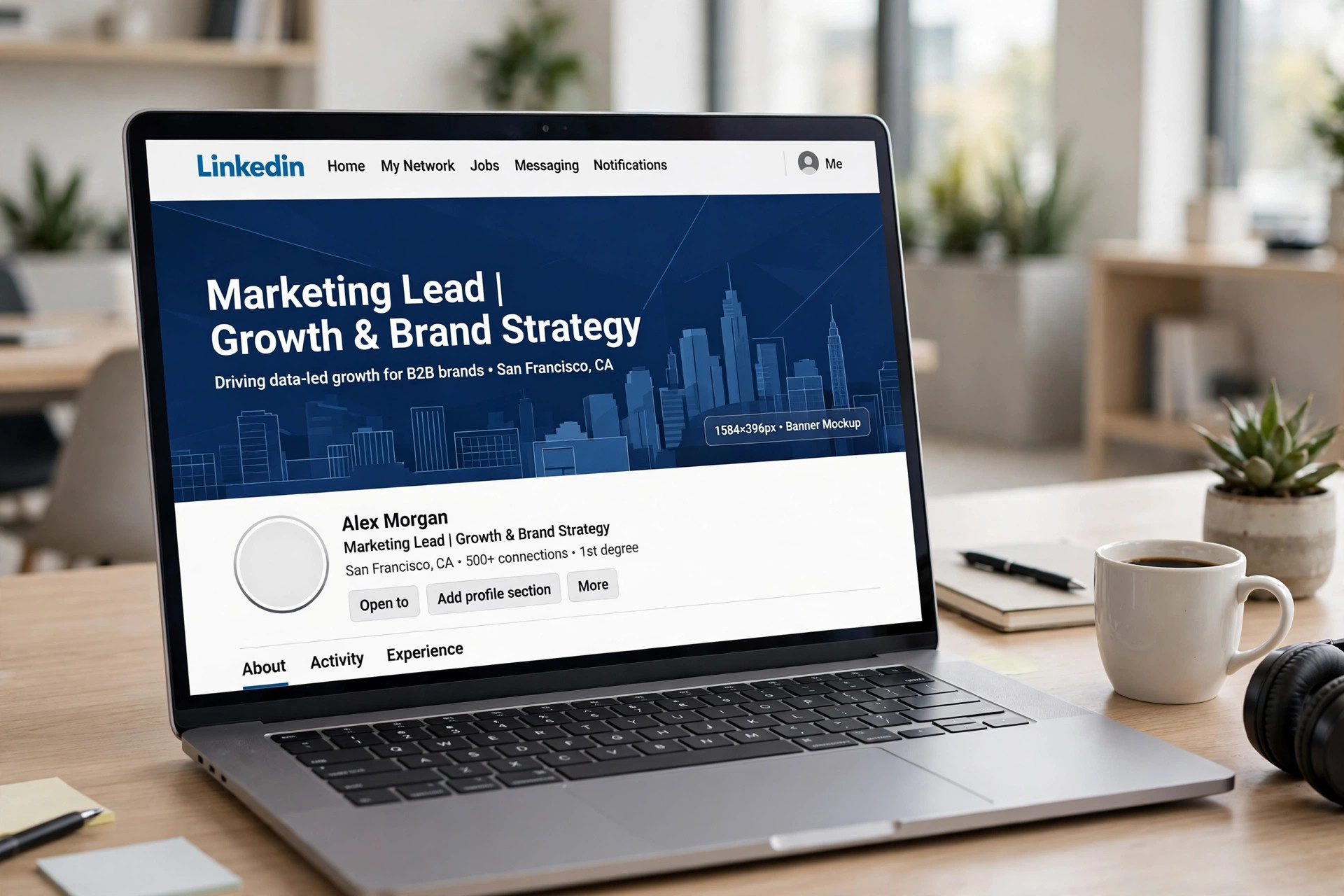
The LinkedIn banner size is 1584 by 396 pixels for a personal profile. That is a wide 4:1 strip behind your name and headline. Company pages use a different cover size, so one file cannot serve both. Keep text in the centre safe zone so the mobile crop never cuts it.
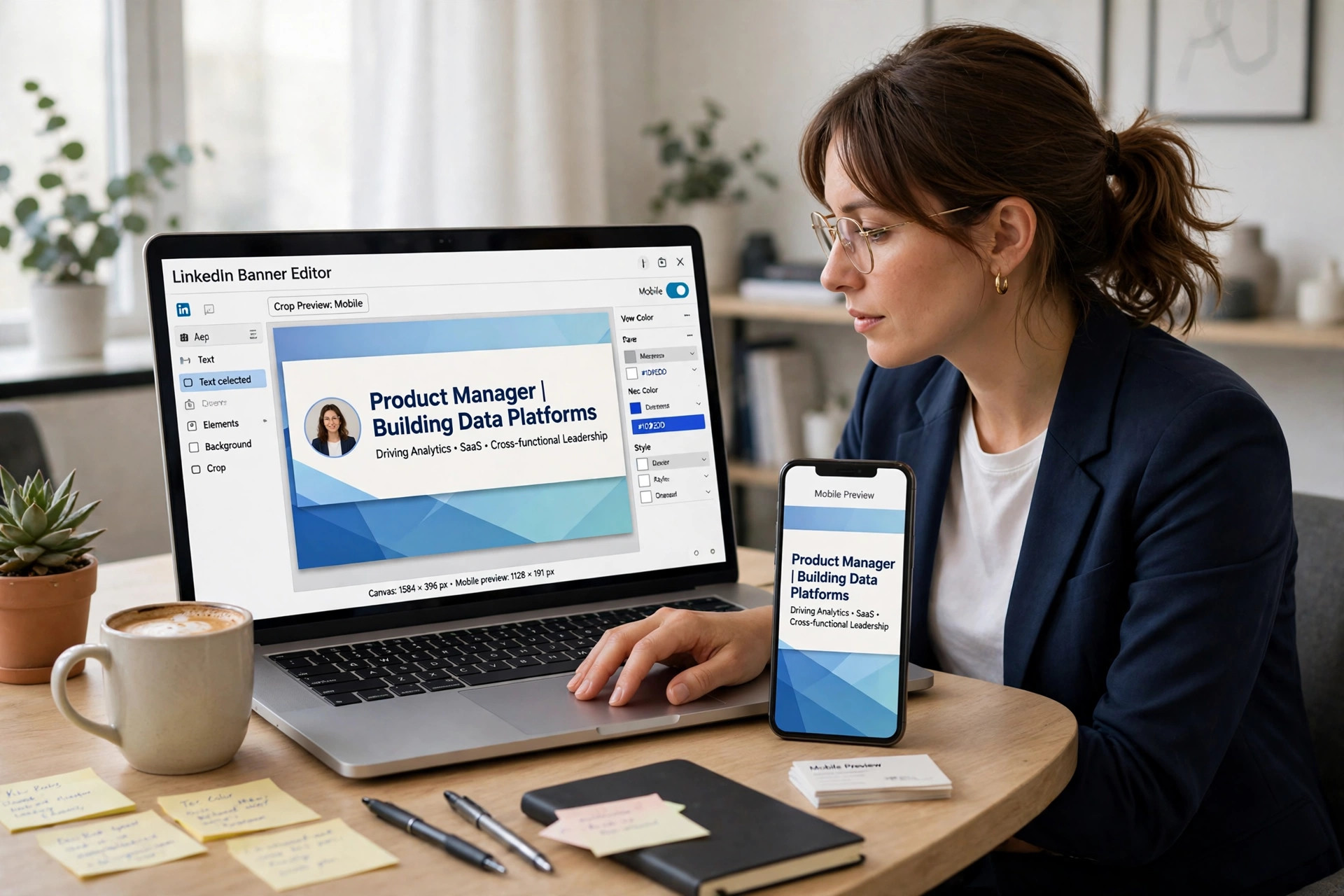
What Size Is a LinkedIn Banner?
The LinkedIn banner size for a personal profile is 1584 by 396 pixels. That is a 4:1 ratio, four times wider than it is tall. LinkedIn accepts JPG, PNG and GIF files up to 8 MB in size. Upload at exactly 1584 by 396 pixels for the sharpest result on desktop. A smaller image gets stretched and looks soft or blurry fast. A larger image works too, since LinkedIn scales it down cleanly. For extra sharpness on retina screens, upload at 3168 by 792 pixels instead. That is double the display size and stays under the 8 MB cap. Our guide to image sizes for social media covers the other platforms too.
Personal Banner vs Company Page Cover
The personal banner and the company page cover use different sizes. A company page cover is listed at 1512 by 256 pixels in current specs. That is about a 6:1 ratio, much wider and shorter than 4:1. Older guides still print 1128 by 191 pixels for the same surface. LinkedIn updated the page specs in 2026, so check the help pages first. A personal banner file uploaded to a company page gets cropped hard. A company cover uploaded to a profile gets stretched and looks wrong. Design a separate file for each surface and never reuse one. Our guide to crop an image to the perfect size helps you frame each one.
The Mobile Crop and the Safe Zone
Most LinkedIn traffic comes from phones, so design for mobile first. On mobile LinkedIn crops the banner to a centre slice about 840 pixels wide. That cuts roughly 372 pixels from each side of the image. Keep your headline, logo and key text in the centre safe zone. The profile photo also overlaps the bottom left of the banner. Keep text out of that corner so nothing hides behind your photo. On desktop the full 1584 pixel width stays visible to visitors. Check the banner on your phone before you save the final version. Our guide to resize an image without losing quality shows the safe method.
How to Resize an Image for LinkedIn Banner in 4 Steps
Follow these steps to resize an image for LinkedIn banner with a free online tool. No app install is needed, and the job takes only a few minutes.
Step 1: Open a free online image resizer in your browser. Set the canvas to 1584 by 396 pixels before you upload anything.
Step 2: Upload the photo or design you want as your banner. Check that the source is sharp before you resize it at all.
Step 3: Fit the design inside the 1584 by 396 frame. Keep the key text in the centre so the mobile crop never cuts it.
Step 4: Download the resized banner as a JPG file. Open the file on your phone and check the edges before you upload it.
Best Export Settings for a Sharp Banner
The LinkedIn banner size works best with a JPG export at high quality. JPG keeps photos small while the detail stays clear and sharp. PNG works better for graphics with sharp lines and flat colours. Keep the file under 8 MB so the upload never fails. Use sRGB colour mode so colours look the same on every screen. Avoid resizing the same image more than once in a row. Each extra resize softens edges and adds visible blur to the design. Our guide to compress images for a website helps when the file is too large. To learn more, see the LinkedIn Help Center for the current banner specs.
Common Mistakes to Avoid
The biggest mistake is using the same file for profile and company page. The two surfaces use different ratios, so one file always crops badly. Another mistake is placing text at the far left or right edge. Mobile cuts those edges and your headline can disappear fast. Never upload a small image and stretch it to fill the banner. Stretching turns a clear design into a blurry mess very quickly. Our JPG vs PNG vs WebP guide explains which format keeps text sharp. Do not hide key details under the profile photo overlap either. That corner covers part of the banner on every profile view. Always preview the banner on a phone before you save it live.
Frequently Asked Questions
What is the LinkedIn banner size?
The LinkedIn banner size is 1584 by 396 pixels for personal profiles. It is a 4:1 ratio that sits behind your name and headline.
Can I resize a LinkedIn banner for free?
Yes, free online resizers can resize any image for a banner. Open the tool, set 1584 by 396 pixels, and download it.
Will my banner look blurry after resizing?
No, a sharp source image stays sharp after a careful resize. Start from the largest original image you have available.
What is the company page cover size?
The company page cover is listed at 1512 by 256 pixels in current specs. Older guides still show 1128 by 191, so check LinkedIn Help first.
The LinkedIn banner size to use is 1584 by 396 pixels. Keep text in the centre and preview it on mobile first. Then your profile will look sharp on every screen.
Leave a Reply