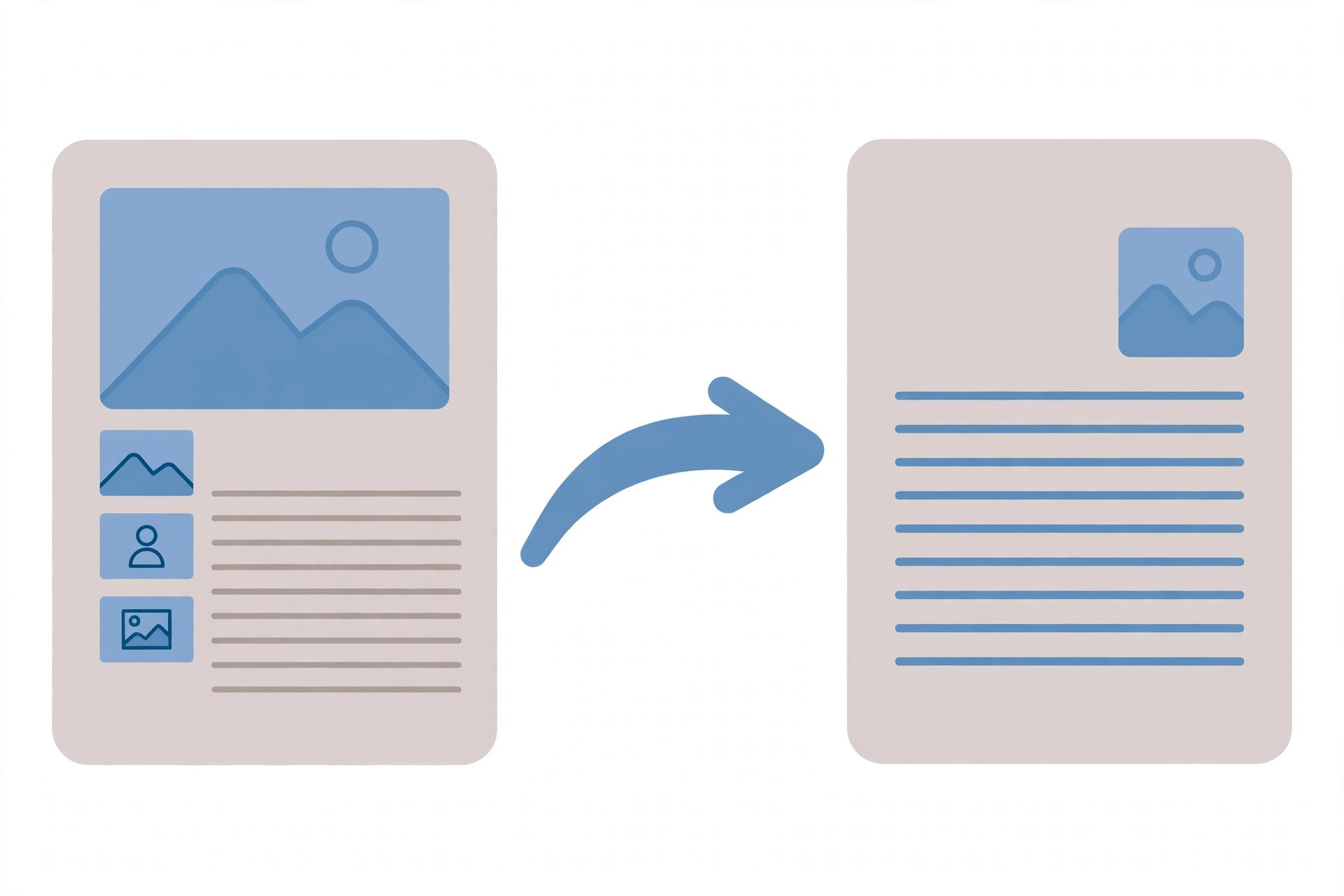
To convert PDF to Word for free, upload your PDF to a free online PDF-to-Word converter, or open it in a word processor that can import PDFs, then download the result as a Word document. The whole process takes a few minutes and needs no paid software. Below are the easiest methods for computer and phone, plus tips to keep your formatting intact.

Why PDF Formatting Sometimes Breaks
A PDF is designed to look the same everywhere, so it stores text, images and layout in fixed positions on each page. A Word document works differently: it flows text, so headings, paragraphs and tables adjust when you edit them. That difference is why conversion is not always perfect. Simple documents with plain paragraphs usually convert cleanly, while complex layouts with multiple columns, tables, footnotes or unusual fonts may need a quick tidy-up afterwards. Knowing this in advance saves frustration: expect a very good result, then spend two minutes checking it.
How to Convert PDF to Word for Free on Your Computer
Method 1: Use a free online converter
- Open a free online PDF-to-Word converter in your browser. No download or sign-up is needed for a basic conversion.
- Upload your PDF file. Most converters accept drag and drop, so you can drop the file straight into the page.
- Start the conversion and wait for it to finish. Small documents take seconds; large ones with many pages take a little longer.
- Download the Word file, usually in .docx format. Save it to a folder where you can find it easily.
- Open the downloaded file and check every page. Look at headings, tables, images and page breaks, and fix anything that shifted.
- Save a backup of the original PDF. If the conversion ever needs redoing, you still have the untouched original to start from.
Method 2: Open the PDF in a word processor
Some word processors can open a PDF and turn it into an editable document themselves. In Microsoft Word, use File, then Open, and select the PDF — Word will convert it and warn you that the layout may change slightly. In Google Docs, upload the PDF to Google Drive, open it, and choose the option to open it with Google Docs, which creates an editable copy you can download as a Word file.
How to Convert PDF to Word on Your Phone
- If the PDF is on your phone, open it in a free converter website in your mobile browser, or use a free PDF app that offers conversion.
- Upload the PDF from your files or gallery, and choose Word as the output format.
- Wait for the conversion, then download the Word file to your phone.
- Open it in a word-processing app to check the formatting before you share or edit it further.
- If the layout looks messy on a small screen, check it again later on a computer — phone screens hide problems that are obvious on a larger display.
Tips to Keep Your Formatting Intact
Start with the best original you have. A clean, text-based PDF converts far better than a blurry scan, because the converter can read real text rather than guessing at pictures of words. If your PDF is a scan, look for a converter with text-recognition support, and be ready to proofread more carefully. Simple fonts convert more reliably than decorative ones. After converting, check tables first, since they are the most likely element to move, then images, then headings. If you only need the pictures from a PDF page rather than editable text, the PDF to Image tool on iboxseo.org converts PDF pages to images free in the browser, which is a simpler job than a full document conversion.
Common Mistakes to Avoid
Converting a scanned PDF and expecting perfect text is the biggest mistake — a scan is a picture, not text, so the result will always need checking. Another common mistake is deleting the original PDF right after converting; keep it until you have checked and saved the Word version. Do not trust the first page alone: many people check page one, assume the rest is fine, and only discover a broken table on page five after sending the file. Finally, do not paste converted text into a new document to “clean it up” — that strips out styles and tables, and creates more work than fixing the converted file directly.
Frequently Asked Questions
Q: Can I convert PDF to Word for free without installing software?
A: Yes. Free online converters and browser-based word processors handle the whole conversion in your browser, so nothing needs to be installed on your computer or phone.
Q: Will my tables and images survive the conversion?
A: Usually yes. Simple tables and images generally transfer well, but complex tables, multi-column layouts and unusual fonts may shift slightly, so check those parts after converting.
Q: What if my PDF is a scanned document?
A: A scanned PDF contains pictures of pages, not selectable text. You need a converter with text-recognition support, and you should proofread the result carefully, since recognition can misread characters, especially in handwriting or low-quality scans.
Q: Is it safe to upload my PDF to a free converter?
A: For ordinary documents, yes, but use common sense. Avoid uploading documents with passwords, bank details, identity numbers or other sensitive information to any free online tool. For sensitive files, use a word processor on your own computer instead.
Final Tip
Converting PDF to Word for free is a two-minute job once you pick the right method: an online converter for speed, or a word processor you already use for convenience. Start from the best original you have, convert once, check the tables and images, and keep the original PDF safe. Do that, and your document will be editable without losing the layout that made it look professional in the first place.
Leave a Reply