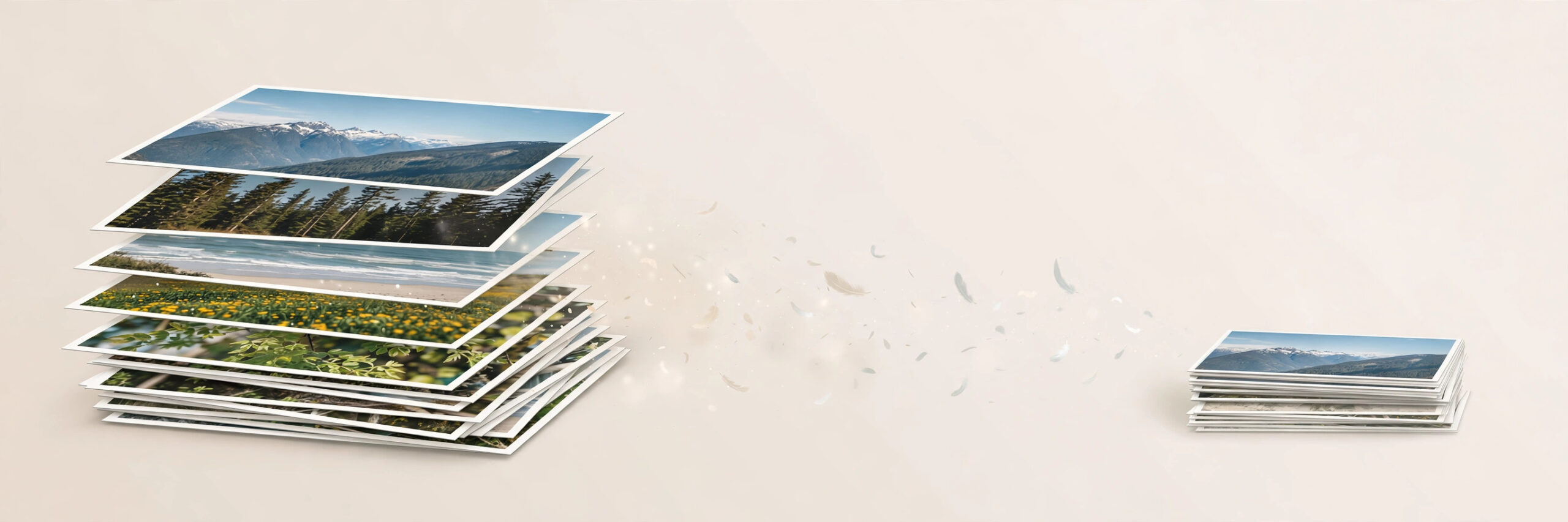
Compressing one image is easy. Compressing fifty is a chore — unless you do them all at once. Batch compression shrinks a whole set of images in a single pass, which is a lifesaver when you are preparing photos for a website, an online listing, a school project or a job application. Done right, it saves a lot of time and keeps every image looking good.
Why batch compression is worth it
Every uncompressed photo from a modern phone is several megabytes. A set of twenty such photos can easily pass one hundred megabytes, which is too large to email, too slow to upload, and too heavy for a website. Compressing them one at a time could take an hour. Batch compression does the same job in minutes, applying the same quality setting to every image so the results stay consistent.
Before you start
A little preparation prevents regret later:
- Back up your originals. Copy the full-size images to a separate folder first. Compression removes data, and you cannot get it back from the compressed copy.
- Decide your target. For websites and uploads, a width of around 1200 to 1920 pixels and a quality setting near 75 to 80 percent usually looks great while cutting file size dramatically.
- Keep file names tidy. If your images are named clearly, the compressed copies will be easy to find and use afterwards.
Steps: batch compress images online
- Gather the images into one folder on your device so you can select them all at once.
- Open a free online image compressor in your browser, such as the Image Compressor on iboxseo.org.
- Select all the images you want to compress. Most tools accept multiple files at once, either by selecting them together or by dragging the whole set in.
- Choose your quality setting. Around 75 to 80 percent is a good balance: files shrink a lot while photos still look sharp.
- Start the compression and wait for the batch to finish. Larger batches take a little longer, but the tool handles each image automatically.
- Download the compressed images, ideally as a group, and save them to a new folder so they do not overwrite your originals.
- Spot-check the results. Open two or three compressed images at full size and confirm they look clean, with no obvious banding or blockiness.
Steps: batch compress on a computer
- If you have photo software installed, look for an export or batch processing option.
- Select all the images, set the export size and quality once, and export the whole set to a new folder.
- Compare the total size before and after. A good batch usually cuts total size by half or more without visible quality loss.
Tips
- Compress once, at the end. Compressing the same image again and again degrades it each time, so do all your editing and resizing first, and compress last.
- Do not mix formats blindly. JPG is best for photos; PNG suits graphics and logos. Compressing a PNG photo will not shrink it as well as converting it to JPG first.
- Watch the smallest images in the batch. A quality setting that looks fine on a large photo can look rough on a small, detailed graphic, so always check a few different images from the set.
- If a few images come out too soft, re-compress just those at a slightly higher quality instead of redoing the whole batch.
- For images headed to a website, resizing them to the display size before compressing gives the biggest size saving of all.
- If your batch includes both photos and graphics, compress them separately. Photos and graphics compress best with different settings, and splitting the batch keeps both looking their best.
Closing
Batch compression turns a tedious job into a quick one: back up your originals, pick a sensible quality setting, compress the whole set in one pass, and spot-check the results. Whether you use a free online compressor or software on your computer, the habit saves time on every project — and keeps your uploads fast, light and sharp. Start with your next set of photos and you will feel the difference immediately: uploads finish faster, emails go through without bouncing, and websites load noticeably quicker.
Leave a Reply